![AccountAbility_logo_primary_fullcolor-1.png]](https://knowledgebase.counta.com/hs-fs/hubfs/AccountAbility_logo_primary_fullcolor-1.png?height=40&name=AccountAbility_logo_primary_fullcolor-1.png)
Step by Step Guide:
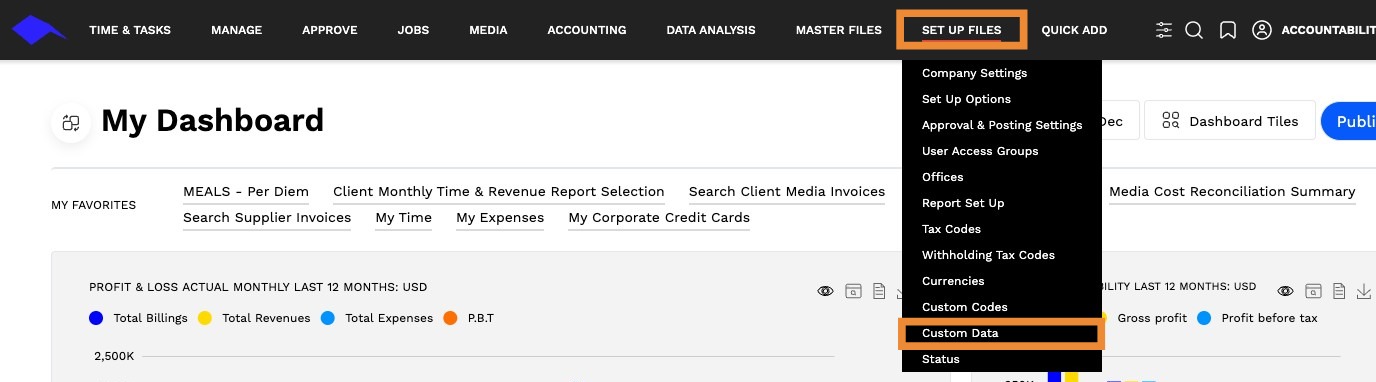
1. Navigate to SETUP FILES > CUSTOM DATA.
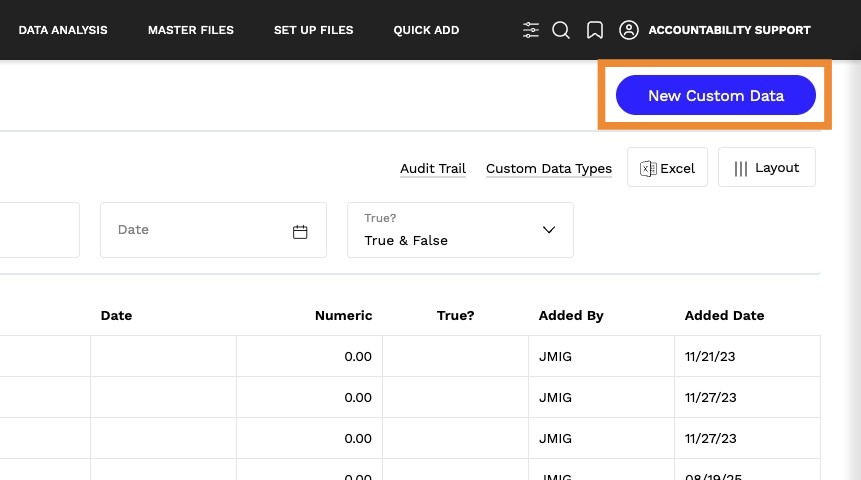
2. Click "New Custom Data".
3. Click this dropdown and select "State of Domicile".
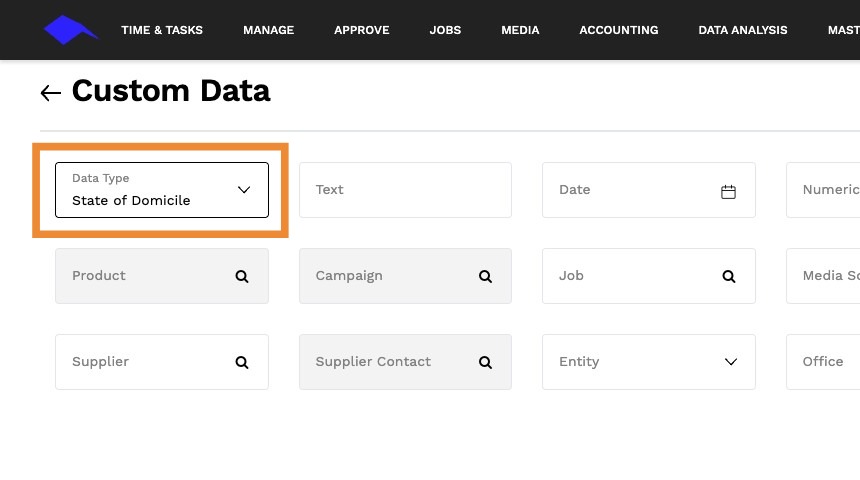
4. Enter the state you want to add on the "text" field.
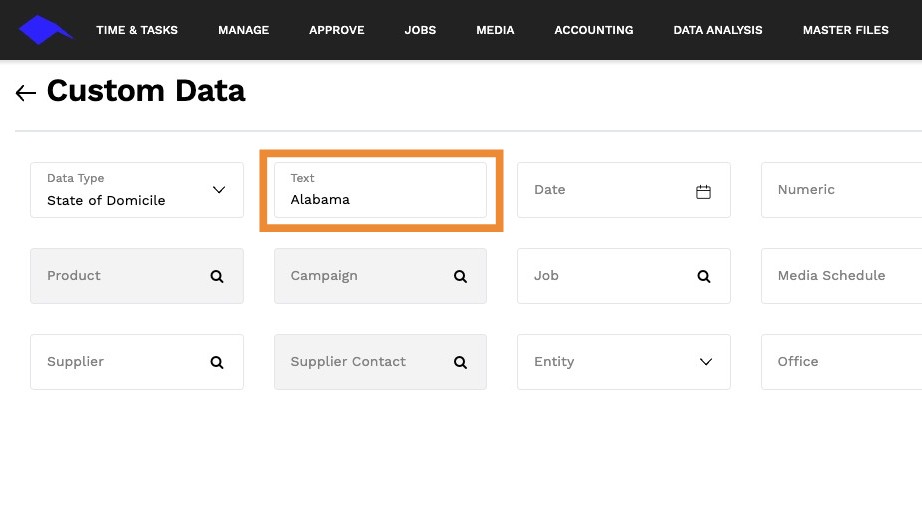
Tip: ONLY the text field is required for State of Domicile. Others can be left blank.
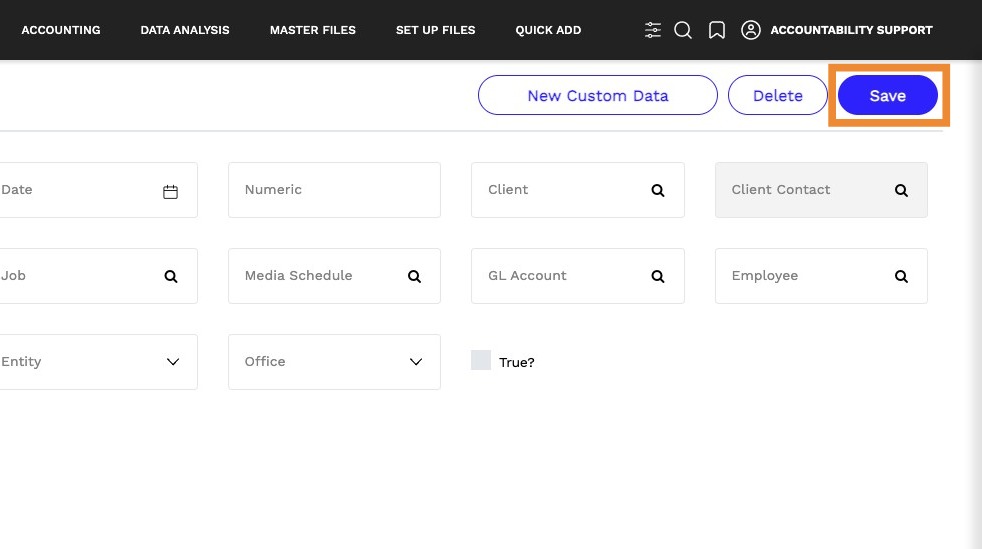
5. Click "Save".
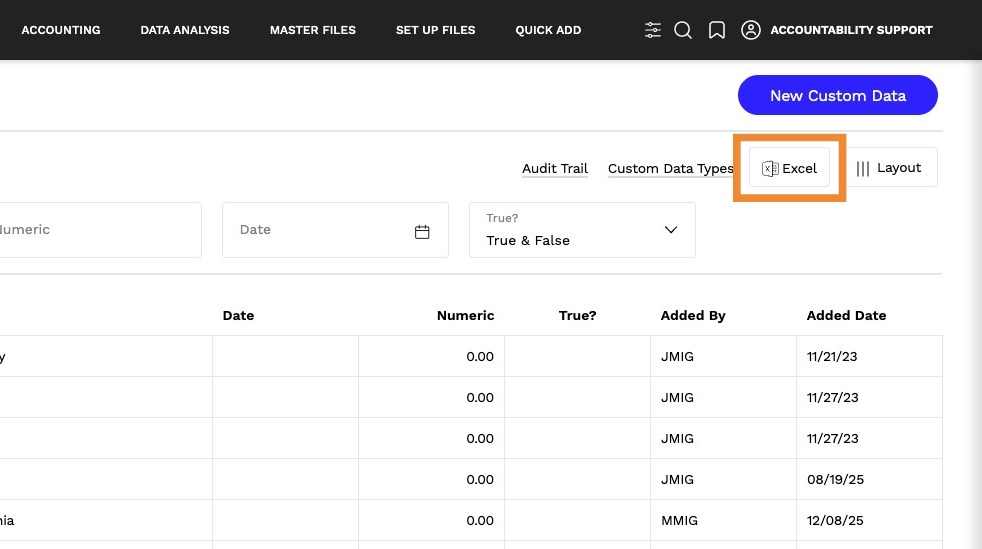
6. You can also add multiple states with an import file. To do this, click "Excel".
7. Click "Download Template".
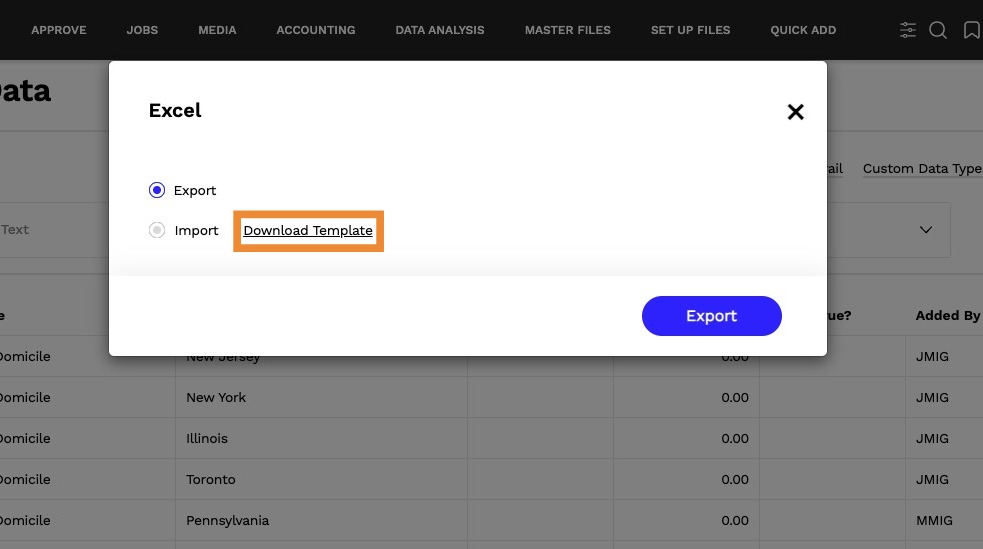
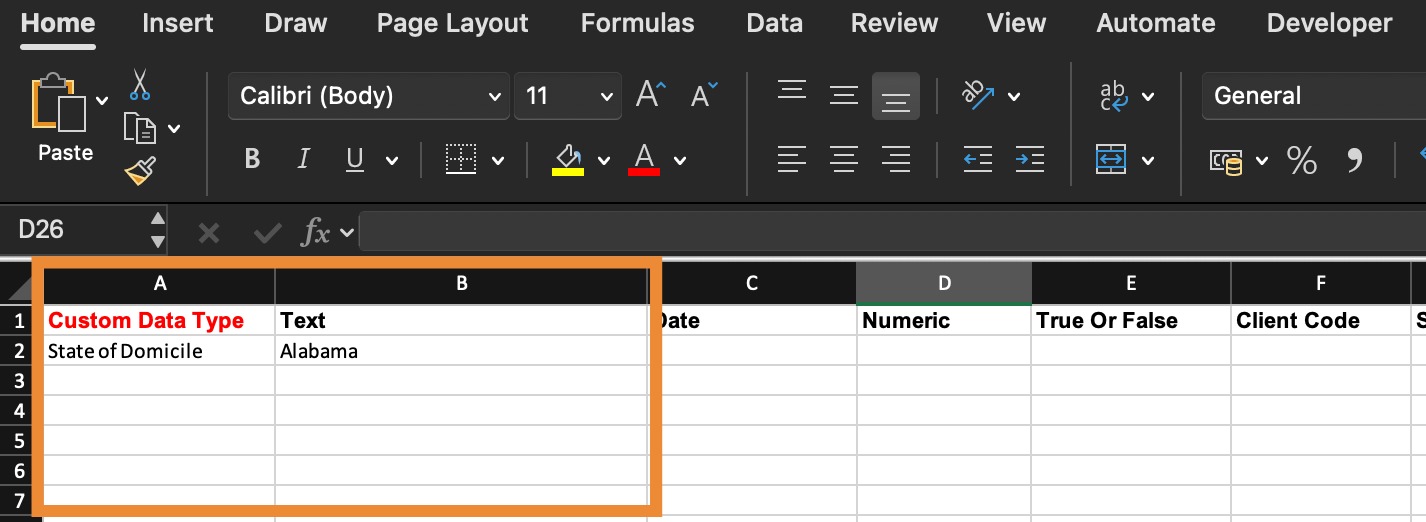
8. Type "State of Domicile" for Column A, labeled as Custom Data Type, and type the states you want to add on Column B, labeled as Text. The rest of the columns can be left blank. Once done, SAVE the file.
9. On Counta, Select "Import" > "Select File", and then choose the template file you updated.
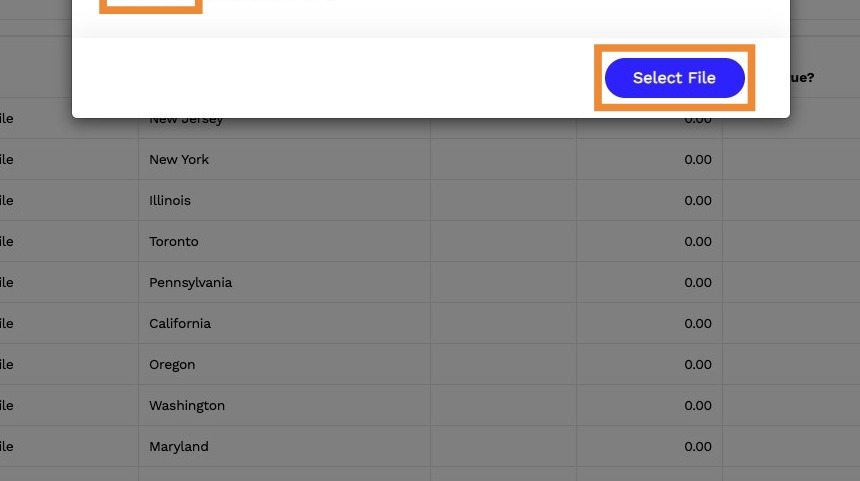
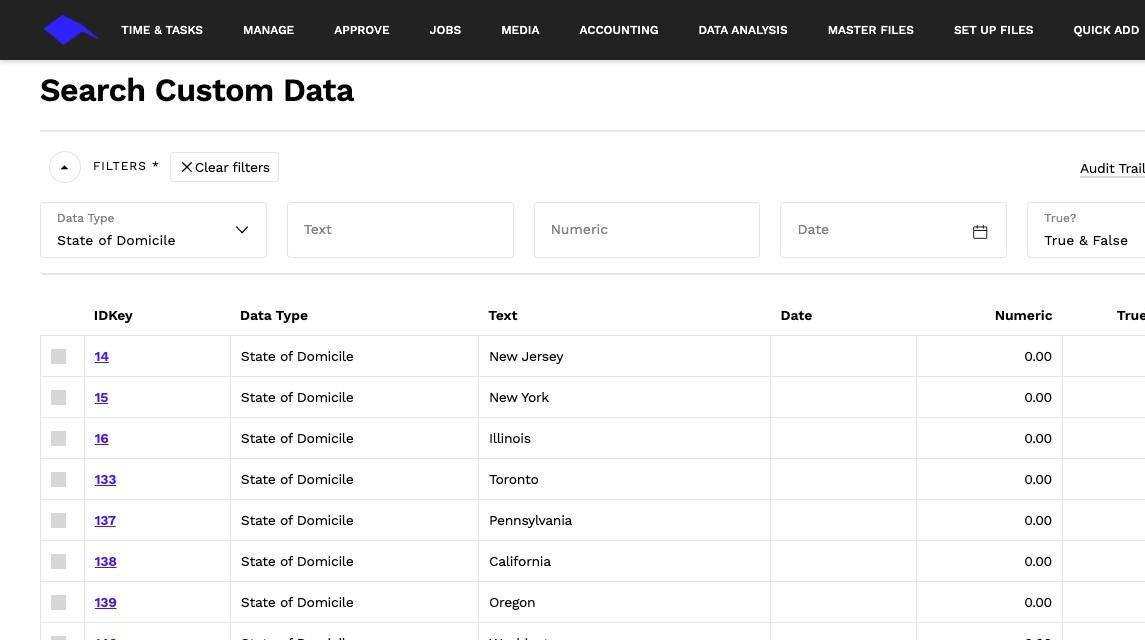
10. Once the import is complete, you will see the states you added on the list.