![AccountAbility_logo_primary_fullcolor-1.png]](https://knowledgebase.counta.com/hs-fs/hubfs/AccountAbility_logo_primary_fullcolor-1.png?height=40&name=AccountAbility_logo_primary_fullcolor-1.png)
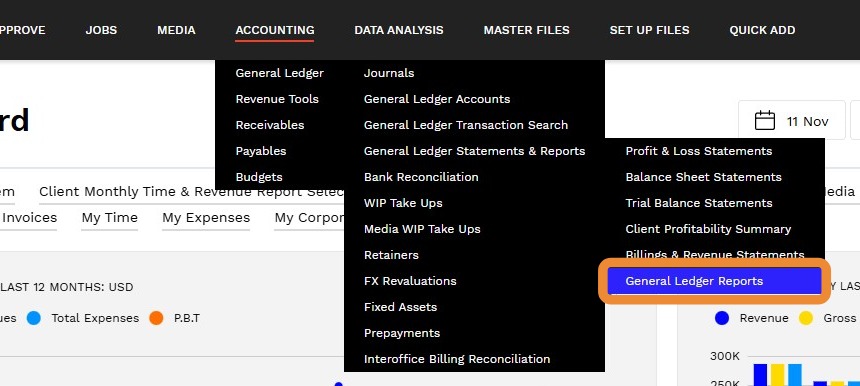
1. Navigate to ACCOUNTING > General Ledger > General Ledger Reports.
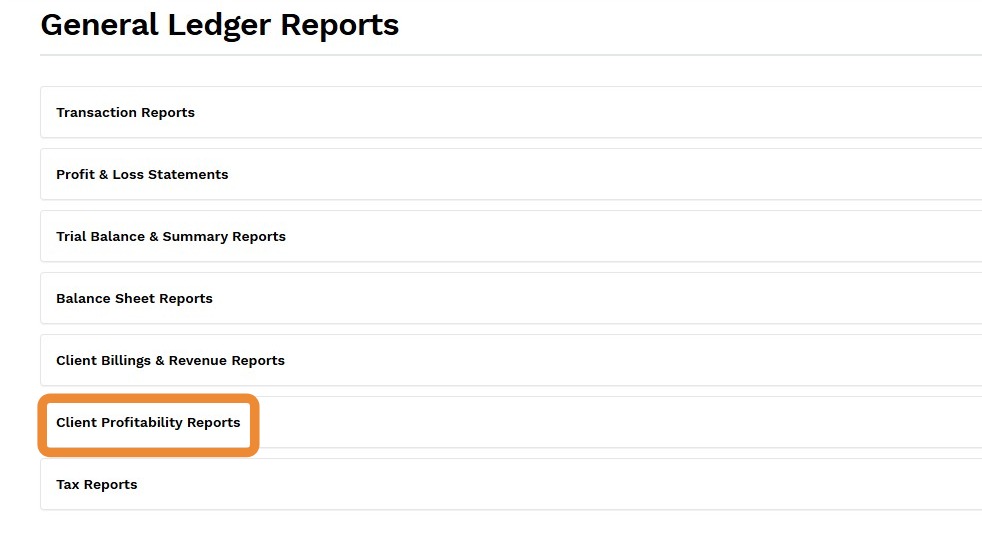
2. Expand Client Profitability Reports.
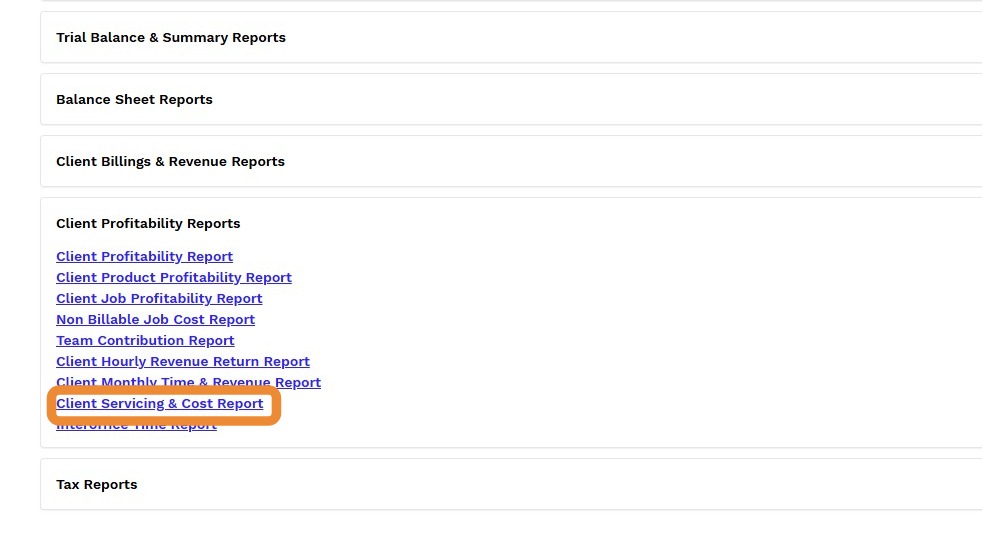
3. Click Client Servicing & Cost Report
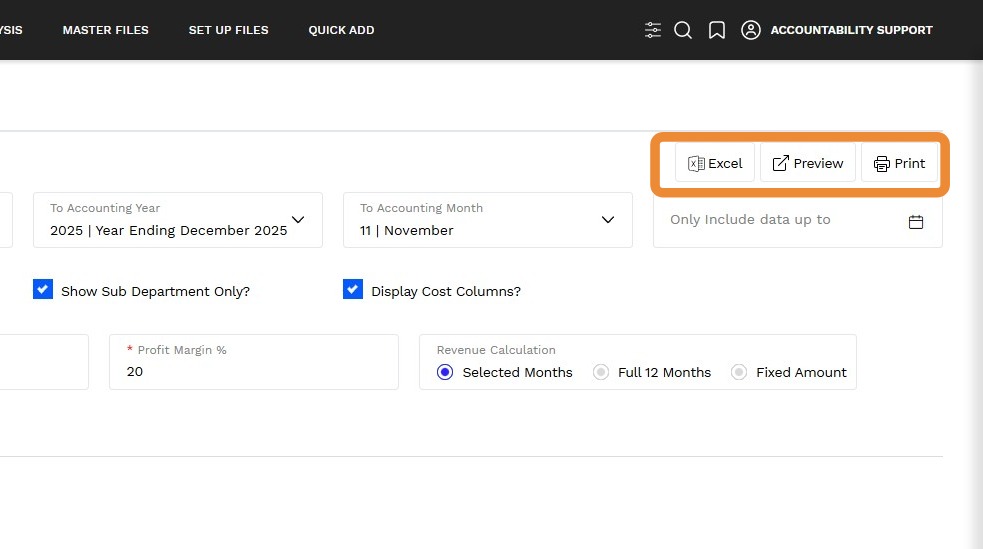
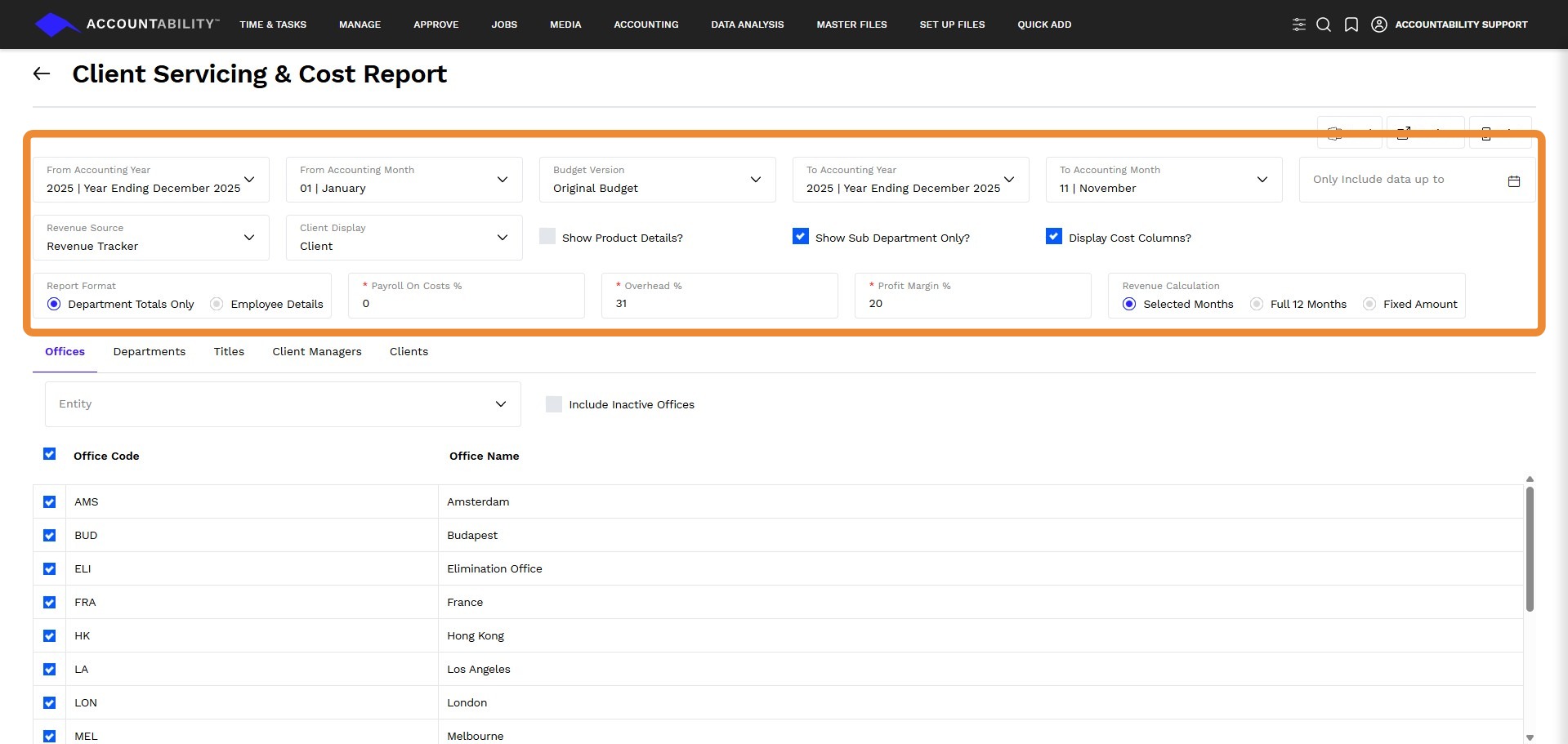
4. Define the following parameters:
- From Accounting Year - Enter or select the from accounting year.
- From Accounting Month - Enter or select the from accounting month.
- Budget Version - Choose the budget version you wish to see.
- To Accounting Year - Enter or select the from accounting year.
- To Accounting Month - Enter or select the to accounting month.
- Only Include Data Up To - Enter or select the date.
- Revenue Source - Choose a revenue source
- Revenue Tracker
- Resource Tracker
- Client Display - Choose how you wish to display the client report
- Client
- Reporting Client
- Industry
- Show Product Details? - Check to show product details regarding the report.
- Display Cost Columns? - Check to show the cost columns of the report.
- Report Format -Choose the reporting format you wish to display.
- Department Totals Only
- Employee Details
- Payroll On Costs % - To be added to the payroll cost for ancillary payroll costs of employment.
- Overhead % - To be added to the payroll cost to cover non-payroll expenses.
- Profit Margin % - To be added to Payroll On Costs to arrive at a total cost for each employee inclusive of profit margin target.
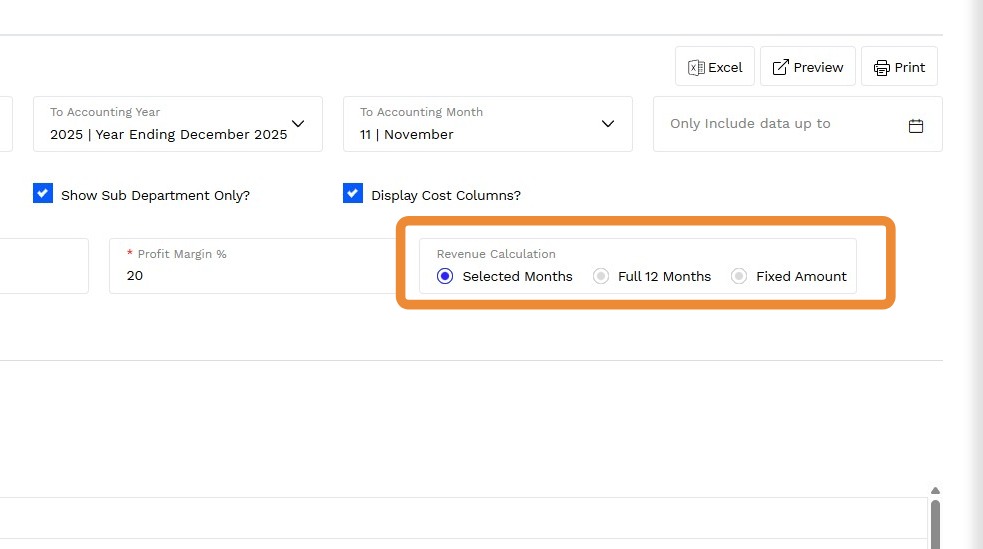
5. Choose the option you wish to display for Revenue Calculation:
-
Selected Months - The calculated revenue from the Resource Tracker of all of the months of the report period
Note: If the user selects a specific date in the ONLY INCLUDE DATA UP TO field, the final month will only include the pro-rata revenue amount – for example, if the report was run from January to June but only for data up to June 15 – then only 50% (15 days out of 30) of the resource tracker revenue would be calculated for the June month.
-
Full 12 Months - This includes the total fee for the year being reported regardless of the reporting period.
-
Fixed Amount - Allows users to enter a specific fixed revenue amount to be applied instead of using the revenue calculated by the resource tracker.
6. Click Excel, Preview or Print.