![AccountAbility_logo_primary_fullcolor-1.png]](https://knowledgebase.counta.com/hs-fs/hubfs/AccountAbility_logo_primary_fullcolor-1.png?height=40&name=AccountAbility_logo_primary_fullcolor-1.png)
Audience note: This guide is for anyone at your agency connecting their own account. Your IT Admin must have already added the Counta AI Connector to your organization's Claude settings. If you don't see it listed under Connectors, contact your admin before starting here.
Overview
The Counta AI Connector, built on the Model Context Protocol (MCP), lets Claude securely connect to your Counta environment and access master data, transactions, and reports.
After completing this step, you will be able to interact with your Counta data directly through natural language prompts within Claude.
Before you begin:
- Ensure you have access to Counta and know your Tenant ID.
- Have your Counta credentials or API token ready.
- Confirm you're connecting to the connector matching your environment (Staging or Production), if your agency has access to both. Ask your admin if you're not sure which to use.
Steps
Note: Screenshots below may differ slightly depending on whether you're using the desktop or web version of Claude. The steps themselves are the same.
After the Counta connector has been configured, the next step is to connect it to your Counta environment and authorize access.
-
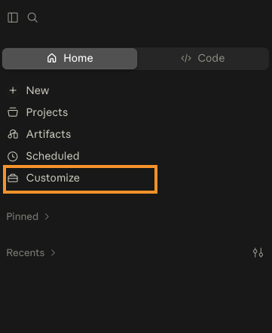
Click "Customize" from the upper left navigation panel.
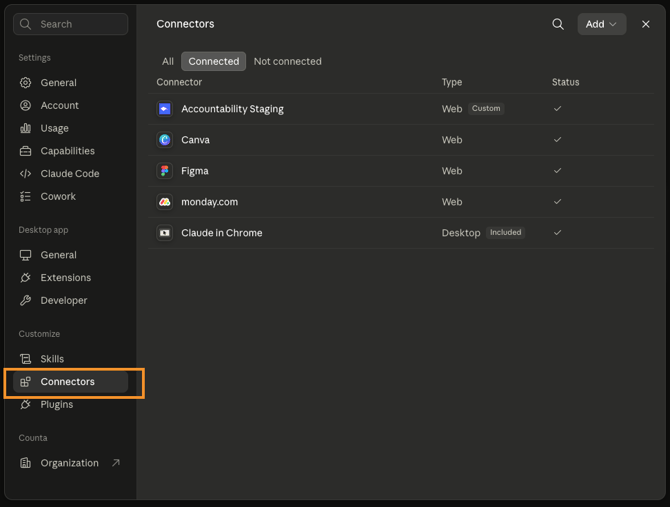
2. Click "Connectors". You'll see the list of connected and not connected applications. If the Counta AI Connector is already in the "Connected" list, you're already set up and can skip ahead to the "Working with the Counta AI Connector in Claude" section below.
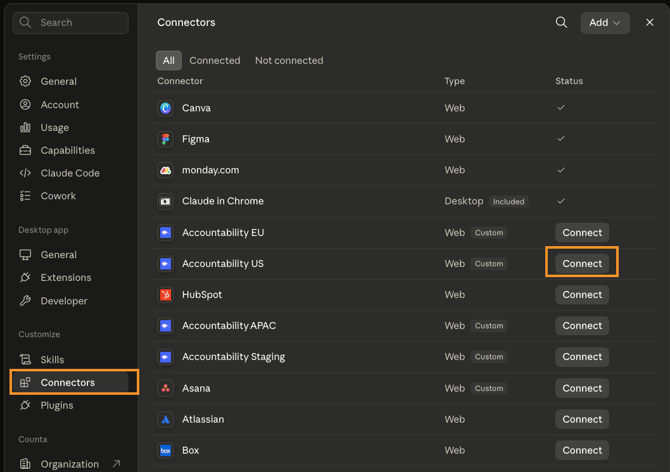
3. Select the Counta AI Connector from the list of "Not Connected" apps, then click "Connect".
Note: your admin may have named this connector something other than "Counta AI Connector," for example, "Counta - Staging." Confirm the name with your admin if you don't see an obvious match.
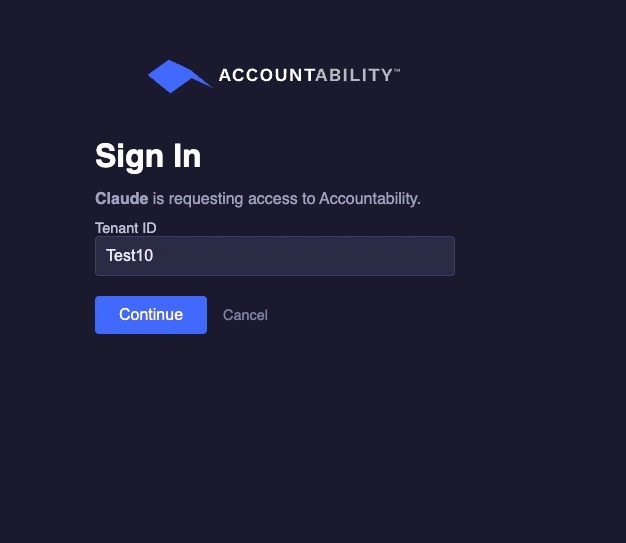
4. This will open a custom login (web) page for you to enter your Counta credentials. Enter your Counta Tenant ID, then press Continue.
5. Enter the following:
Email Address : The email address associated with your user record in Counta.
Password: Enter your Accountability password or API token.
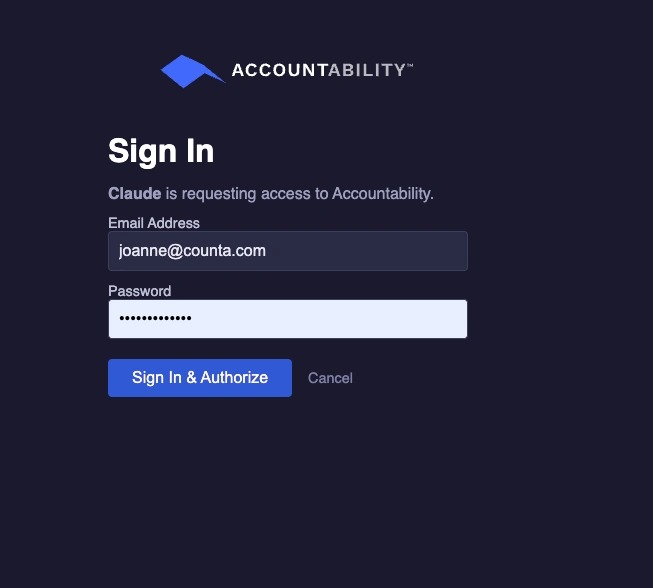
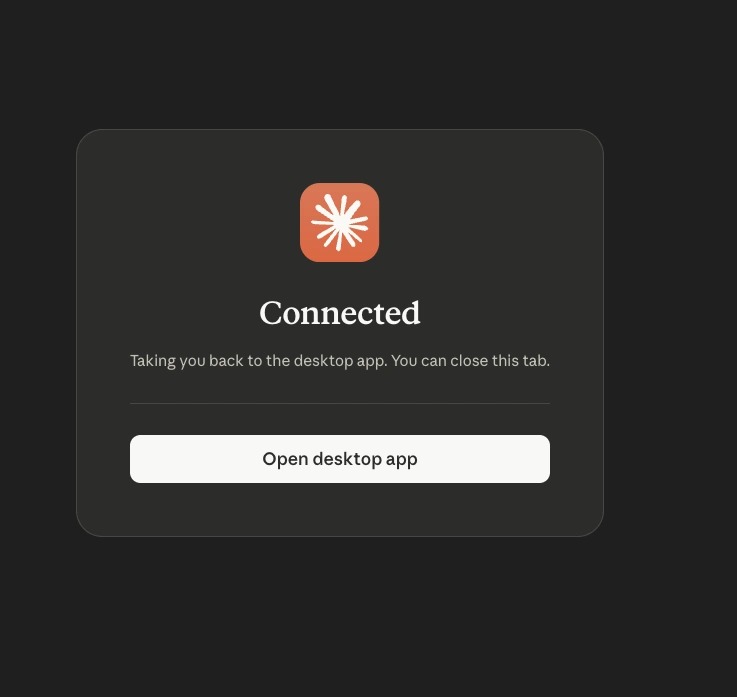
6. Click "Sign In & Authorize". If successful, you will get a message that the Counta AI Connector is connected.
Note: If you initiated the connection from the desktop app, you'll be prompted to "Open desktop app".
Working with the Counta AI connector in Claude
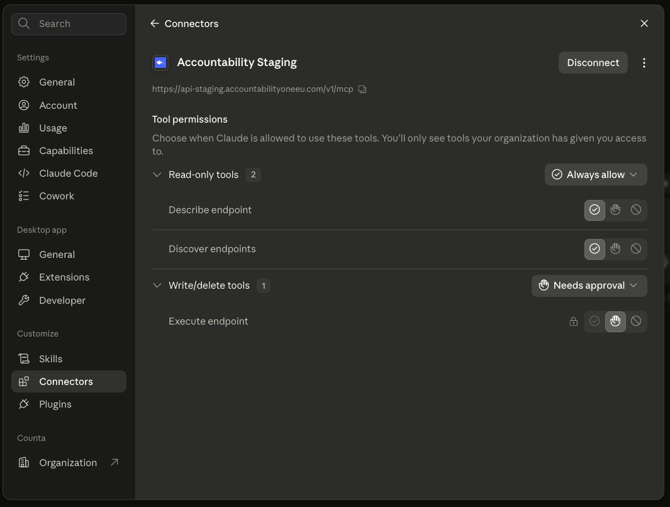
The Counta AI Connector exposes three tools in Claude: Discover, Describe, and Execute.
-
Discover returns the relevant Counta API endpoints available to you.
-
Describe returns the full details of a specific endpoint, including its parameters and expected inputs and outputs, before anything runs.
-
Execute calls the selected endpoint with the appropriate parameters to carry out the request, whether that's retrieving data or creating or updating timesheet data in your Counta database.
These tools let you interact with Counta through natural language instead of navigating screens or writing code.
Depending on how your admin has configured tool permissions, some actions may require your explicit approval before Claude carries them out. Discover and Describe are read-only and are typically set to run automatically. Execute, which performs the actual create, update, or approval action, may be set to require your approval each time before it runs. If you see an approval prompt, review the action Claude is about to take before confirming it. Your admin controls this setting, and it may be locked so it can't be changed at the individual user level.
The actions available to you are based on your Counta User Access Group access.
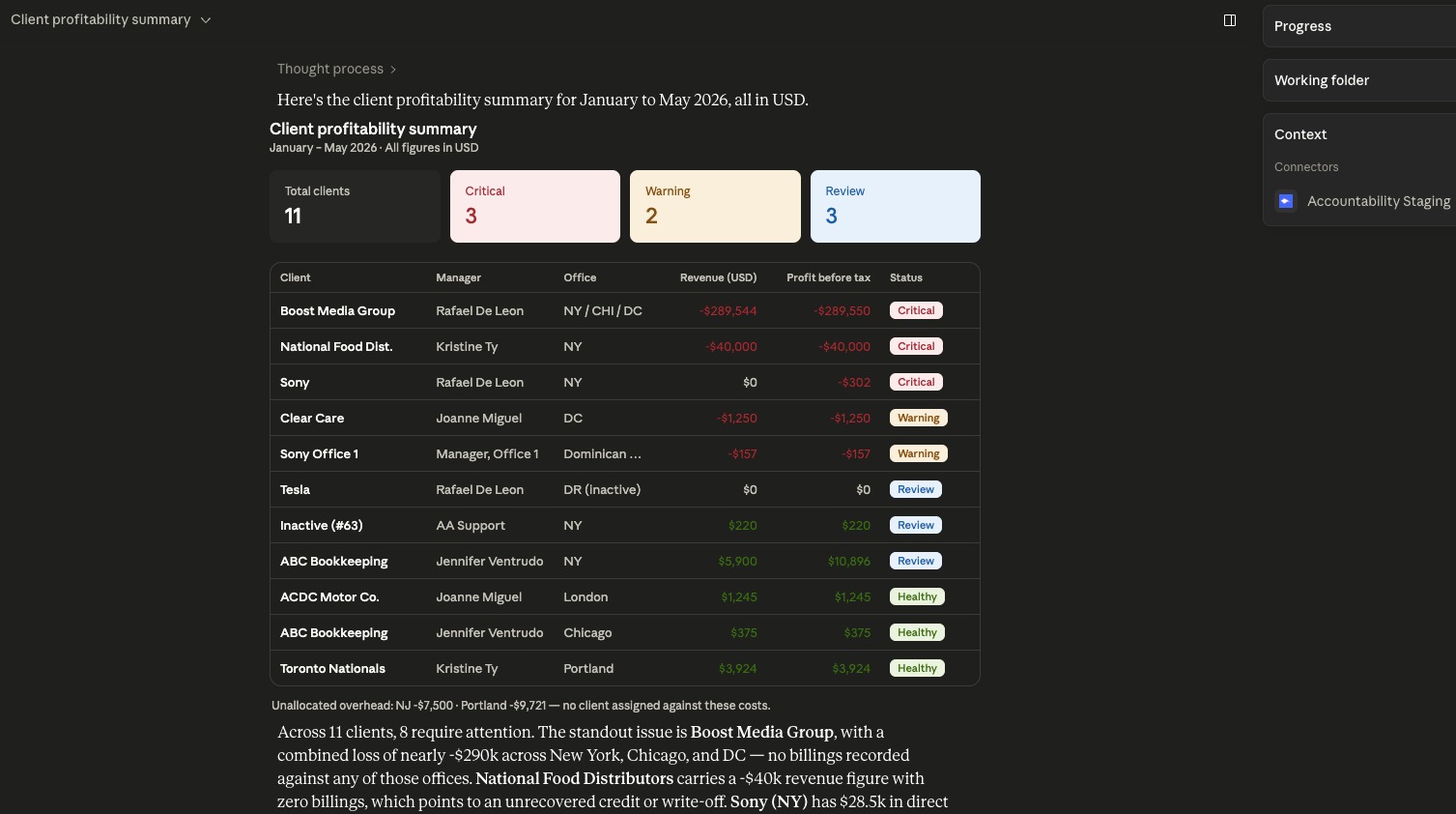
You can now use Claude to interact with your Accountability data using natural language. In this example, Claude is being asked to retrieve a client profitability summary and identify clients that might require attention.
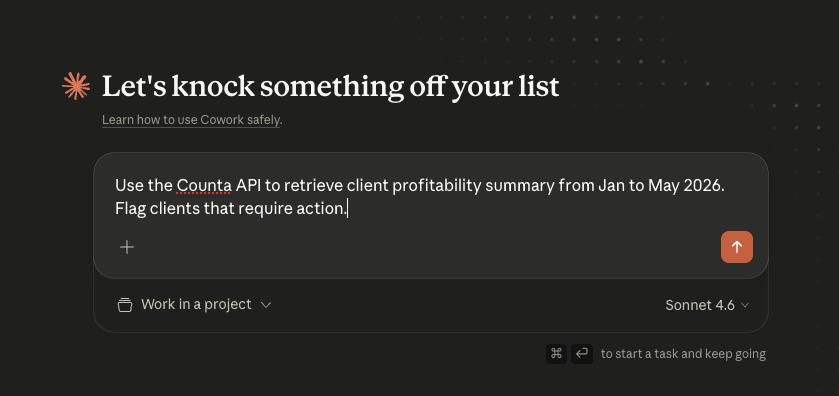
The Counta AI Connector gives Claude access to structured agency business data rather than isolated records or disconnected datasets.
Because Counta is purpose-built for agencies, relationships between clients, jobs, billings, revenue, profitability, and operational workflows already exist within the platform. This allows AI assistants such as Claude to understand business context more effectively and deliver more meaningful insights through natural language interactions.