![AccountAbility_logo_primary_fullcolor-1.png]](https://knowledgebase.counta.com/hs-fs/hubfs/AccountAbility_logo_primary_fullcolor-1.png?height=40&name=AccountAbility_logo_primary_fullcolor-1.png)
Step by Step Guide:
How to access Estimates
Option 1: Jobs
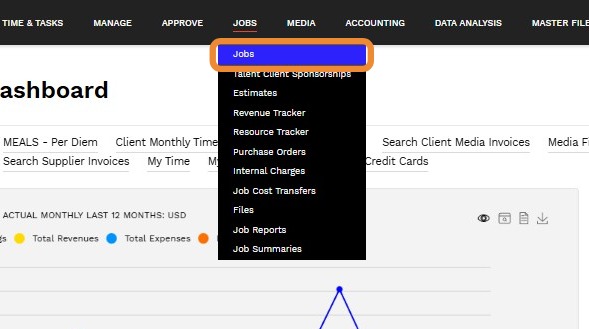
1. Navigate to JOBS>Jobs.
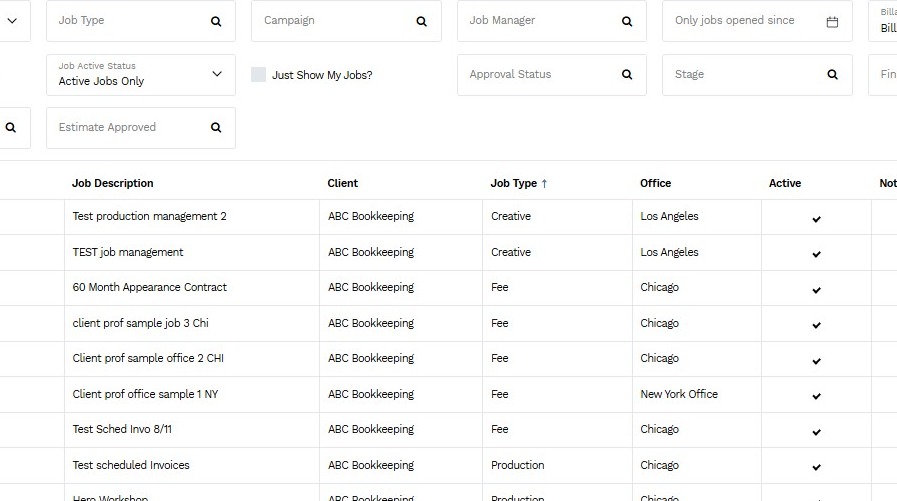
2. Select a Job from the list.
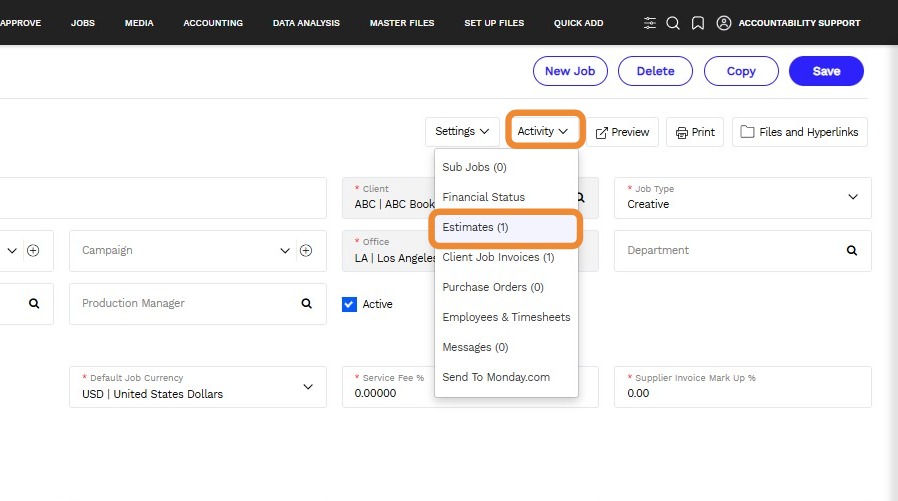
3. On the Job Details page, select Activity > Estimates.
4. Click New Estimate
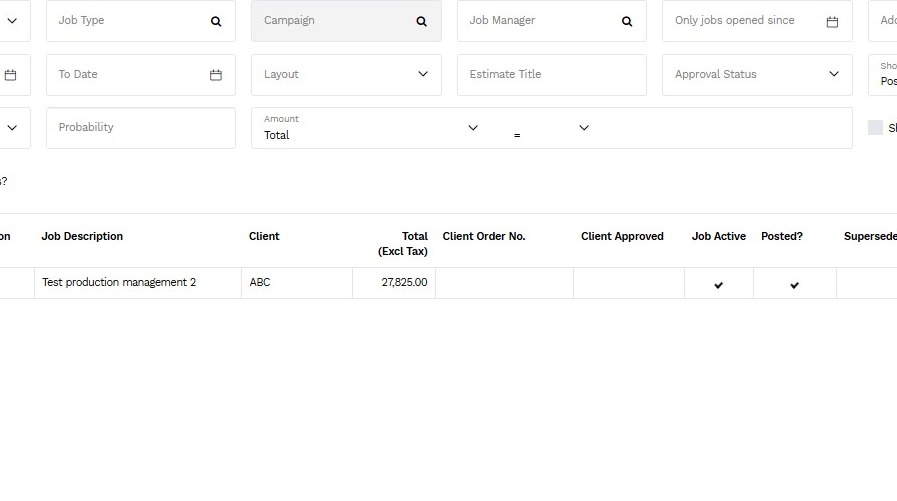
Option 2: Estimates
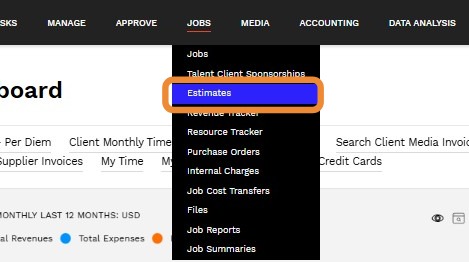
5. Navigate to JOBS > Estimates.
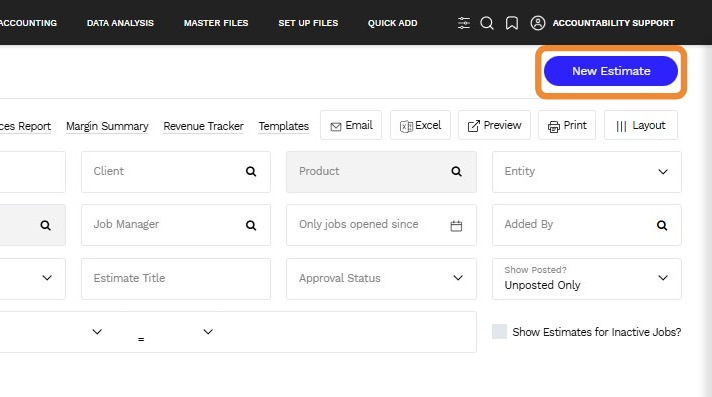
6. Select New Estimate.
Option 3: Quick Add
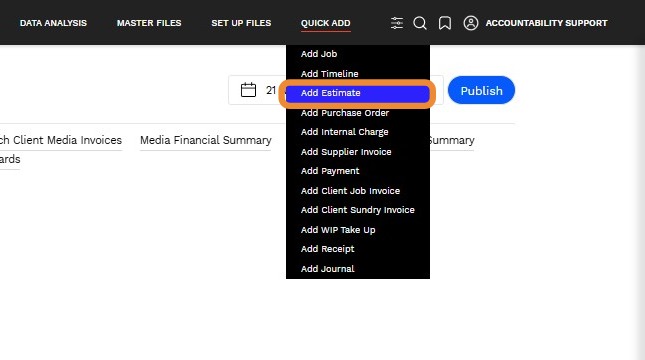
7. Navigate to QUICK ADD > Add Estimates
Additional Page Features
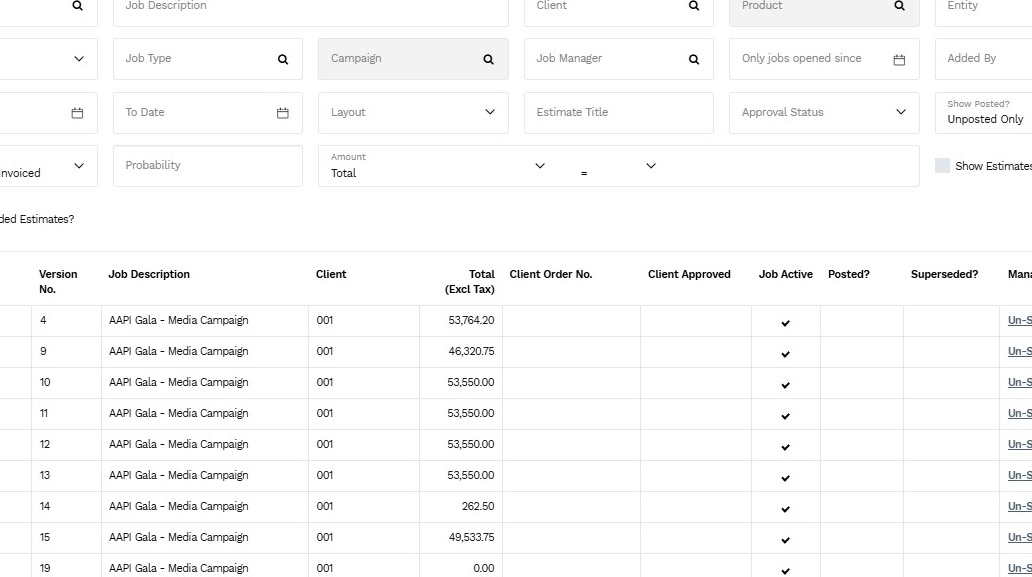
8. Hyperlinks are available on the page's top right-hand side, providing additional resources within the Accountability platform.
- Item Description
- Other Estimate Reports - Selecting an estimate enables the generation of a report based on the chosen criteria.
- Scheduled Invoices Report - Invoice reports can be scheduled based on offices, job managers, clients, or products.
- Margin Summary - A margin summary based on the estimates can be viewed.
- Revenue Tracker - Revenue can be viewed based on the job number, with month-over-month comparisons available.
- List Export - The list of estimates can be exported to an Excel sheet.
- Templates - This will navigate you to the template screen, where you can create a new template estimate.
- Email - A PDF can be emailed directly from the selected estimate.
- Export - An Excel sheet for the selected estimate will be downloaded.
- Preview - A PDF of the selected estimate can be viewed.
- Options to create a new estimate:
- Freeform - You can create an estimate from scratch by using the Freeform option. This option enables you to insert lines to an estimate. To learn more click here.
- Template - For frequently used estimate formats, we encourage creating a template in the system. A template can be shared throughout the whole organization. To learn more click here.
- Excel - Import an excel template is available for you to import an estimate in the system. To learn more click here.
- Copy from an Existing Estimate - You can also copy an existing estimate. To learn more click here.