![AccountAbility_logo_primary_fullcolor-1.png]](https://knowledgebase.counta.com/hs-fs/hubfs/AccountAbility_logo_primary_fullcolor-1.png?height=40&name=AccountAbility_logo_primary_fullcolor-1.png)
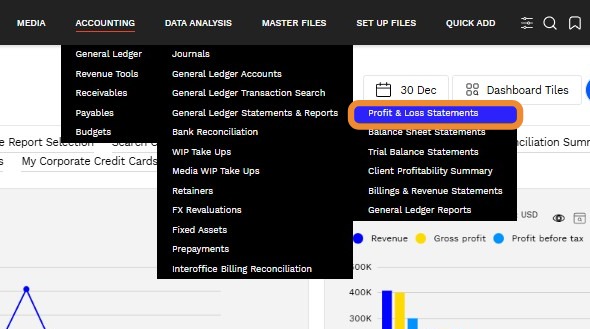
1. Navigate to ACCOUNTING > General Ledger > General Ledger Statements & Reports > Profit & Loss Statements
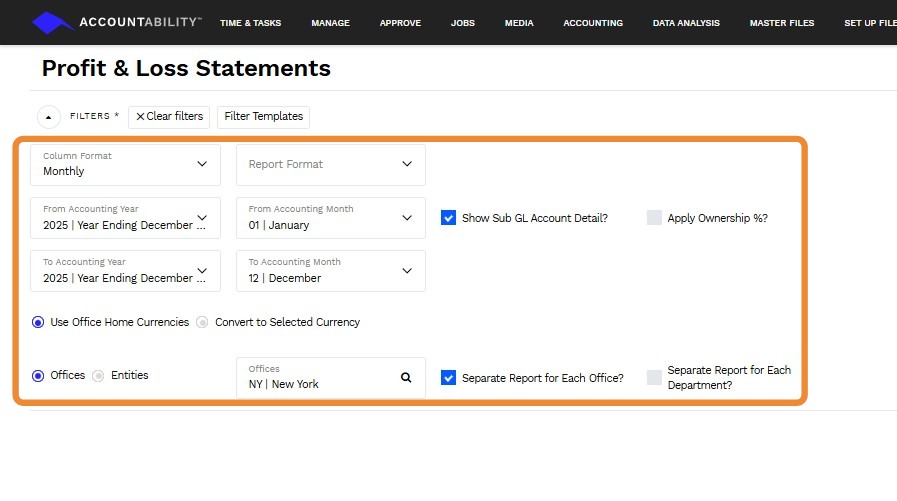
2. Profit & Loss Statements page filter options to customize your report output.
Accounting Period Filters
- Accounting Year / From Accounting Year / To Accounting Year - Select the year(s) for which you want to view the report.
- Accounting Month / From Accounting Month / To Accounting Month - Define the month or range of months for the report period.
Detail Display Options
- Show Sub GL Account Detail? - Checked by default. Uncheck to roll up data to header account level.
- Apply Ownership - Applies the ownership percentage defined for each office.
Report Format
- Apply a custom financial statement format if your agency has predefined layouts. Choose between standard or agency-specific formats for P&L reporting.
Currency Options
- Use Office Home Currencies - Displays amounts in each office’s local currency.
- Convert to Selected Currency - Consolidates data into a single currency using FX rates.
- When selected, the Report FX Rate column appears showing conversion rates.
Column & Grouping Options
- Column Format - Choose to display data by Office or Entity.
- Grouping Options (for related reports) - Group by Client, Client Manager, Department, etc., depending on report type.
Additional Filters
- Month or Year-to-Date - Select whether the report should show monthly figures or cumulative YTD totals.
- Include Specific Offices or Entities - Use the filter list or search icon to include/exclude offices or entities.
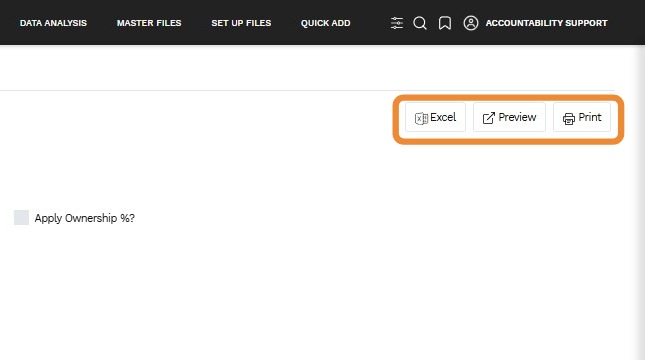
3. Action Buttons
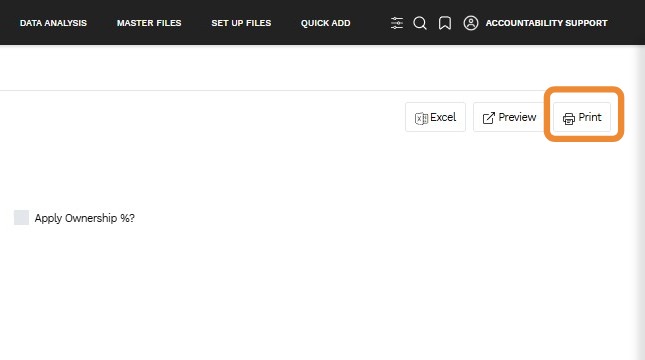
- Preview – View the report in PDF format.
- Excel – Export the report in data format for further analysis.
- Print -Open the report in a PDF viewer.
4. Click Print to open the report in a PDF viewer.
5. Drill Down into Transactions
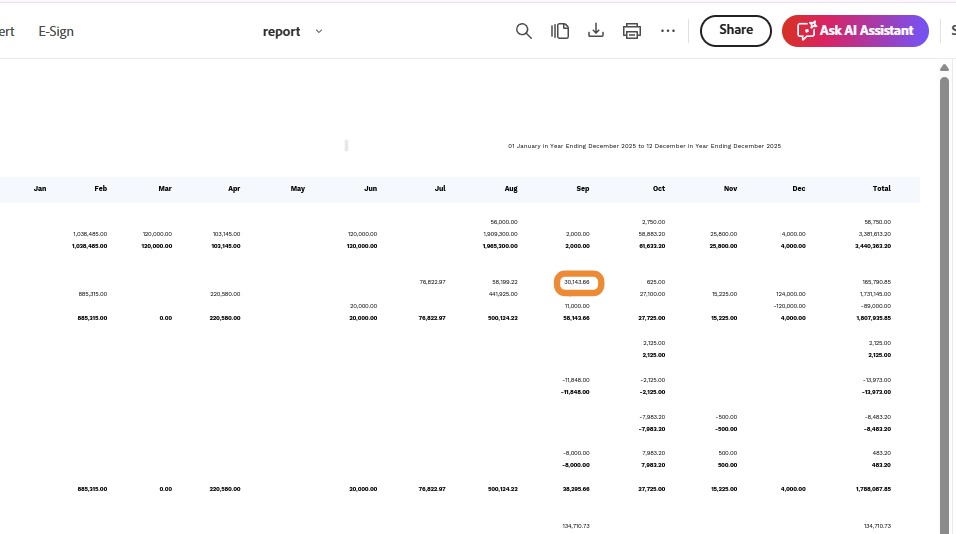
- Click on any amount in the interactive view to see the underlying General Ledger transactions.
- This eliminates the need to run multiple reports for transaction-level details
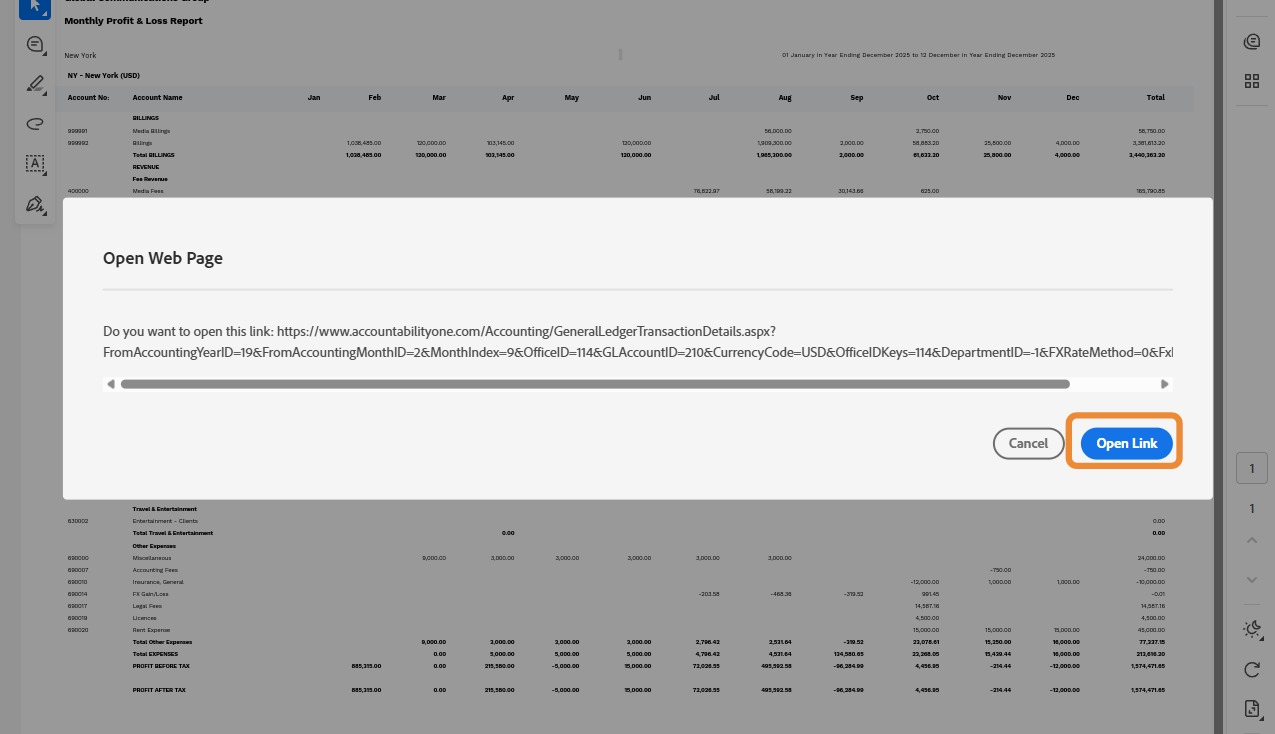
6. Click Open Link
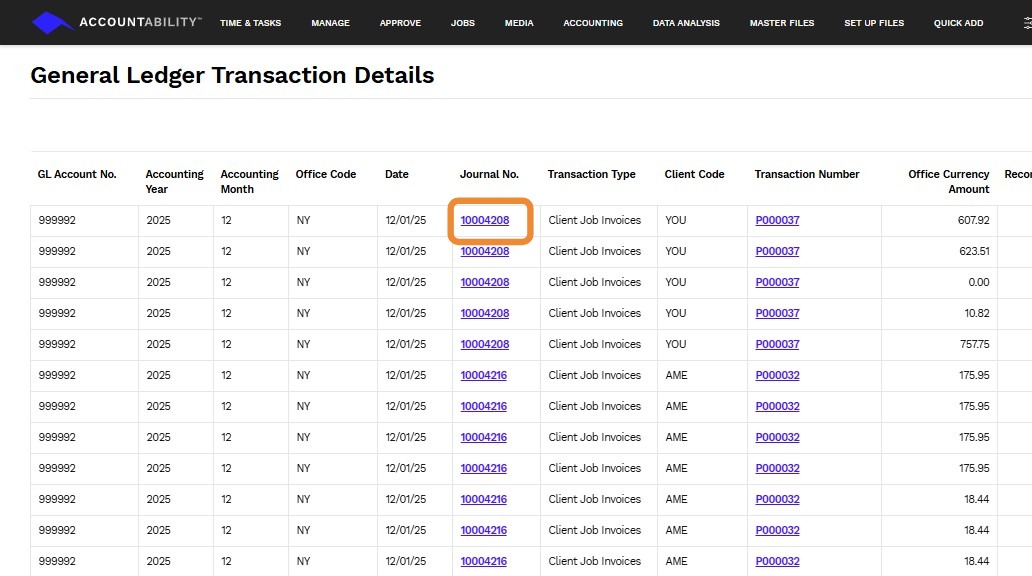
7. General Ledger Transaction Details page
Clicking a Journal link allows you to drill down into the underlying transaction for detailed review.
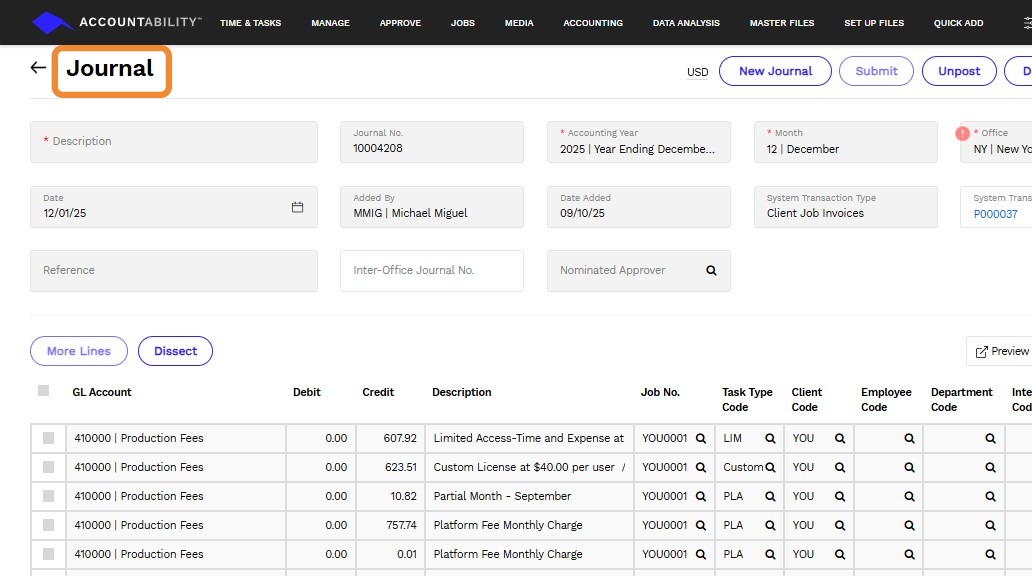
8. Journal page to display and manage detailed journal entries within the General Ledger.
Provides a complete view of journal entries created for accounting transactions.
Allows users to review, edit, and validate entries before posting to the ledger.