![AccountAbility_logo_primary_fullcolor-1.png]](https://knowledgebase.counta.com/hs-fs/hubfs/AccountAbility_logo_primary_fullcolor-1.png?height=40&name=AccountAbility_logo_primary_fullcolor-1.png)
Steps to Book Media
From a Media Schedule
-
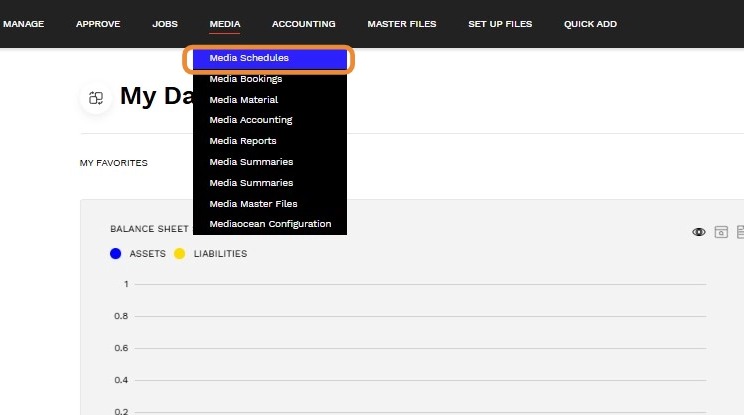
Go to NAVIGATION BAR > MEDIA > Media Schedules.
-
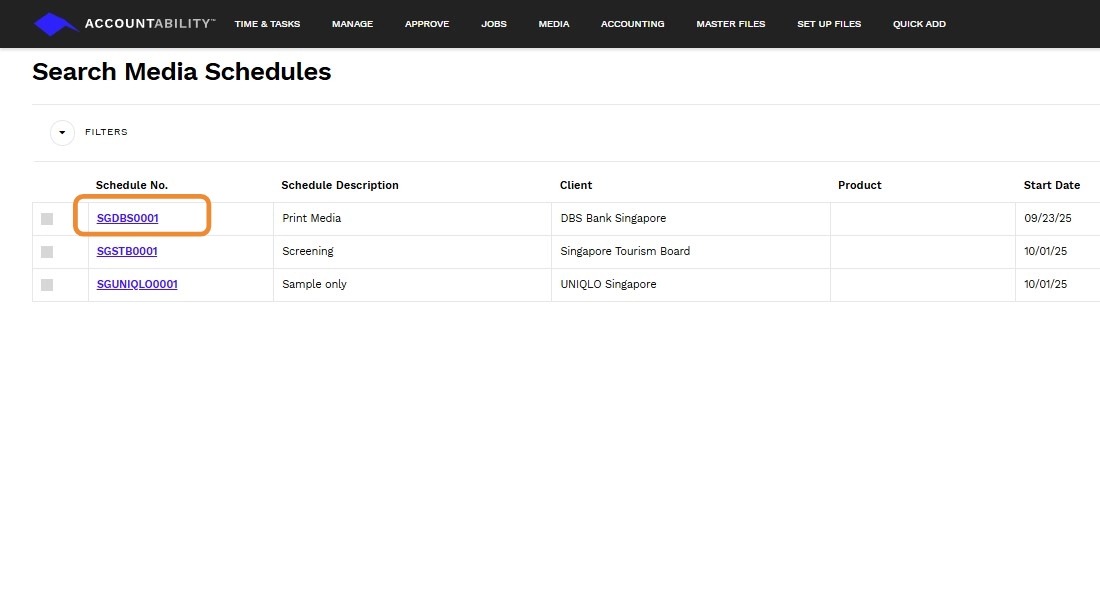
Open the schedule you want to book.
-
Check the box next to the Medium(s) you want to book.
-
Click Book.
-
Add any notes if required.
-
Click OK.
-
If prompted, select Print the Bookings to generate confirmations.
From the Medium Summary Page
-
Open the Media Schedule.
-
Click the Medium hyperlink to view spots/insertions.
-
Check the box next to the spots/insertions to be booked.
-
Click Book.
-
Add notes if required, then confirm.
Key Concepts
-
Booking Source: You can book entire schedules or individual spots.
-
Booking Number: Each booking generates a unique booking ID.
-
Notes and Confirmations: Notes appear on confirmations, which can be printed if needed.
-
Booking Status: Only booked items can be invoiced to clients and suppliers.
Why It Matters
Booking validates planned placements and creates binding commitments with suppliers. It also ensures media activity is ready for invoicing, reporting, and reconciliation.
Booking Media Spots and Insertions
Book via Media Schedule
1. Navigate MEDIA>Media Schedule
2. Click Media Schedule No. hyperlink
3. Click checkbox
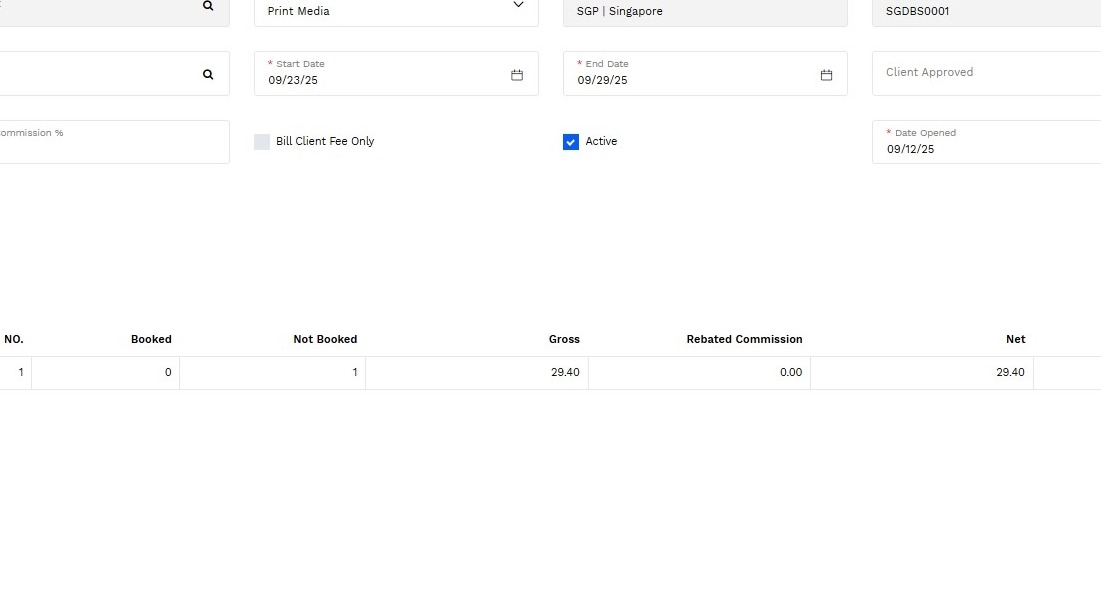
4. Click Book
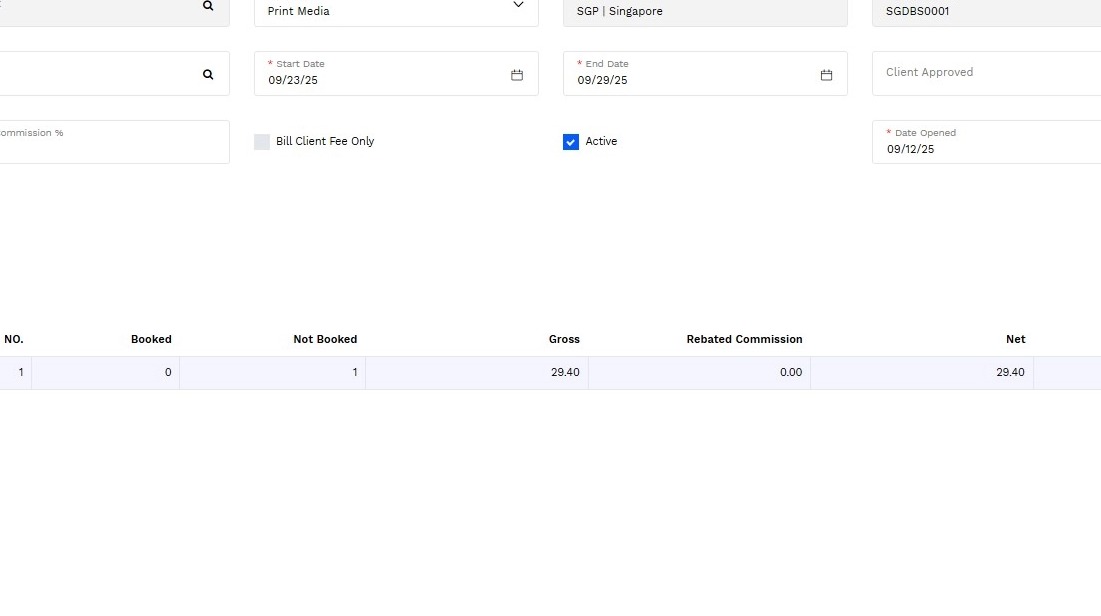
5. Click Notes
6. Input notes.
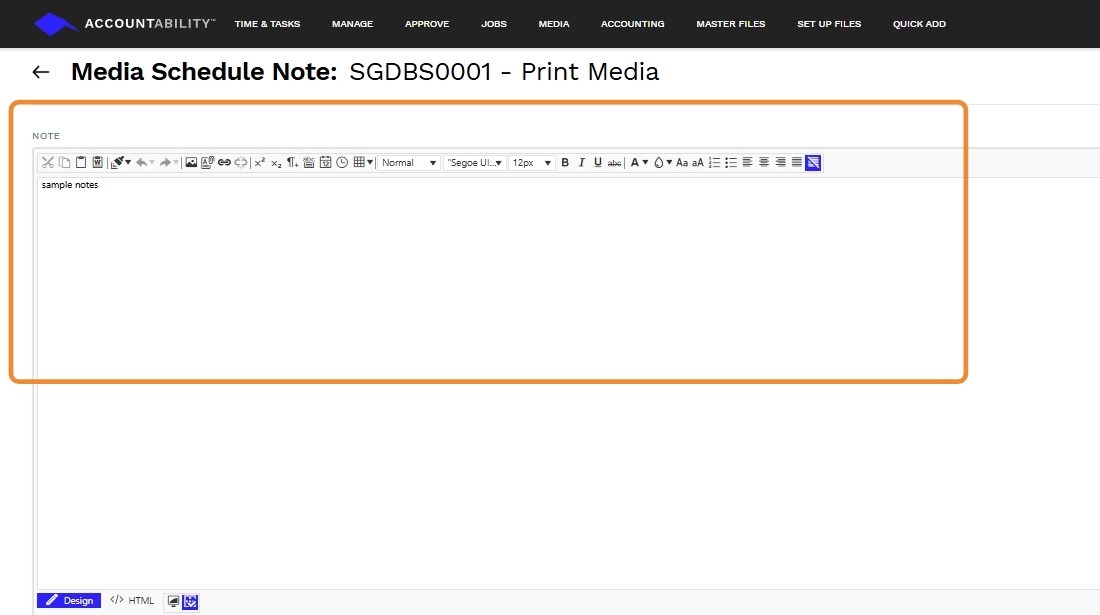
7. Click Save
8. Click arrow back
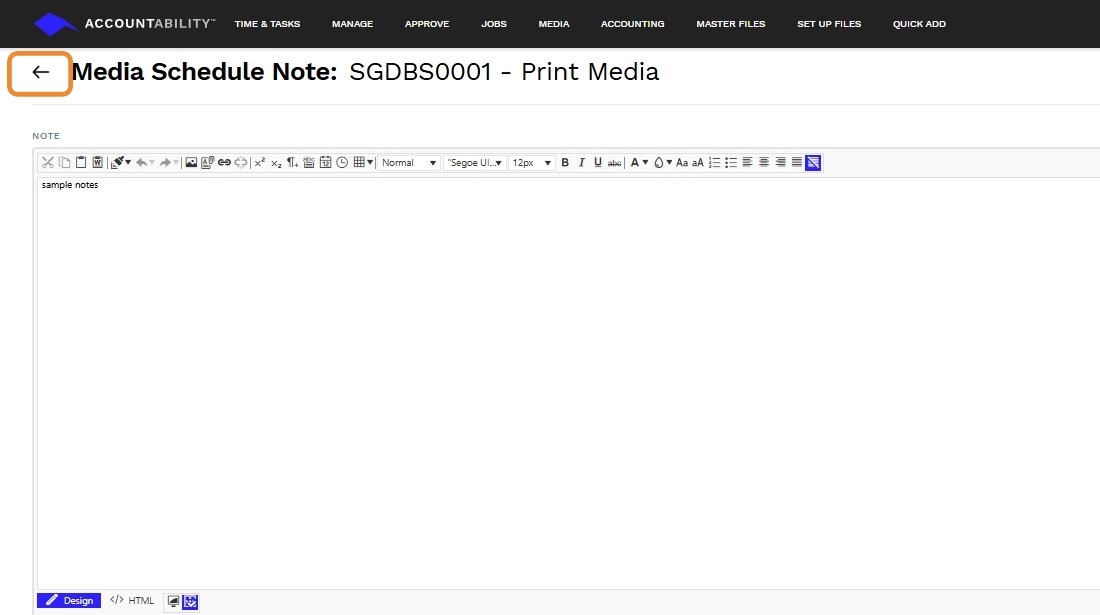
9. Print bookings if needed.
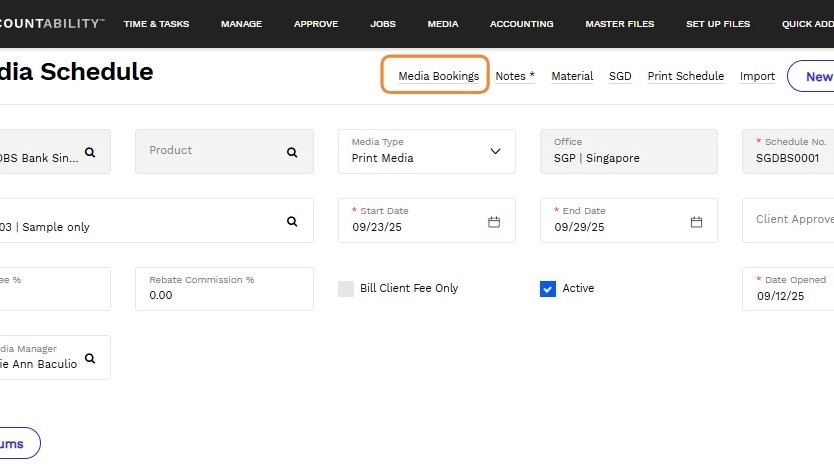
Click Media Bookings hyperlink
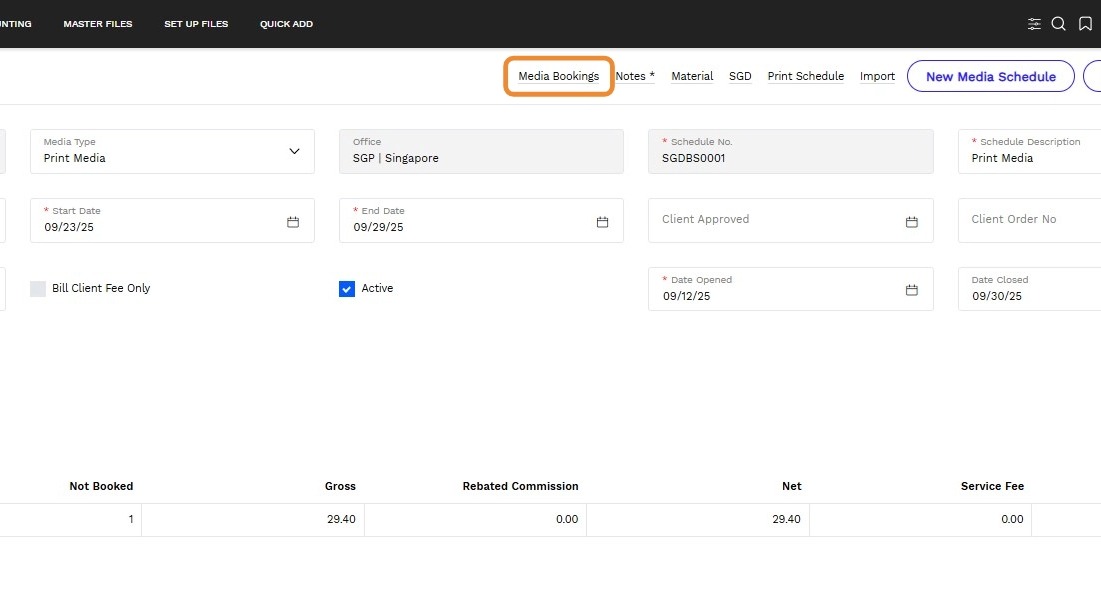
10. Click checkbox of the Booking No. to be printed
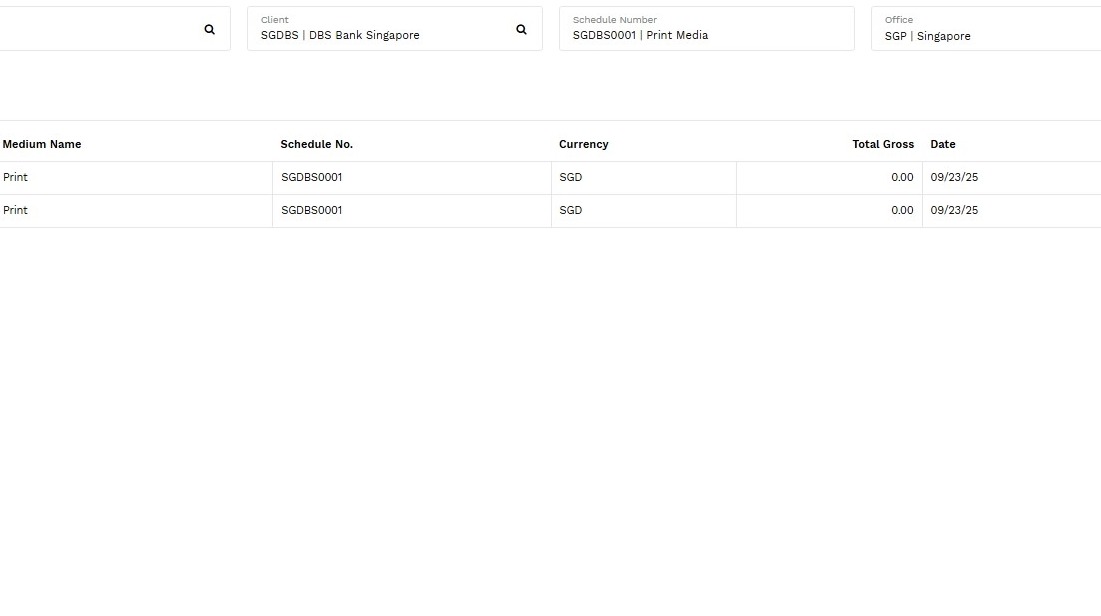
11. Click Print
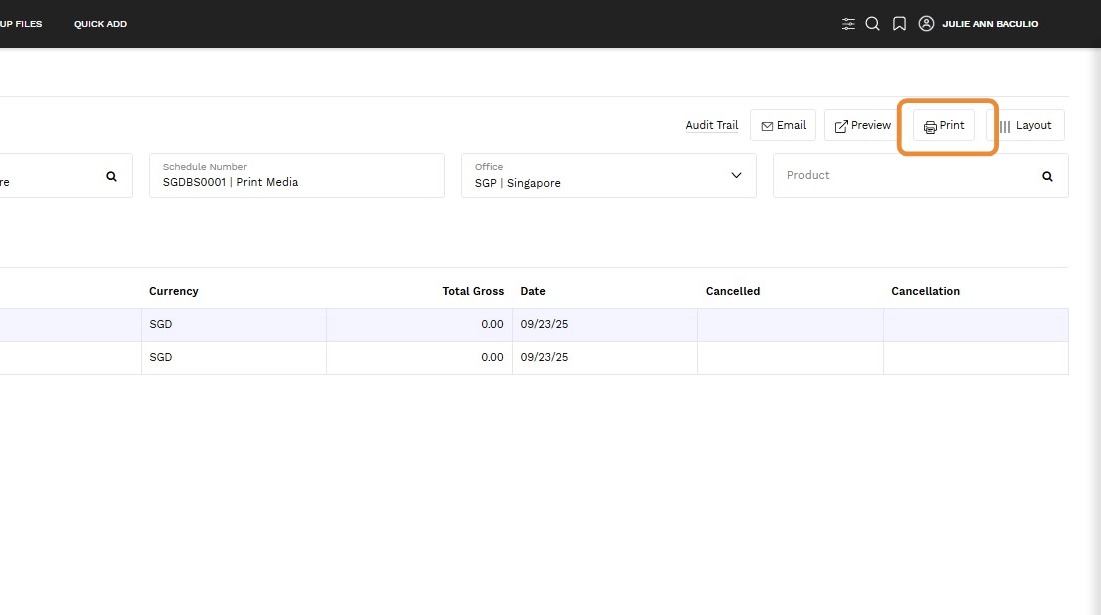
Book via Medium Summary
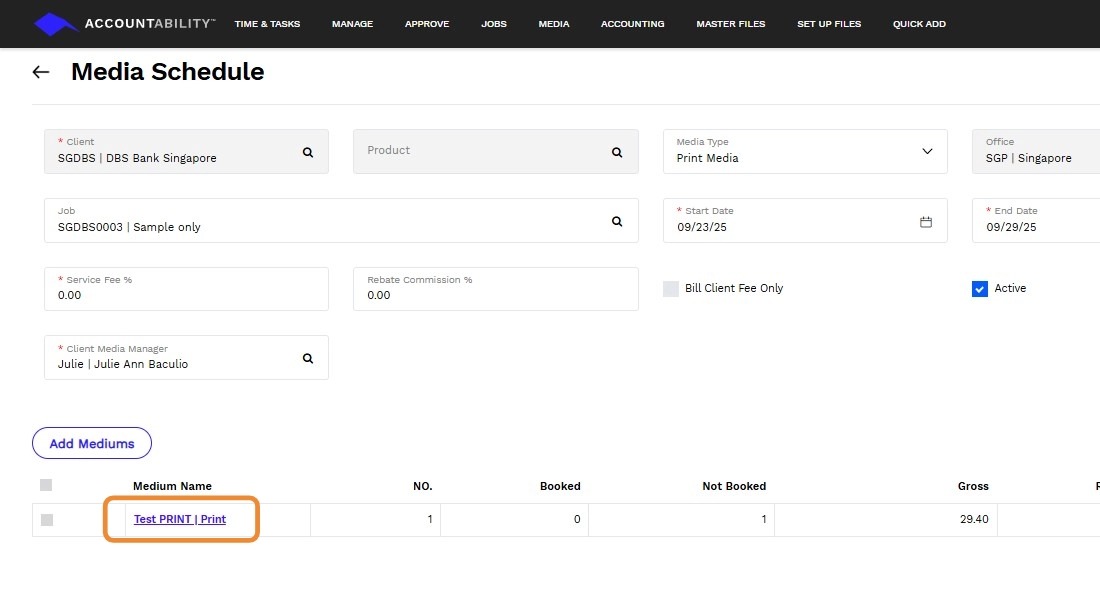
12. Open Media Schedule select Medium hyperlink
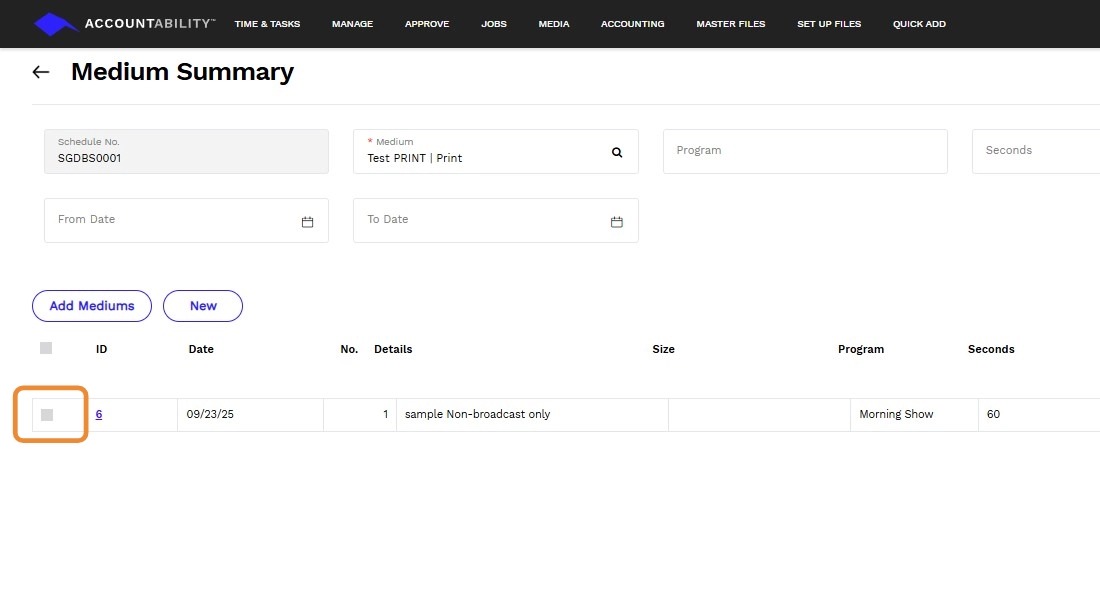
13. Click insertion checkbox
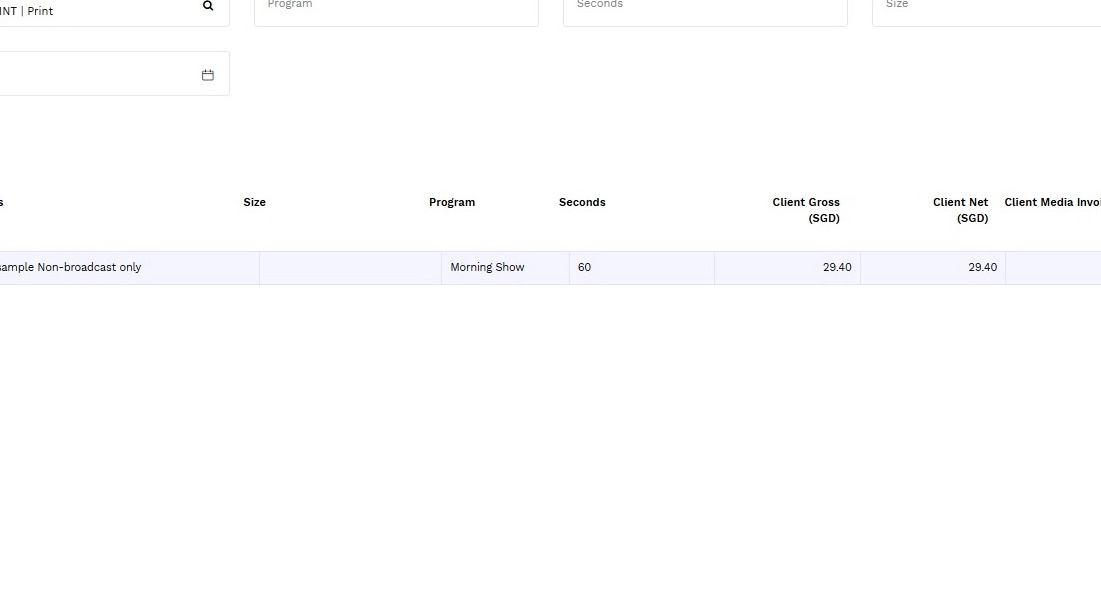
14. Click Book
Cancel Bookings
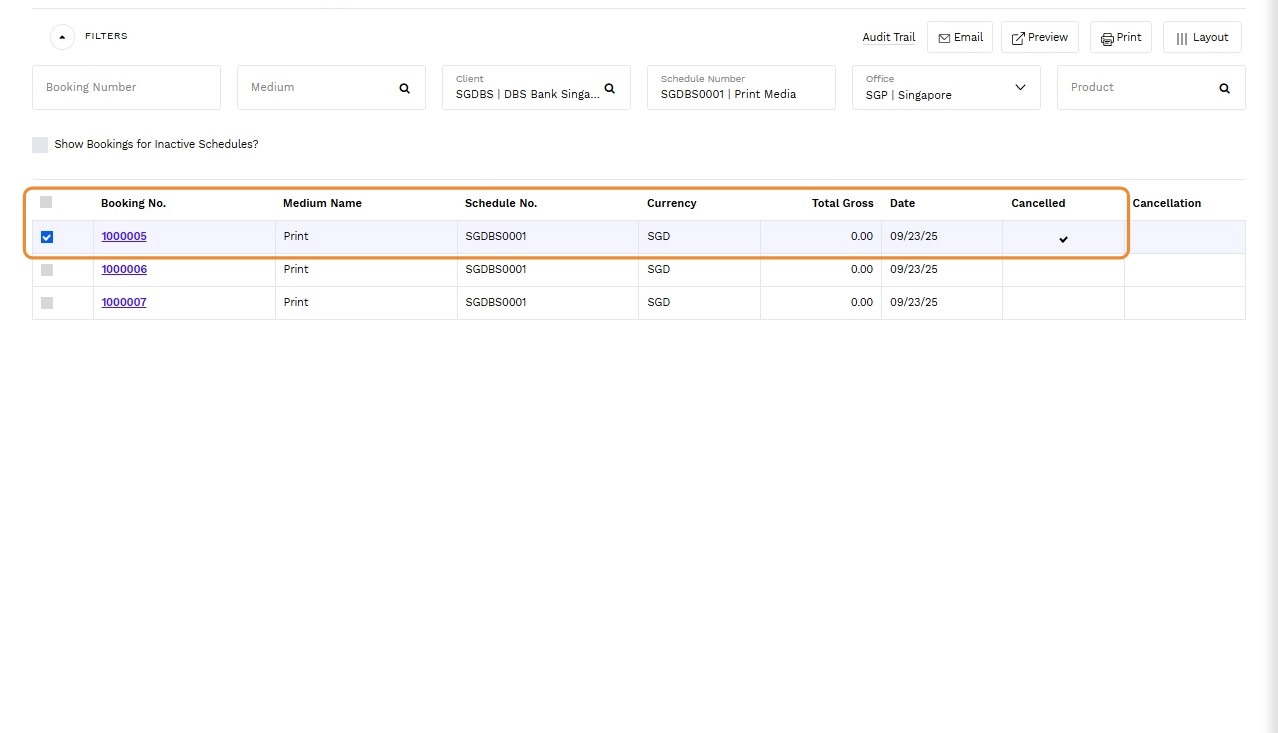
15. From schedule or booking browse
Go to Manage Bookings
16. Select booking by clicking the checkbox.
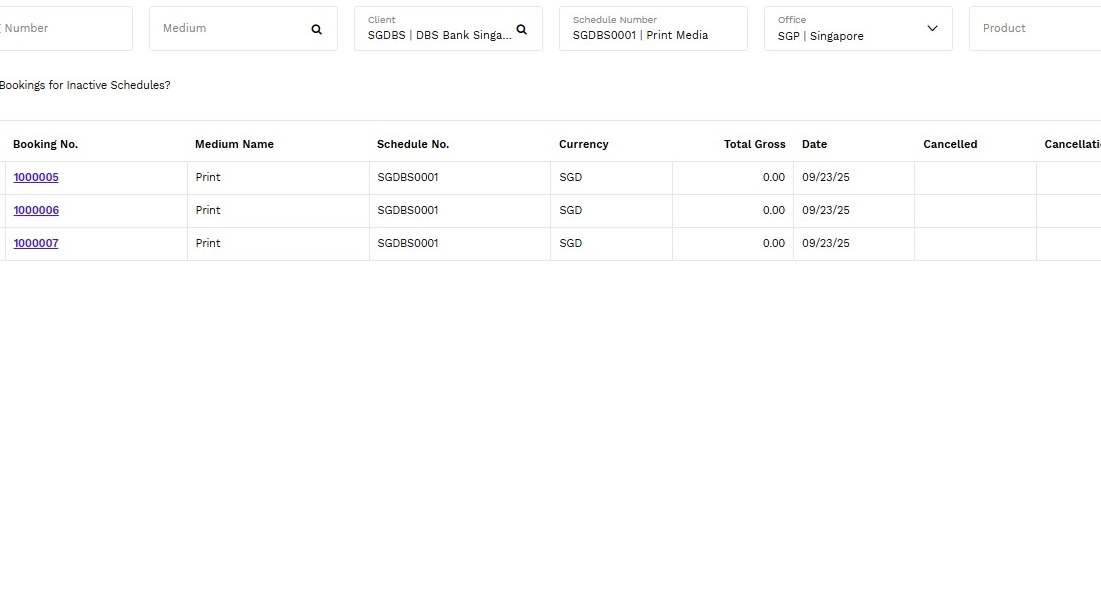
17. Click Cancel Booking or Cancel Booking & Delete
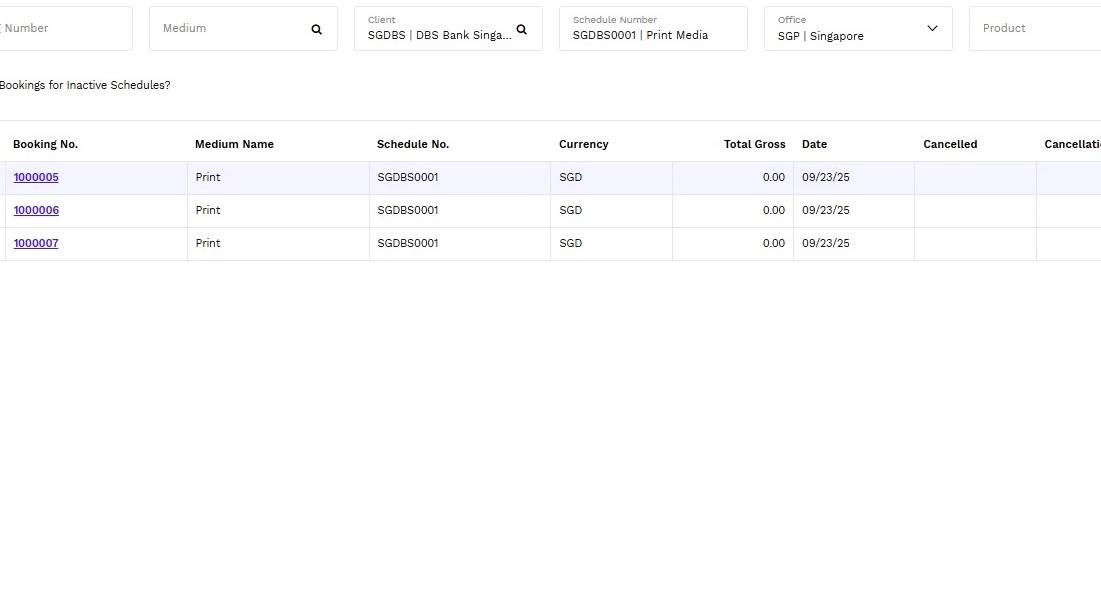
18. Booking Cancel confirmed