![AccountAbility_logo_primary_fullcolor-1.png]](https://knowledgebase.counta.com/hs-fs/hubfs/AccountAbility_logo_primary_fullcolor-1.png?height=40&name=AccountAbility_logo_primary_fullcolor-1.png)
Step by Step Guide:
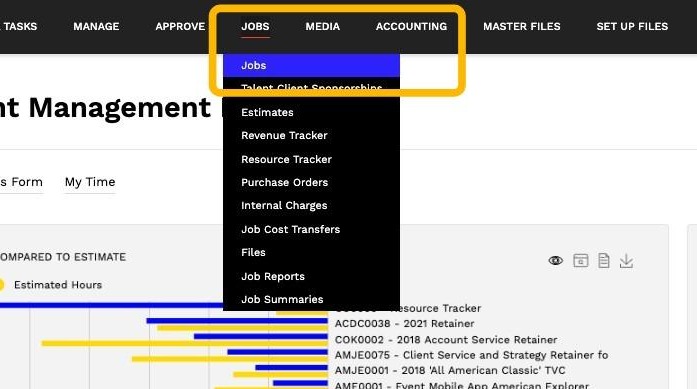
1. Navigate to the Jobs Section:
- Go to Jobs > Jobs
2. Select the Job to Copy:
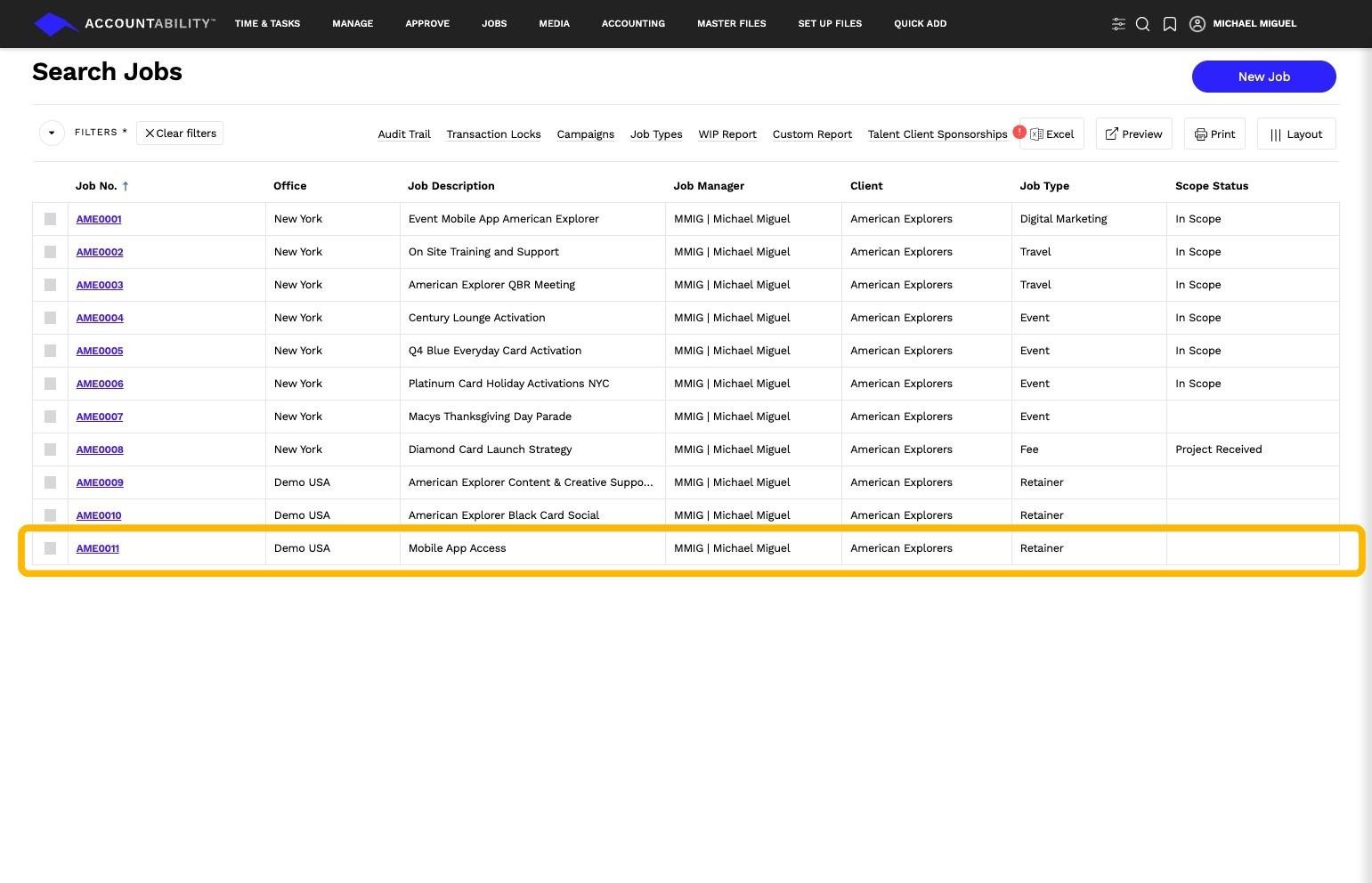
- Locate the job you want to duplicate.
- Click on the Job No. to open its details.
3. Initiate the Copy Process:
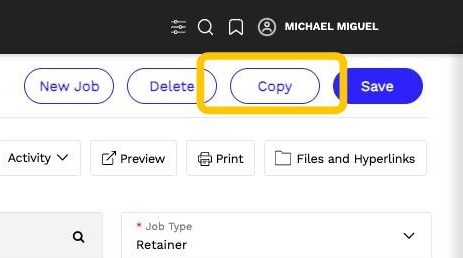
- Click the COPY button at the top of the page.
- The Job Copy Form will be displayed.
4. Confirm the Copy Action:
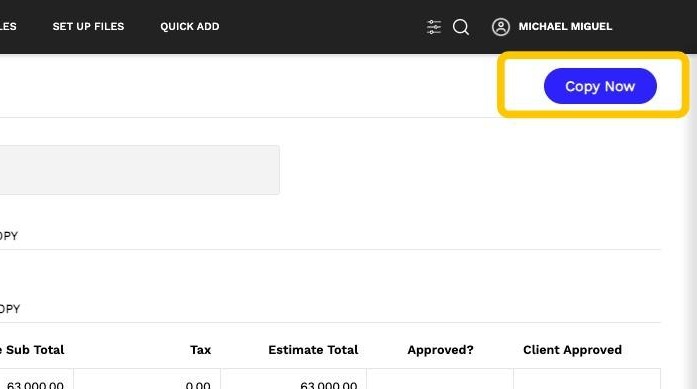
- Click on COPY NOW to proceed.
5. Access the Newly Created Job:
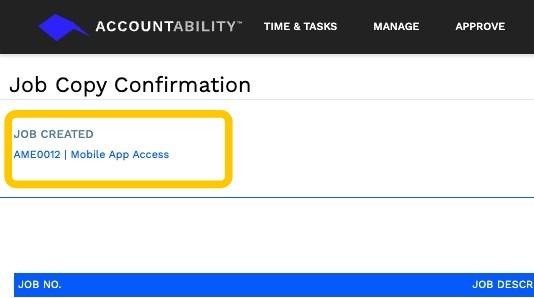
- The Job Copy Confirmation page will appear.
- Under JOB CREATED, click the new Job No. and Description to open the job details page.
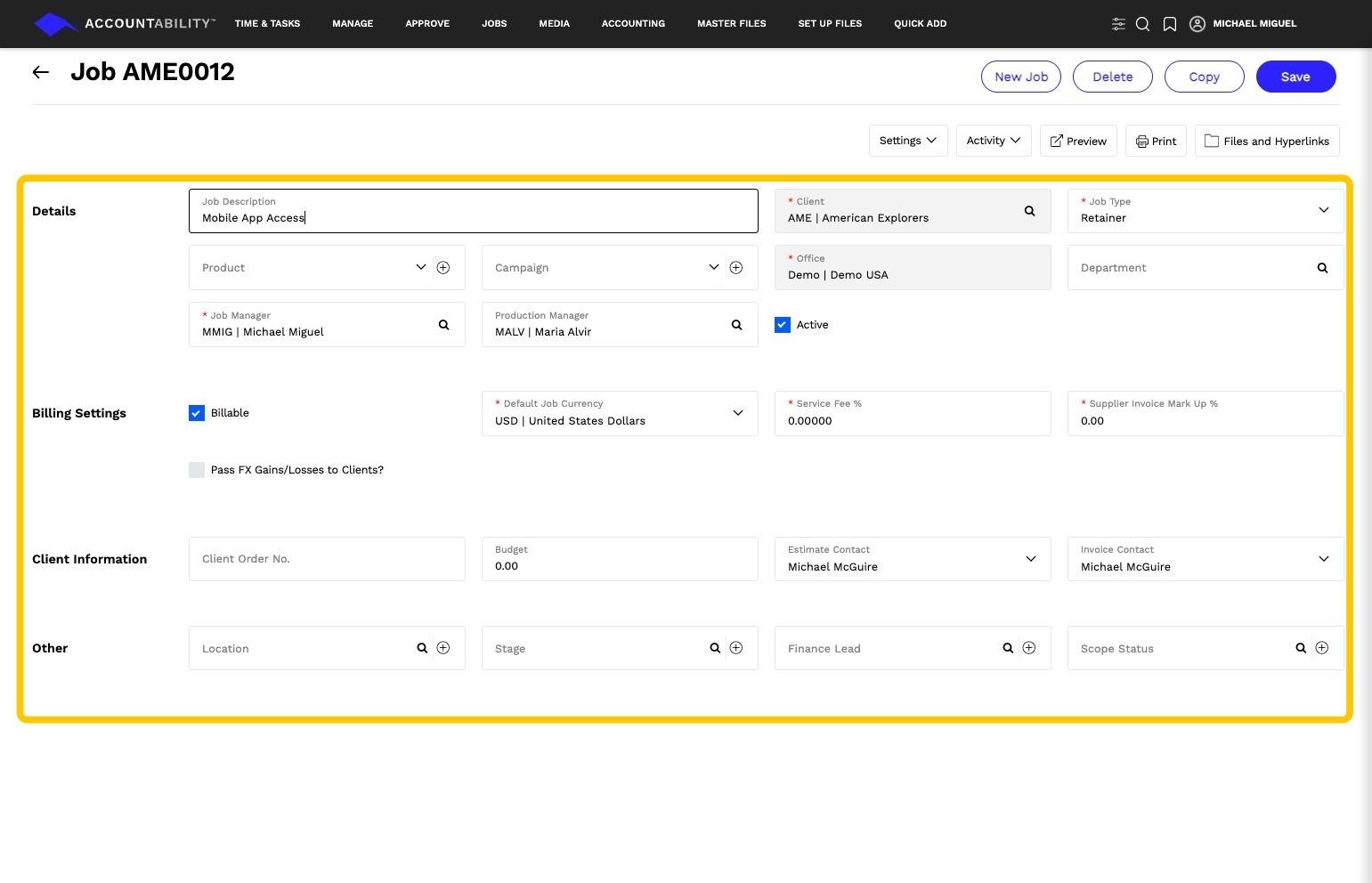
6. Modify Job Details if Necessary:
- Update any job-specific information as required.
Tip: Optional: Copy Sub-Jobs and Estimates:
- In the Job Copy Form, check the box next to sub-jobs or estimates if you wish to duplicate them as well.
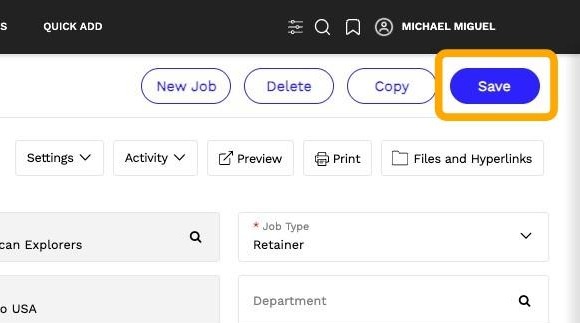
7. Click Save
Alert: - Ensure that any copied job details comply with project specifications before using the new job.
- Sub-jobs and estimates can be copied simultaneously to maintain project structure.
- If necessary, update deadlines, assigned personnel, and budget details after copying.