![AccountAbility_logo_primary_fullcolor-1.png]](https://knowledgebase.counta.com/hs-fs/hubfs/AccountAbility_logo_primary_fullcolor-1.png?height=40&name=AccountAbility_logo_primary_fullcolor-1.png)
Step by Step Guide:
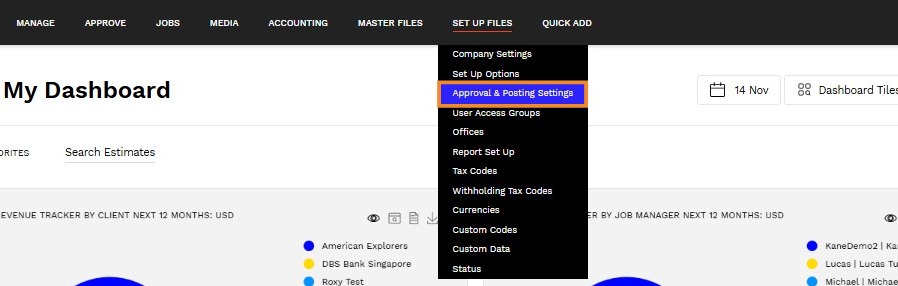
1. Navigate to Set Up Files > Approval & Posting Settings.
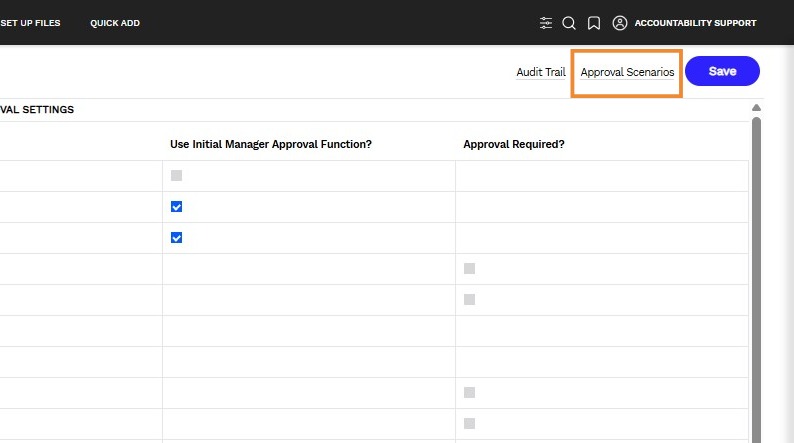
2. Click Approval Scenarios.
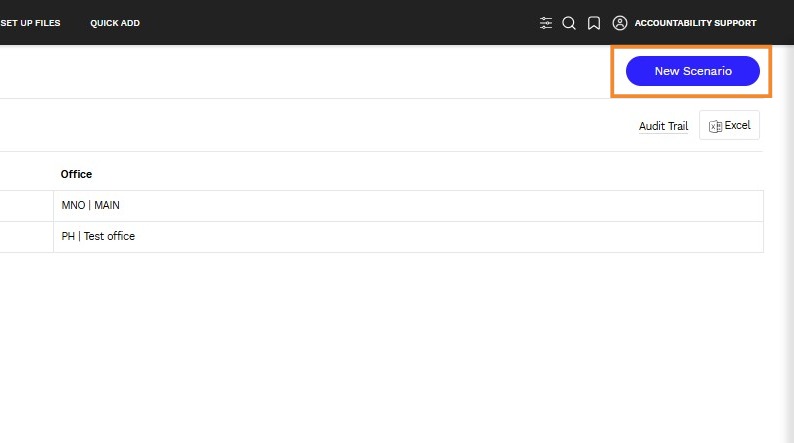
3. Click New Scenario.
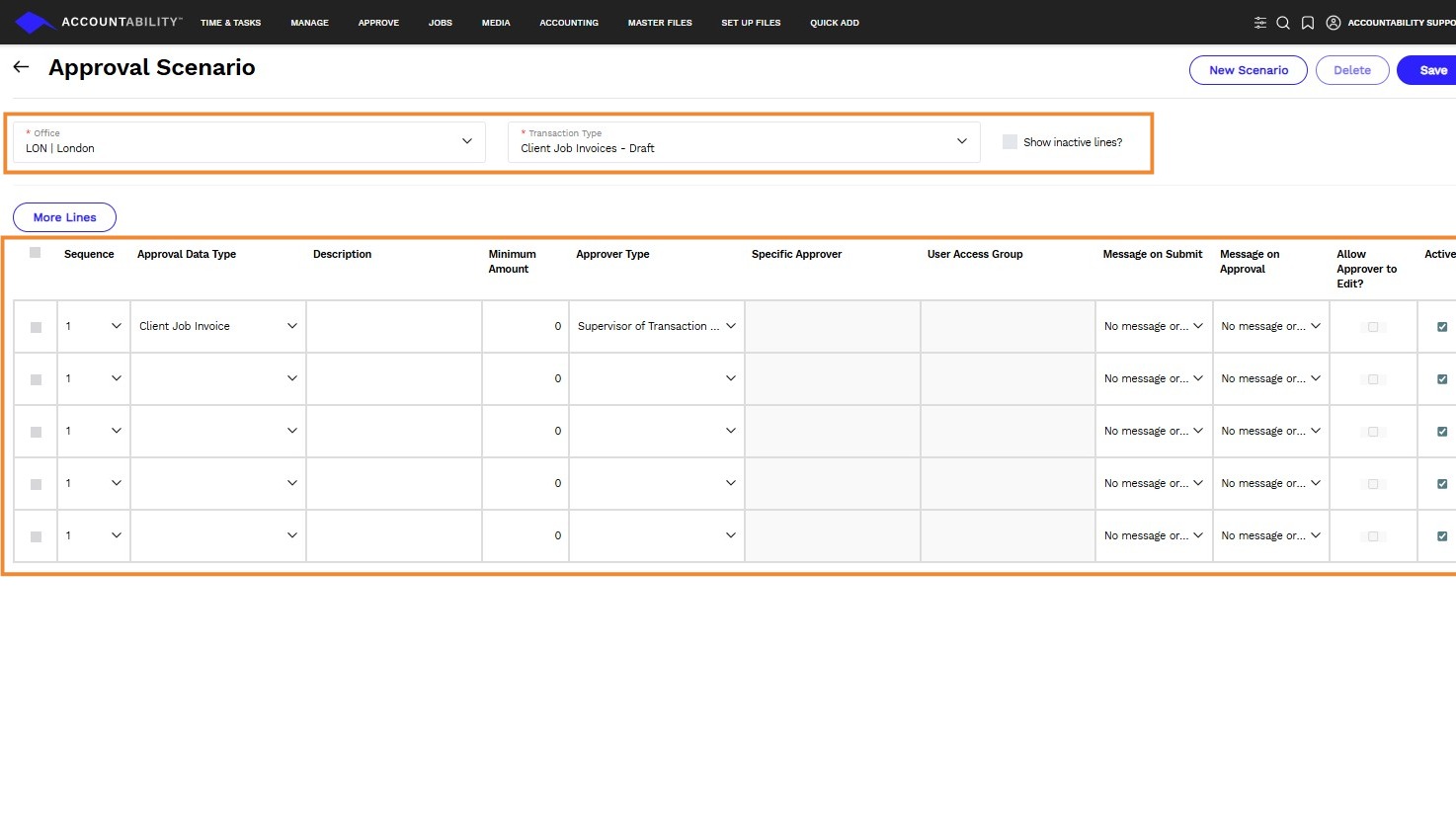
4. Enter the following information:
Office
Select an office.
Transaction Type
Select Client Job Invoices-Draft.
Show inactive lines?
Check to view inactive approval sequences.
Sequence
Enter the order of approvals as defined by the company's approval rules.
Approval Data Type
Select the data type
- Client Job Invoice
Description
Enter a description (the description entered can be the same as the approver type).
Minimum Amount
Enter the minimum amount (if applicable).
Approver Type
Select an approver type
- Specific Approver
- Transaction Creator
- Supervisor of Transaction Creator
- Approver Nominated on Transaction
- User Access Group
- Job Manager
- Job Production Manager
Specific Approver
Enter the name of a specific approver (if applicable).
User Access Group
Select a specific group to approve the purchase order (if applicable).
Message on Submit
Click on the arrow and select from one of the following options to receive notifications on submitted transactions.
- No message or email
- Send message only
- Send message and email
To learn more about how to receive notifications on approval scenarios, click here.
Message on Approval
Click on the arrow and select from one of the following options to receive notifications on approved transactions.
- No message or email
- Send message only
- Send message and email
To learn more about how to receive notifications on approval scenarios, click here.
Active
Check the box to keep the line item active.
5. Click Save.
Tip: Approval sequences can be created for each approval data type.
Once Approval Scenarios are created, it is important to note that switching back to the old workflow is not possible.