Client Types in Counta define how clients are categorized for reporting, billing, and workflow purposes. Correctly setting up Client Types ensures consistency in financial postings, job management, and media scheduling.
Step by Step Guide:
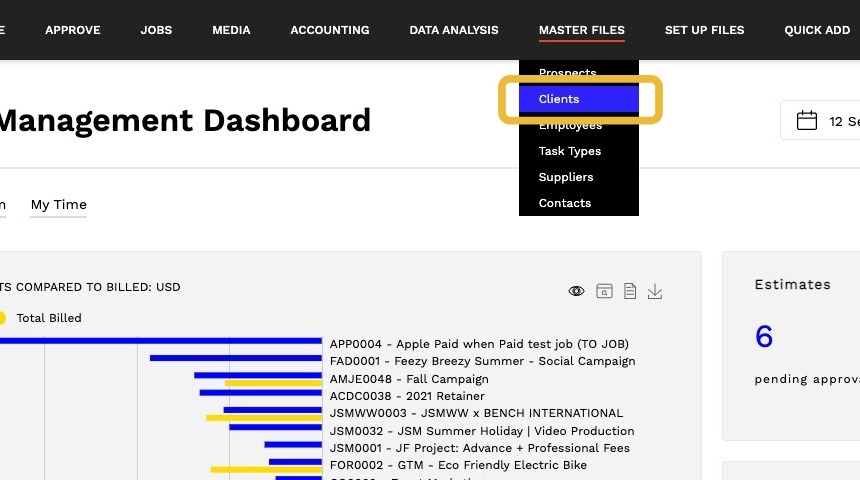
1. Navigate to MASTER FILES > Clients >
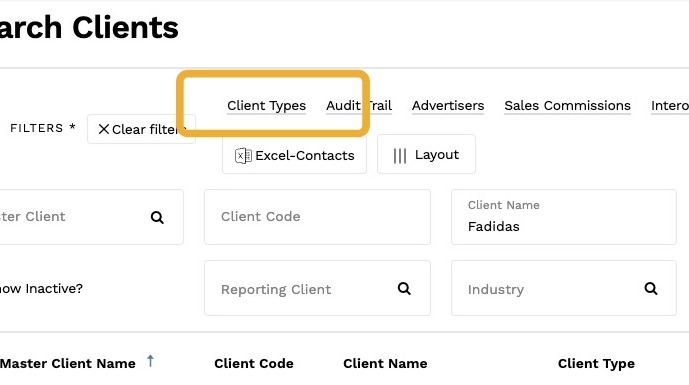
2. Select Client Types
3. To create a new Client Type, Click on the New Client Type button
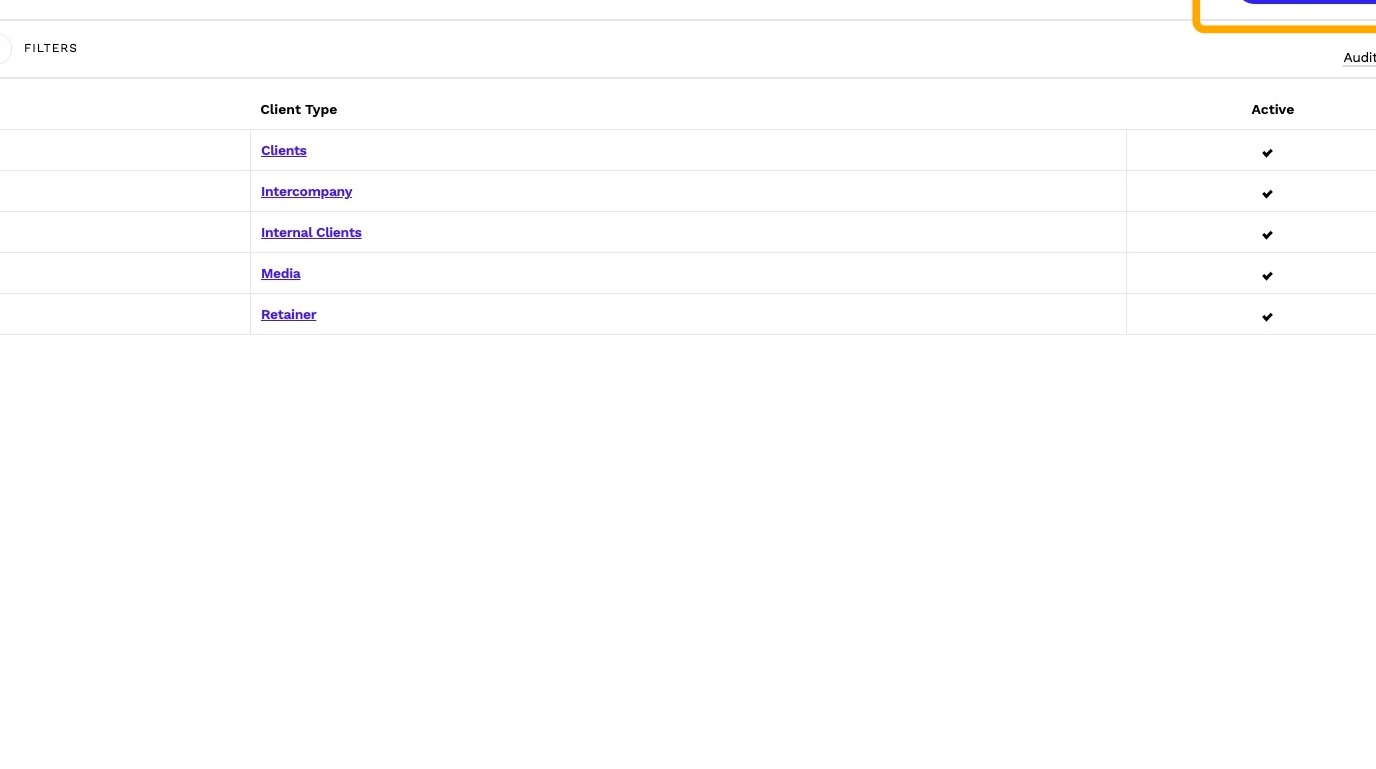
4. Examples of Client Types
- Direct Client – end brand or advertiser.
- Agency-of-Record – another agency acting on behalf of a brand.
- Internal – used for non-billable or internal jobs.
- Prospect – for setup during onboarding or pre-contract phase.
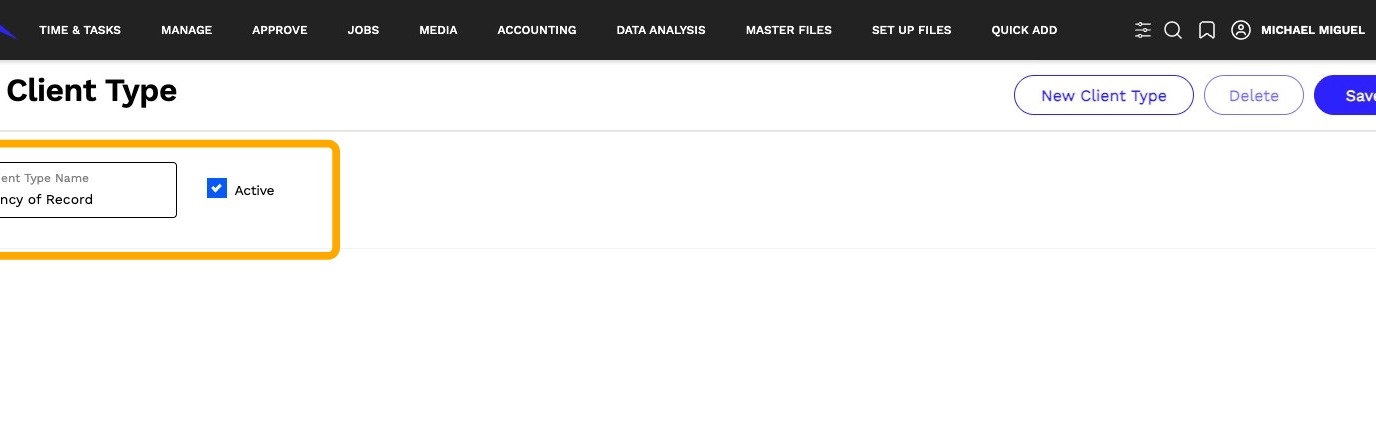
5. Enter a Client Type Name
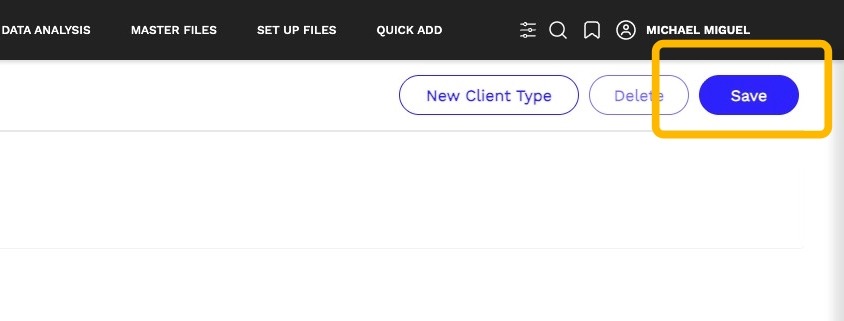
6. Click the Save button
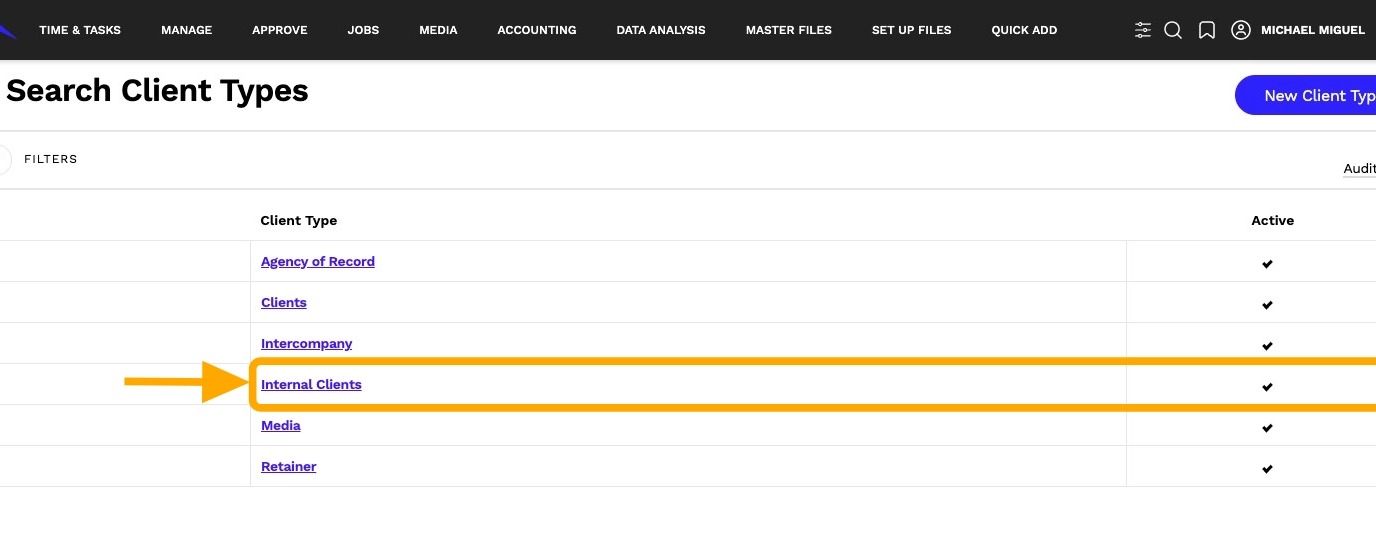
7. - Navigate to MASTERFILES > Clients > Search Client Types.
- Use the scroll to locate the Client Type you want to edit.
- Click on the Client Type link to open it.
8. Make the required changes and click Save.

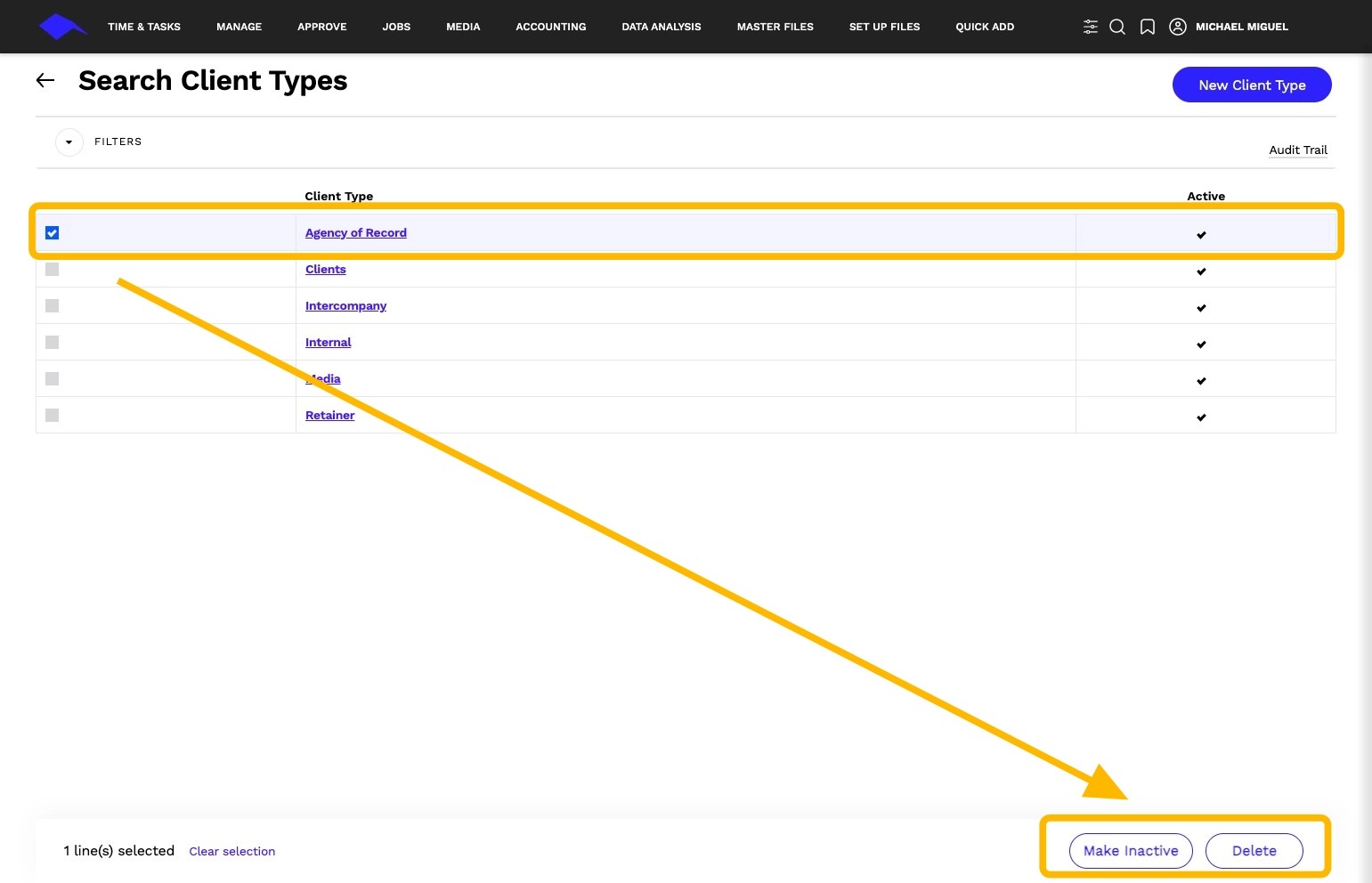
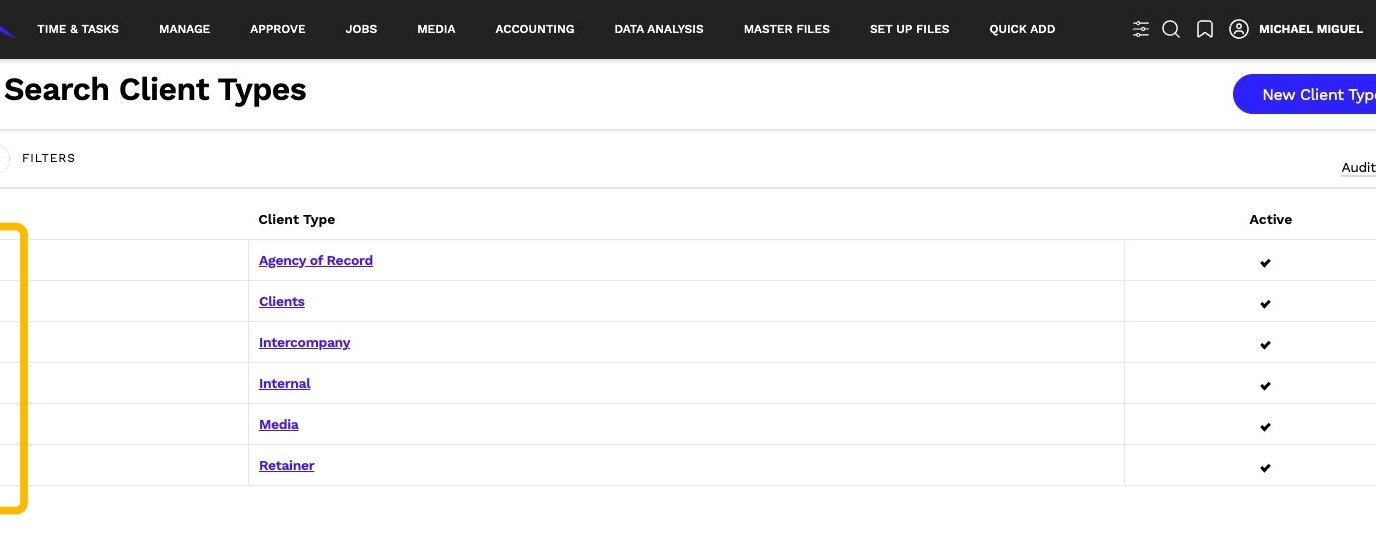
9. - Navigate to MASTERFILES > Clients > Search Client Types.
- Scroll to locate the Client Type you want to remove.
- Use the selector to the left of the Client Type to choose the record.
- Click Delete or Inactivate as required.
- Before proceeding, confirm whether any clients are currently assigned to this Client Type.
- Deleting or inactivating a type that is in use may impact data integrity and reporting accuracy.
10. - Once selected, a pop-up box will appear at the bottom of the screen.
- From the pop-up, choose to either Make Inactive or Delete the Client Type.
- Always confirm that no clients are assigned to the type before proceeding to maintain data integrity and accurate reporting.