![AccountAbility_logo_primary_fullcolor-1.png]](https://knowledgebase.counta.com/hs-fs/hubfs/AccountAbility_logo_primary_fullcolor-1.png?height=40&name=AccountAbility_logo_primary_fullcolor-1.png)
Preparing the Employee(s)
Navigate to Master Files > Employees and use the search filters if required to locate the employee(s) you wish to invite.
🔍 Need help searching and filtering employees? Check out our guide here
Select Employees and Send the Invitation
1. Tick the checkbox next to each employee you want to invite.
2.) Click Invite.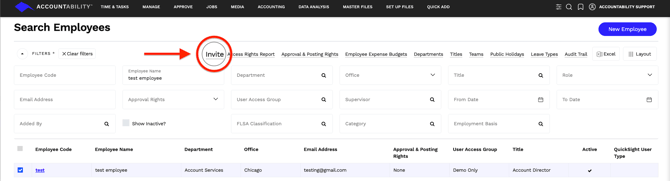
Review the Invitation Message
An invitation window will appear containing the default invitation email.
You can:
- Leave the default message unchanged, or
- Customize the message before sending
Once ready, click OK.
Confirmation
After clicking OK, a confirmation screen will appear listing all employees who have successfully been sent an invitation email.
The employee will receive an email containing a link to create their password and access Counta.
💡 TIP: Whitelist Counta Emails
To help ensure employees receive important system emails, we recommend whitelisting the @counta.com domain across your agency.
This helps prevent the following emails from being sent to spam or junk folders:
- Employee invitation emails
- Two-factor authentication (2FA) emails
- Password reset emails
- Other account-related notifications
Best Practice: Ask your IT team to add @counta.com to your organization's approved sender list before sending user invitations. This can reduce login and onboarding issues for new users.