![AccountAbility_logo_primary_fullcolor-1.png]](https://knowledgebase.counta.com/hs-fs/hubfs/AccountAbility_logo_primary_fullcolor-1.png?height=40&name=AccountAbility_logo_primary_fullcolor-1.png)
Step by Step Guide:
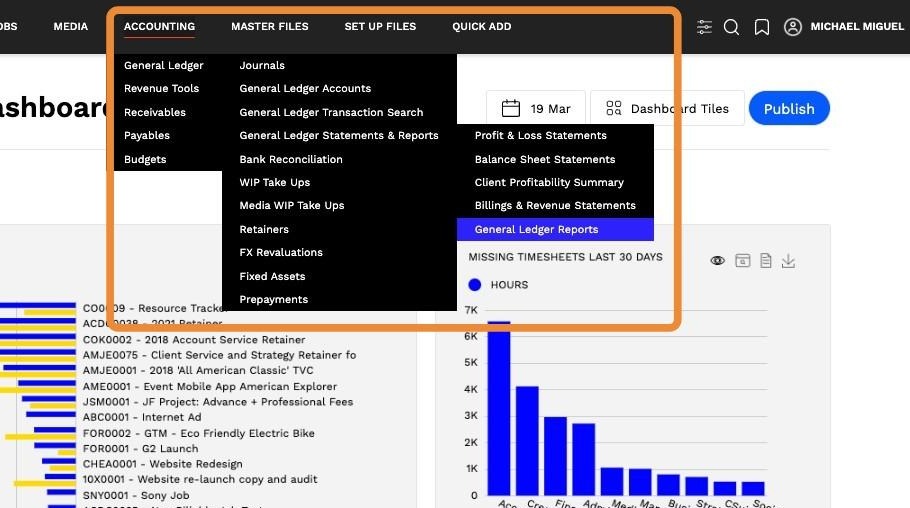
1. From the main screen, go to ACCOUNTING > General Ledger > General Ledger Reports.
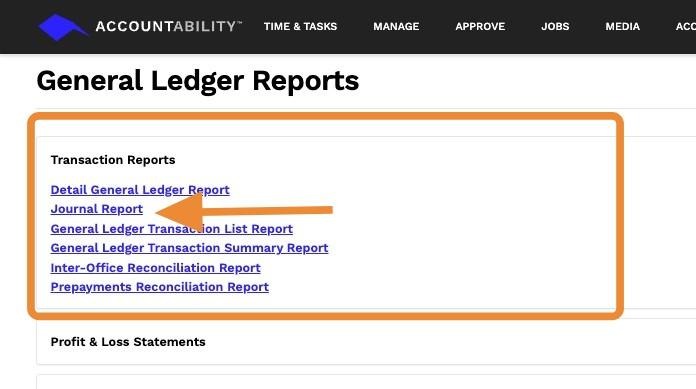
2. - Expand the Transaction Reports section.
- Click the Journal Report hyperlink to open the report settings.
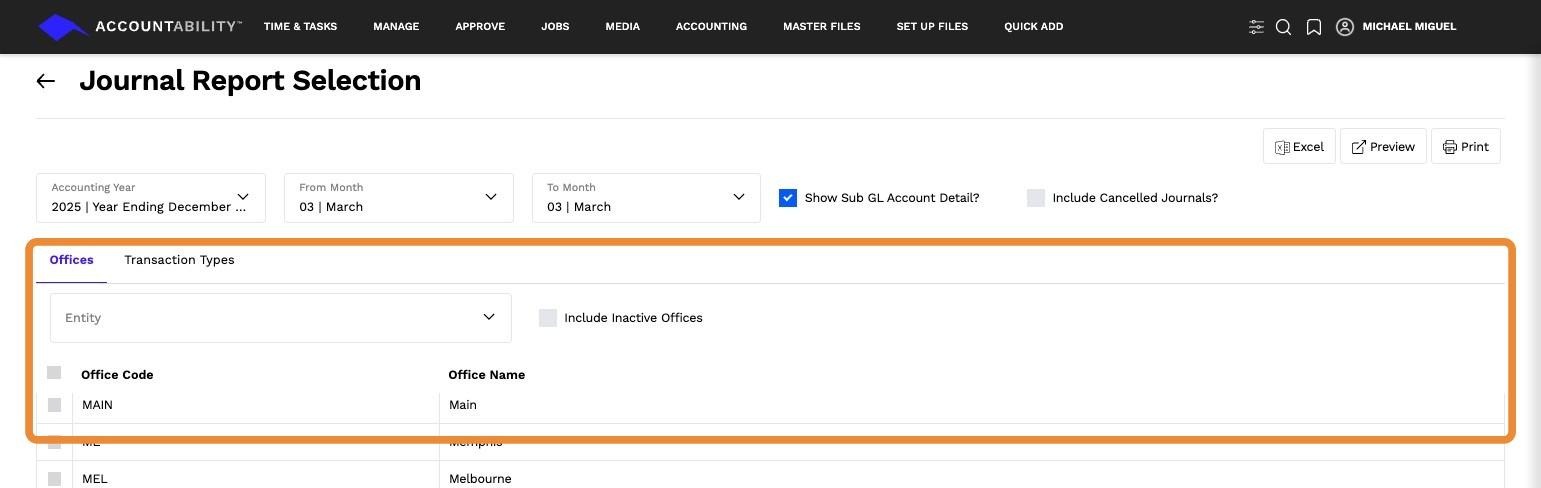
3. ### Enter the Required Report Parameters
Configure the report by filling in the necessary fields:
- Accounting Year – Select the accounting year for the report.
- From Month – Select the starting month of the report.
- To Month – Select the ending month of the report.
- Show Sub GL Account Detail? – Checked by default. If created with a header account, uncheck this to roll up the report at the header account level.

4. Filters – Apply specific filters to refine the report results, such as:
- Offices – Select specific offices (options depend on office restrictions in your Employee record).
- Transaction Types – Filter journal entries based on transaction categories.
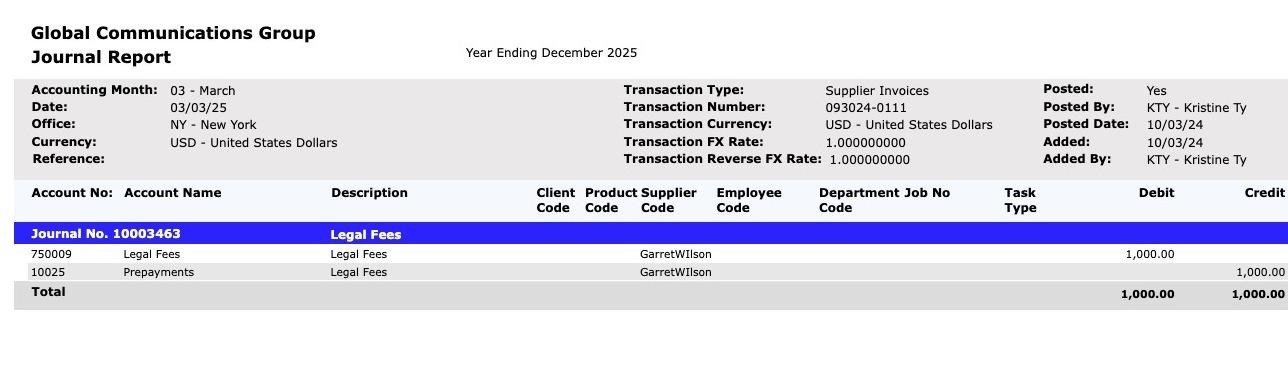
5. Click PREVIEW to view the Journal Report on the screen.
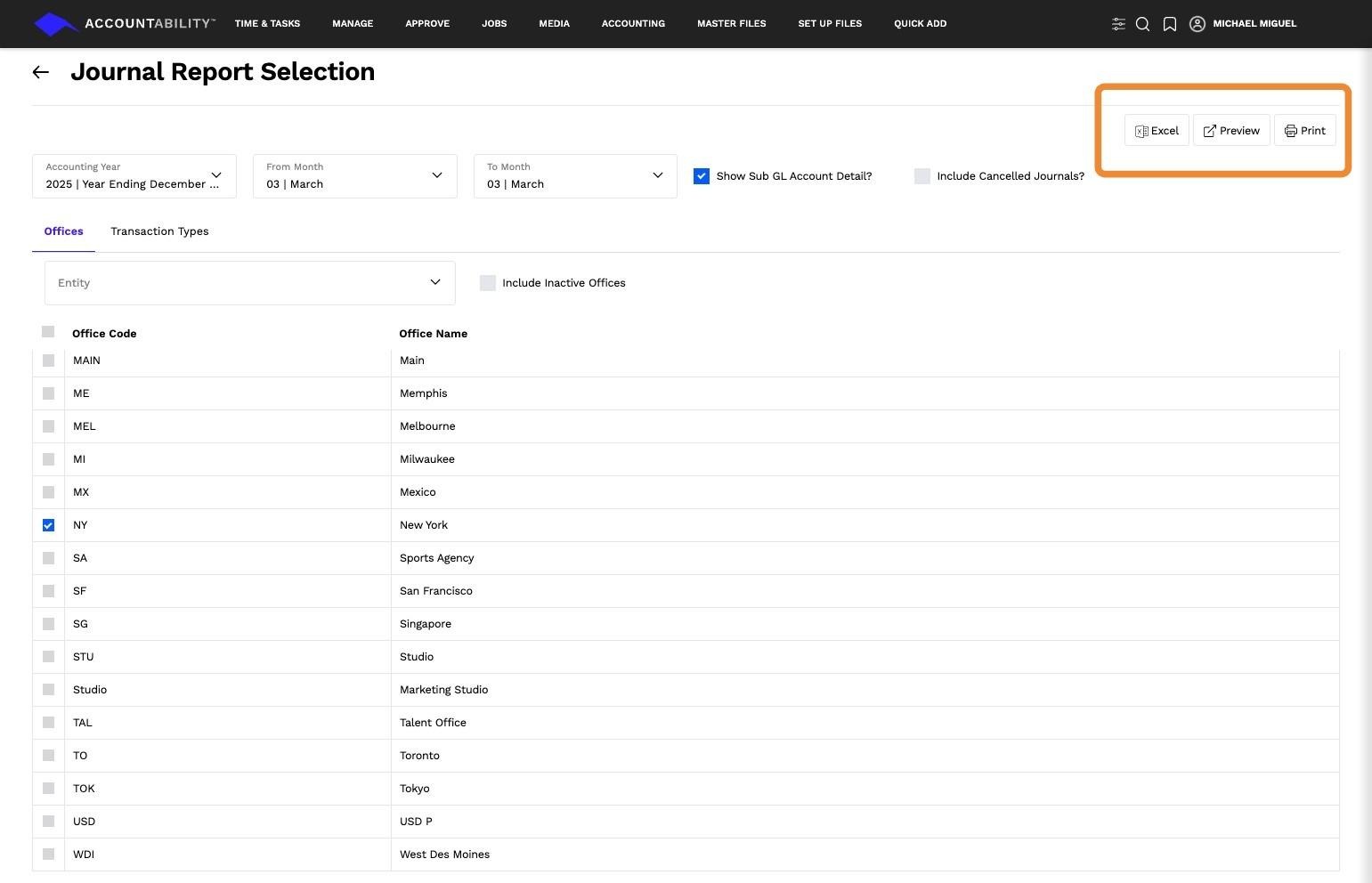
6. To download the report, select one of the following options:
- Click PDF to generate a printable version.
- Click Excel to export the data for further analysis.