Sign-On to Accountability
This guide provides step-by-step instructions for logging into Accountability using either the standard sign-on or Single Sign On (SSO).
First Time Logging In?
1. A link is generated by the system to create a password. Please ensure to keep a record of the password for future reference. A warning will be provided by the system if the incorrect password is placed. Please contact the organization's system administrator for any issues logging in.
Tip: Allow pop-ups from this site.
2. Go to the Accountability LOGIN URL
Tip:
Americas: https://accountabilityone.com
EMEA: https://accountabilityoneeu.com
APAC: https://accountabilityonesystem.com
*Note - Accountability can be accessed through major web browsers (Chrome is preferred)
3. Enter Username: work email address.
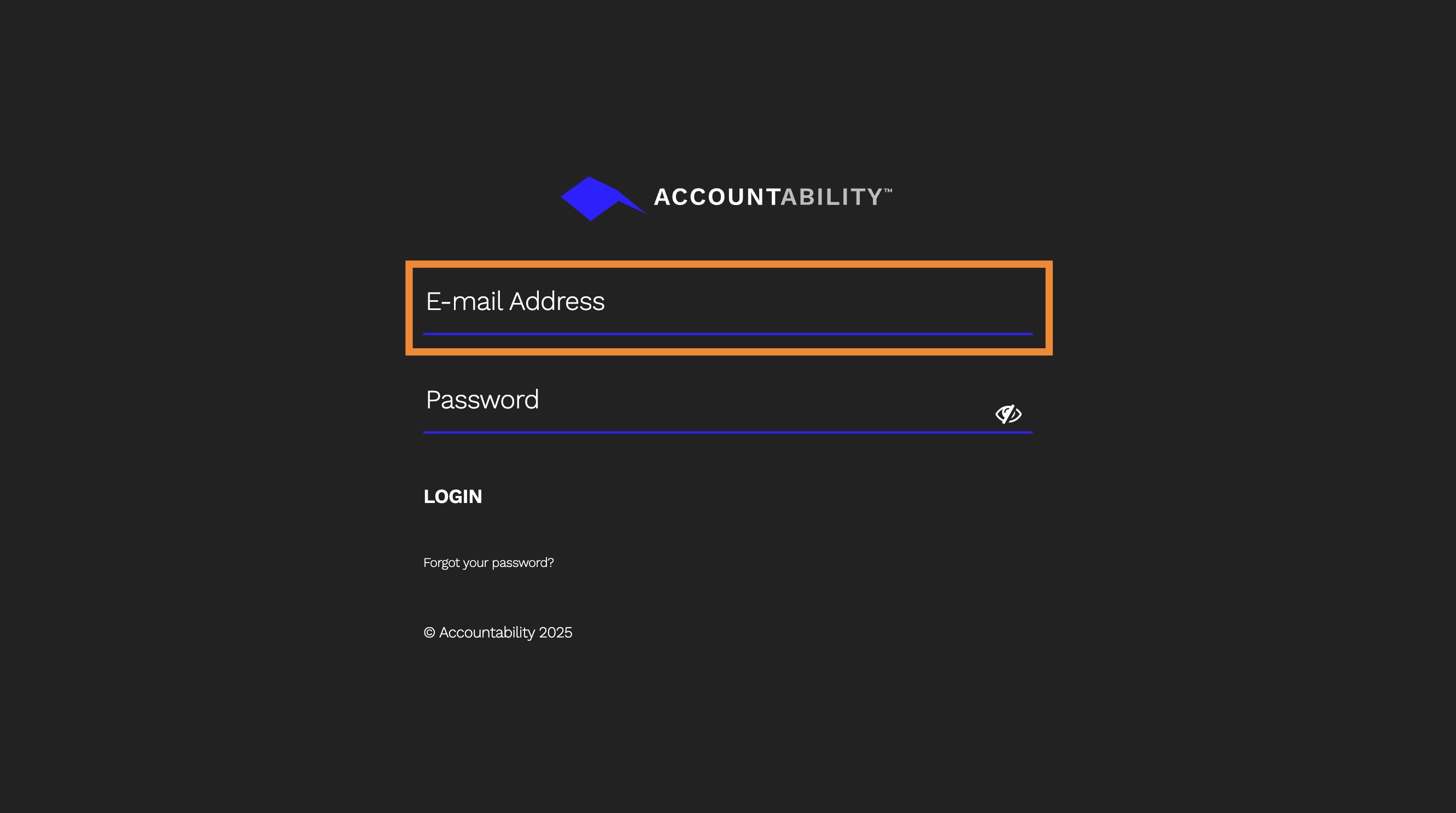
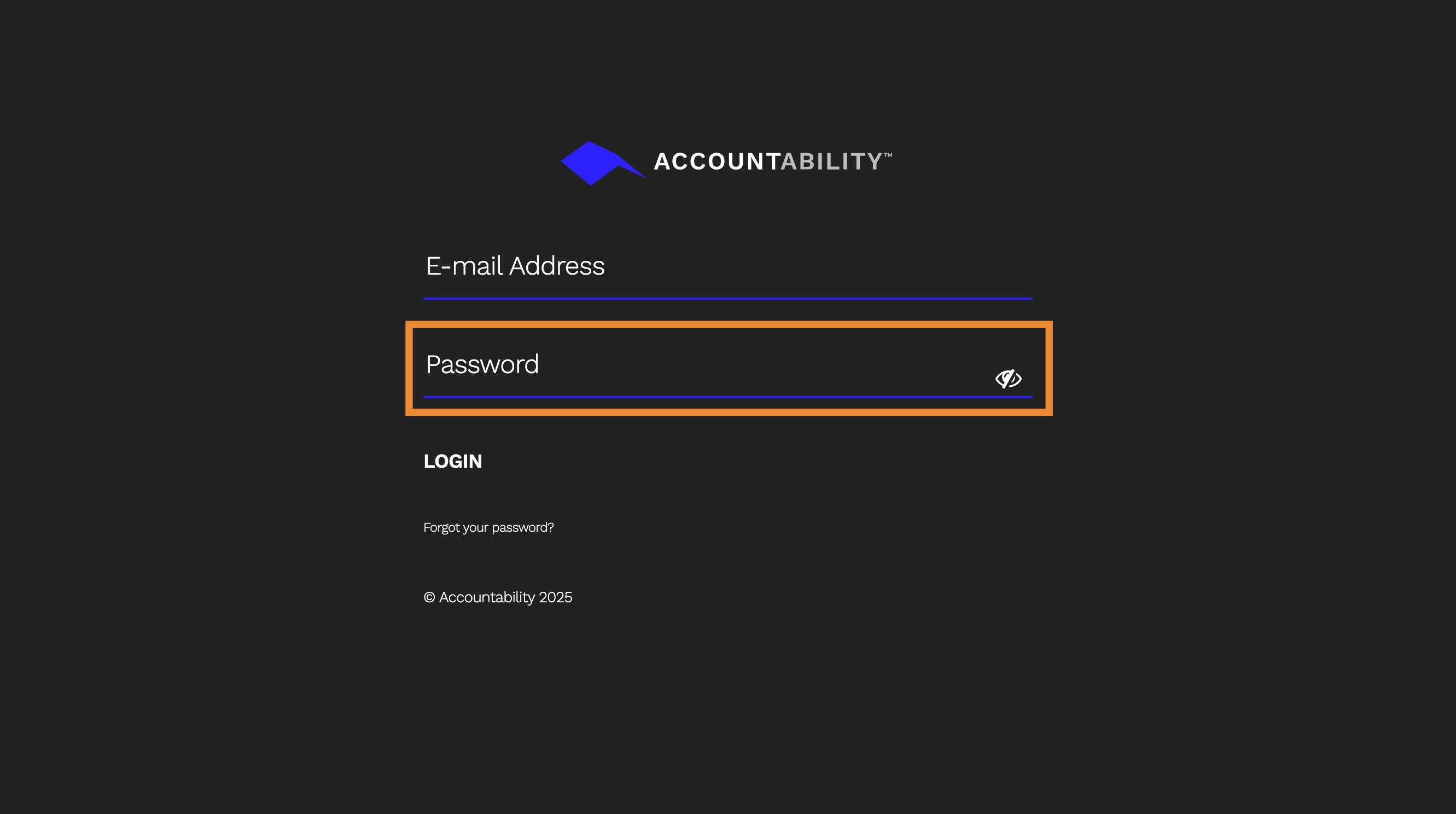
4. Enter Password: The organization dictates the accountability password format. Please work with the system admin for more details.
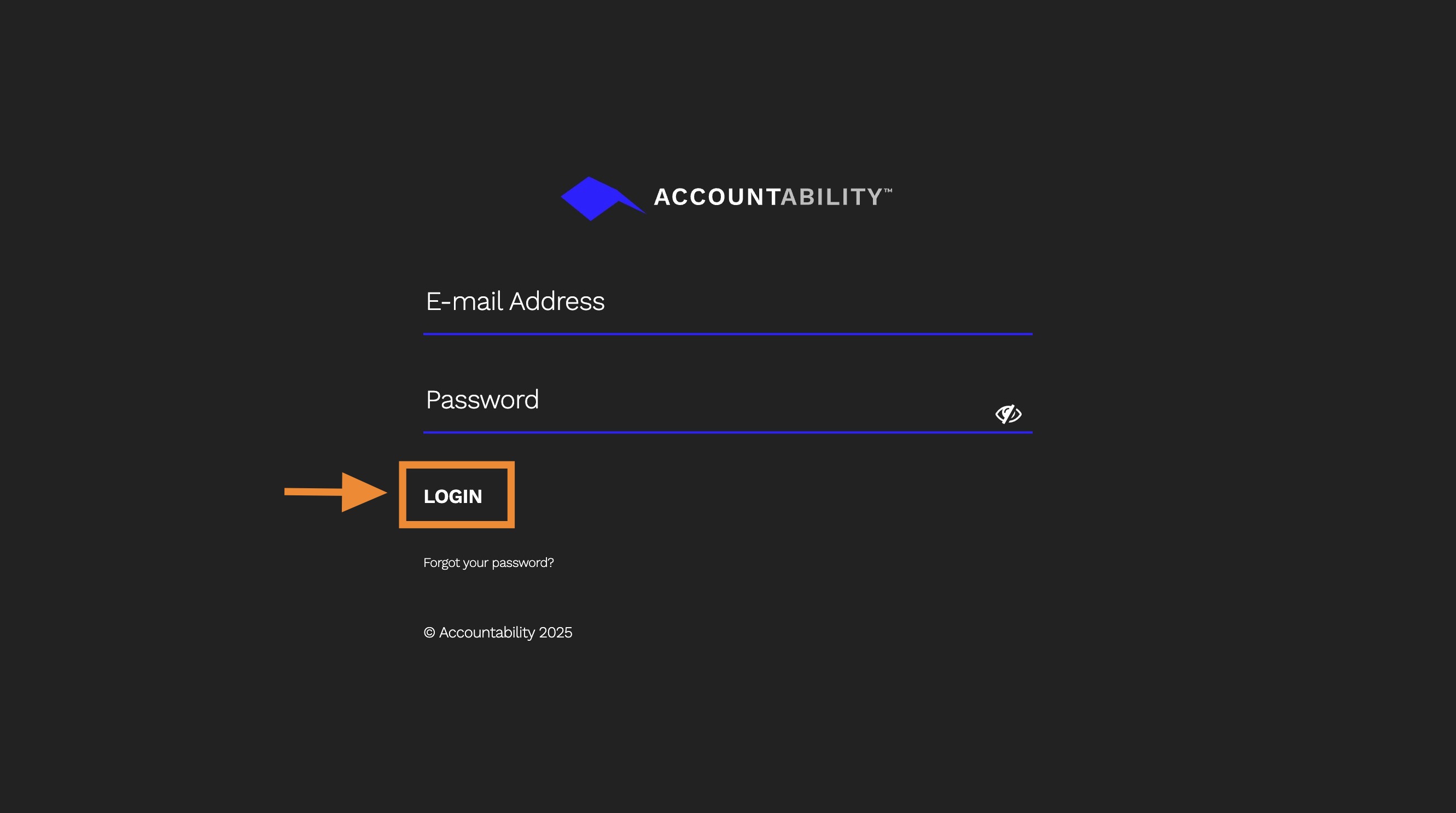
5. Click "LOGIN Forgot your password?"
Open the authenticator app
- Use the authenticator app preferred by your agency
- Make sure to add a new account for Accountability
Scan the QR Code
- After successfully logging in with your email address and password, the following is displayed with instructions on enabling 2-factor authentication.

- Use your authenticator app to scan the QR code displayed on the Accountability platform. Make sure to create a new account instead of using the passcode for an existing account.

Enter the Verification Code
- After scanning the QR code, your TOTP authenticator app will generate a 6-digit code. The example below if from Google Authenticator, but you can use any TOTP authenticator app.

- Enter this code into the verification field on the Accountability platform.

- By default, the system will require you to authenticate every 24 hours. Update your 2-factor code duration if desired. Options are:
- Require 2FA every login
- Require 2FA every 12 hours
- Require 2FA every 24 hours (default)
- Click Submit and you'll be logged in to the platform.
Troubleshooting
- Incorrect Verification Code: Ensure that the time on your mobile device is synced correctly, as the TOTP codes are time-based. You may need to wait for the next code to be generated.
- Can't find the Accountability token or passcode on your authenticator app. This likely means that you scanned the QR code directly with your camera instead of your authenticator app. If this is the case, follow the steps below:
- Open the Settings App: Tap the Settings app on your iPhone's home screen.
- Go to Passwords: Scroll down and tap on "Passwords." You may be prompted to authenticate with Face ID, Touch ID, or your passcode.
- Select the Account: Find and tap on the account you need 2FA for from the list of saved accounts.
- View 2FA Code: If 2FA is set up for that account, you’ll see a section labeled "Verification Code" or "2FA." The 2FA code will be displayed there.
- Copy the Code: Tap on the code to copy it, then paste it into the required field in the app or website you’re trying to log in to.
- Need to reset an employee's 2FA: Follow the steps in Reset Two-Factor Authentication for Employees.
Single Sign On
6. Single Sign-On allows you to give your employees one account for all of the systems your business uses. If you have SSO set up for your business, you can require users to log into Accountability using their SSO credentials. Click Single Sign-On to learn more.