![AccountAbility_logo_primary_fullcolor-1.png]](https://knowledgebase.counta.com/hs-fs/hubfs/AccountAbility_logo_primary_fullcolor-1.png?height=40&name=AccountAbility_logo_primary_fullcolor-1.png)
Media Schedules
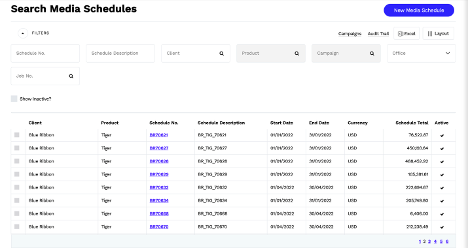
A Media Schedule acts as the container for an agency’s tactical media plan/buy in Accountability, storing the key plan-level attributes and all associated buy-line details. To view existing or create a new media schedule, navigate to Media > Media Schedules.
Click into an existing Schedule No. or click "New Media Schedule" to create a new one. Media Schedules can also be created in bulk through the Accountability API or through the standard import template, which can be accessed through the "Excel" link.
A Media Schedule has the following fields:
|
Field |
Description |
|
Client |
Select the Client for this Media Schedule. This could be a direct advertiser or an agency client. |
|
Product |
Select the Product or Brand if this Media Schedule, if applicable. |
|
Campaign |
If this Media Schedule is part of an overarching Media Campaign, select or add the Campaign Code/Name here. |
|
Media Type |
(Optional). By default, a Media Schedule is cross-media. Use this field to limit a Media Schedule to a specific Media Type. |
|
Office |
The Office defaults to the Client’s Office. |
|
Schedule No. |
This is the unique External No. for this Schedule. By default, the system generates a Schedule No. made up of the [ClientCode]+[4-digit number], e.g. JSM0001 where “JSM” is the Client Code. The import template and API support the numbering scheme from the source system, e.g. [ClientCode]+[ProductCode]+[MediaPlanNumber] |
|
Schedule Description |
The Media Plan Name |
|
Job |
(Optional). If this media schedule is associated with a Client Job, select the job number here. |
|
Start Date |
Start Date of the Campaign or Media Plan |
|
End Date |
End Date of the Campaign or Media Plan |
|
Client Approved |
(Optional). Enter the Client Approval Date for the media plan. |
|
Client Order No. |
This is the MPA Number or Client PO Number Associated with the Media Schedule. There could only be one PO per Media Schedule, but the Client PO can be overridden at the Client Invoice level. |
|
Service Fee % |
This is the Default Service Fee%. This is automatically applied to all media schedule line items unless a different Service Fee % is used. |
|
Rebate Commission % |
This is the Default Rebate Commission %. This is automatically applied to all media schedule line items unless a different Service Fee % is used. |
|
Bill Client Fee Only |
Tick this box if only Client Fees, e.g. Mark Up, Service Fee, are billed for this schedule. |
|
Active |
Checked by default. Uncheck to deactivate a Media Schedule. |
|
Date Opened |
This defaults to the date the Media Schedule is created. |
|
Date Closed |
This is automatically populated with the date the Media Schedule is deactivated. |
|
Client Media Manager |
This is the employee responsible for this Media Schedule. |
|
External ID |
This is the external system's Campaign or Media Plan number linked to this Media Schedule. The External ID can only be populated through the API or the import template. |
Media Schedule Entries – OOH
Media schedule entries are line items within a specific media schedule. For OOH, each buy line represents a specific vendor inventory, which can be added directly on the UI, imported through the standard template, or systematically inserted through the API.
OOH media schedule entries are broken out into these sections with specific fields.
Rate & Placement Details
|
Field |
Description |
|
Currency |
This is on the top of the page. Defaults to the Media Schedule's Currency, but can be overridden at the line item level. |
|
Date |
Populate with the Start Date |
|
Start Date |
Media plan line-item start date |
|
End Date |
Media plan line-item end date |
|
Media Cycle Type |
Options are:
|
|
Charge Type |
Agency-defined cost type, e.g. Installation, Production, Lighting. |
|
Number/Spots |
Enter "1" if entering the Total Line Item Cost on the Rate field. If entering a Unit Rate, enter the number of units here. |
|
Size |
Size of the billboard or poster. |
|
Rate |
This is the Net Rate, i.e. Rate without Fees or Taxes. This value gets multiplied with the Number of Units or Spots. |
|
Mark Up |
Agency Margin Amount for this line item. |
|
Details |
This is the Location Description |
|
Job No. |
(Optional). If the line item is associated with a Job, select the Job here. |
|
Key No. |
This is the unique number for the creative asset, i.e. Ad-ID. Navigate to Media > Media Material to manage key numbers. |
|
Booking Deadline |
Date when the contract needs to be confirmed with the vendor. This is automatically calculated if the number of days prior to Insertion Date is defined on the Medium (vendor) record. |
|
Material Deadline |
Date when the creative materials are due to the vendor. This is automatically calculated if the number of days prior to Insertion Date is defined on the Medium (vendor) record. |
|
Adjustment Type |
Options are:
Bill Client & Pay Media
Bill Client, Don't Pay Media
Pay Media, Don't Bill Client
If this is left blank, a client invoice cannot be generated from Accountability without a booking. Set the option to "Bill Client…" to ensure that a client invoice can be generated without generating a media booking (aka "insertion order") in Accountability.
|
|
Ad Type |
For OOH, this represents the Unit Type, e.g. Static, Digital, Digital full motion, Static - Rotating. This is a standard list defined through Media > Media Master Files > Media Types. |
|
Face Direction |
Direction the billboard faces, e.g., S, W, etc. |
|
Medium Inventory No. |
Vendor inventory # (aka Unit #). |
|
Market |
Designated Market Area (DMA) or City/State, plus the Country designation if available. Markets need to be defined in Media > Media Master Files > Media Markets. |
|
Trade Body |
This can be used for Geopath ID, Route ID, Trade Body, Audience Delivery Code |
|
Impressions |
(Optional) Total Target Impressions for Adults 18+. This is for reference only and will not impact cost calculations. |
|
Quantity |
Panel Quantity or # of Units. This is different from the value entered in the Number/Spots field used for cost calculations. |
|
Local Format |
Freeform Environment and/or Format, e.g. Roadside_Bulletin |
|
Forced Vendor Production |
Select "Yes" or "No". |
Loadings & Discounts
|
Field |
Description |
|
Loadings Description |
Label or short description for applicable surcharge, e.g. Premium position |
|
Loadings Amount |
Surcharge amount, if applicable. |
|
Discount 1 Description |
Label or short description for applicable discount |
|
Discount 1 % |
Discount rate for first discount |
|
Discount 2 Description |
Label or short description for additional discount |
|
Discount 2 % |
Discount rate for second discount |
Bill Client
The Client billable values are calculated based on the Rate and Mark Up values and the Loadings & Discounts from the previous sections.
Agency fees/commissions are based on the Mark Up from the "Rate & Placement Details" section and/or the Service Fee % from this section.
|
Field |
Description |
|
Client Rate |
Rate + Mark Up from the "Rate & Placement Details" section. |
|
Sub Total |
Rate + Mark Up multiplied by the value in the Number/Spots field. |
|
Total Loadings |
Total Loadings Amount from the "Loadings & Discounts" section. |
|
Total Discounts |
Discount 1 Amount + Discount 2 Amount |
|
Client Gross |
(Sub Total + Total Loadings) minus Total Discounts |
|
Media Commission Rebated % |
Defaults to header value if left blank |
|
Rebated Commission Amount |
Media Commission Rebated % * Client Gross |
|
Client Net |
Client Gross minus Rebated Commission Amount |
|
Service Fee % |
Defaults to header value if left blank This can be used in place of (or in addition to) the Mark Up amount to represent the agency fee. By default, Service Fees are disclosed on client media invoice. |
|
Service Fee Amount |
Service Fee % * Client Net By default, the Service Fee is calculated on Net, but can be overridden on the Client Media Settings.
|
|
Sub Total |
Client Net + Service Fee Amount |
|
Tax Code |
This is populated with the Default Tax Code from the Client Record. Override as needed. |
|
Tax |
This is populated with the Taxable Status from the Client Media Settings. Options are:
|
|
Tax % |
This is the tax rate from the Tax Code record. |
|
Tax Amount |
This is the calculated Tax amount, i.e. Tax % * Sub Total |
|
Client Total |
Sub Total + Tax Amount |

Pay Supplier
|
Field |
Description |
|
Supplier Rate |
Net Rate from the "Rate & Placement Details" section. |
|
Sub Total |
Rate * Number/Spots from the "Rate & Placement Details" section. |
|
Total Loadings |
Total Loadings Amount from the "Loadings & Discounts" section. |
|
Total Discounts |
Discount 1 + Discount 2 from the "Loadings & Discounts" section. |
|
Supplier Gross |
(Sub Total + Total Loadings) minus Total Discounts |
|
Media Commission % |
Auto-populated with default value from Medium (aka Vendor) record, if applicable. |
|
Media Commission Amount |
Calculated value based on the Media Commission % and the Supplier Gross. |
|
Supplier Net |
Supplier Gross less Media Commission |
|
Tax Code |
This is populated with the Default Tax Code from the Medium record. Override as needed. |
|
Tax |
This is populated with the Taxable Status from the Medium record. Options are: Taxable, Non Taxable |
|
Tax % |
This is the tax rate from the Tax Code record. |
|
Tax Amount |
This is the calculated Tax amount, i.e. Tax Tax % * Supplier Net |
|
Supplier Total |
Supplier Net + Tax Amount |
Import Workflow
This section describes the import process for OOH inventory originating from an external planning or buying system, like DoMedia. To facilitate the revision workflow, the third party system's External Campaign and Campaign Line Item IDs need to be linked to the corresponding records in Accountability. The external ID for these records can only be inserted through the Accountability API or the Import template.
| External System Terminology | Accountability |
| Campaign (or Media Plan) | Media Schedule |
| Campaign (or Media Plan) Line Items | Media Schedule Entries |
Creating Media Schedules via the Import Template
Media Schedules can be imported in bulk once Campaigns have been created in DoMedia.
- Navigate to Media > Media Schedules and clicking on the "Excel" icon.

Click "Download Template" to download the latest version of the template.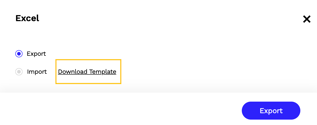
- Use the template to import media schedules in bulk:
- Make sure that each line has a unique External ID and unique Schedule No. Both of these fields are required.
- Other system-required columns are in red font.
- Refer to Media Schedules for a description of each field.
- To create the media schedules, navigate to Media > Media Schedules.
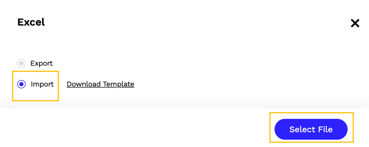
- Click on the "Excel" icon.
- Check the Import radio button and Select the file to import. The system will display an error message if there are issues with the file.
Importing Media Schedule Entries (aka "line Items")
Media schedule line items from an external system can be imported and synced in Accountability using the import template.
- Navigate to Media > Media Schedules and launch any existing Media Schedule by clicking on the Schedule No. hyperlink.

- On the Media Schedule header, click on the "Import" link.
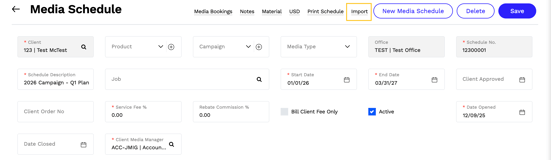
- Click "Download Template" to download the latest version of the template. This standard template can be shared with your external system provider.
- Each import file can only include line items for a single Media Schedule.
- The Media Schedule Entry Import Template needs to have the following file naming convention. [ExternalID]_[YYYYMMDD]_MediaScheduleEntryImport_OOH
Where External ID = is the DOMedia External Schedule ID and YYYYMMDD is the file generation date.
Example: 12345_20251126_MediaScheduleEntryImport_OOH.xlsx -
Each line item needs to have a unique External Line ID.
- The import requires the Accountability Code for the following reference data so these need to be set up in Accountability and mapped to the corresponding records in DoMedia
- Medium Code (aka Vendor Code)
- Ad Type (aka Unit Type) - You could also use the Local Format which is a freeform text to populate the unit type and/or format.
- Market Code
- Supplier Code, if different from the Supplier mapped to the Medium
- Charge Type
- The Media Schedule Entry Import Template needs to have the following file naming convention. [ExternalID]_[YYYYMMDD]_MediaScheduleEntryImport_OOH
- There are 2 ways to sync media schedule entries in Accountability:
- SFTP (recommended): Accountability will import all files received in the designated folder based on an agreed upon frequency. The system will use the file name to determine which Media Schedule each file should be imported to.
- Manual Import: Each file needs to be imported within the context of a Media Schedule.
- Navigate to Media > Media Schedules and launch the Media Schedule by clicking on the Schedule No. hyperlink.
- Click on the "Import" link on the top of the page and select the file to import. The system will return an error message if there's an issue with the file.
External Line Item ID
Subsequent media schedule entry import files need to be a "full file replacement". The system will use the External Line Item ID as follows:
- If a previously imported External Line Item ID is missing from the data set, it will be deleted.
- If a matching entry is found, it will be updated.
- If a matching entry is not found, it will be created