![AccountAbility_logo_primary_fullcolor-1.png]](https://knowledgebase.counta.com/hs-fs/hubfs/AccountAbility_logo_primary_fullcolor-1.png?height=40&name=AccountAbility_logo_primary_fullcolor-1.png)
Using the My Time in Accountability
Made by Em Narozniak with Scribe
My Time in Accountability allows users to accurately record time, ensuring better project cost tracking and precise billing. This guide outlines how to access, enter, and manage time entries efficiently.
Tip: There are two ways to access the My Time module in Accountability:
-
Via Time & Tasks
- Navigate to Time & Tasks in the main menu.
- Click on My Time.
-
Via My Menu
- Open My Menu.
- Select My Time.
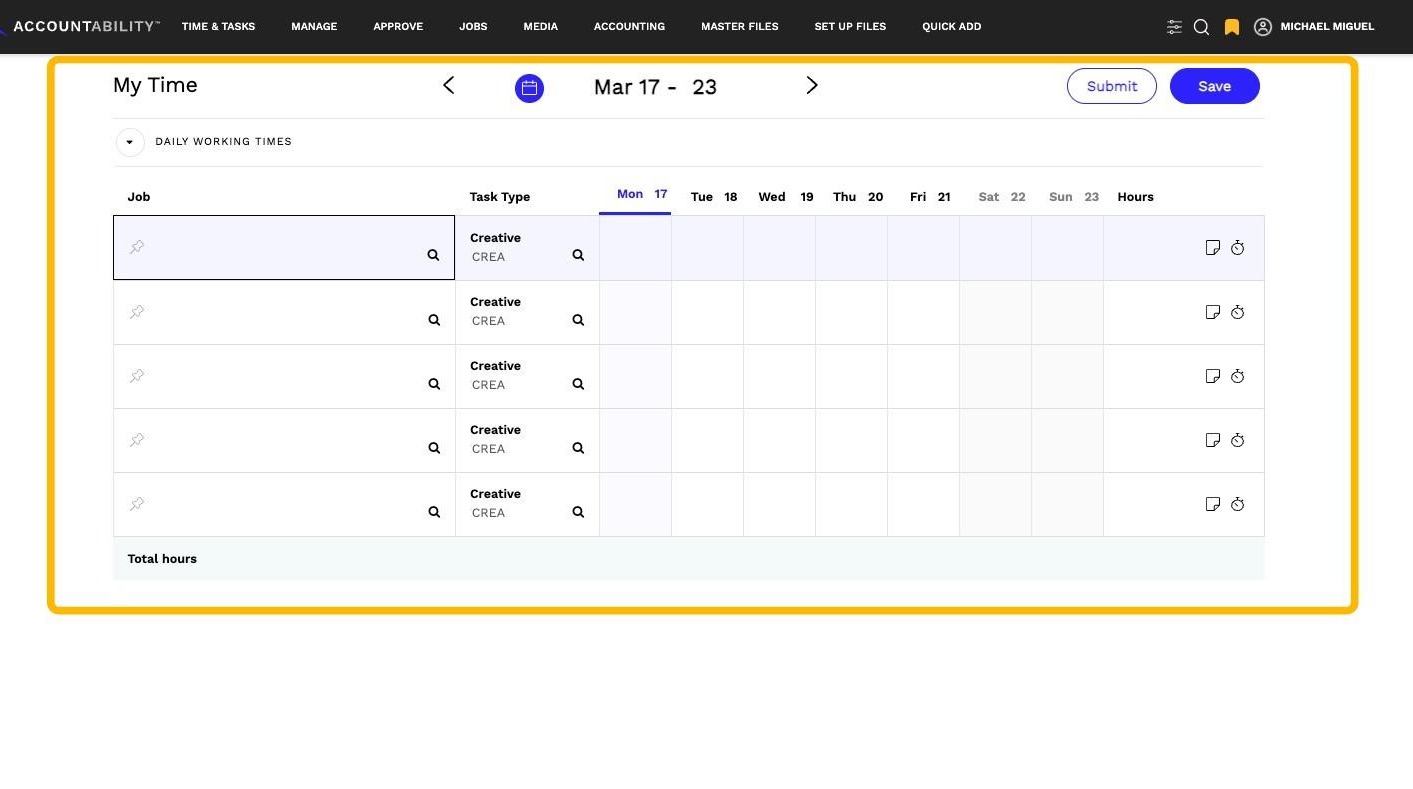
Once selected, the My Time landing page will be displayed.
1. Click Navigating the My Time Page
- The system defaults to the current workweek, displayed in the middle of the screen.
- To adjust the time period:
- Use the back ( < ) and forward ( > ) arrows to navigate between weeks.
- Click the Calendar icon to select a specific date range.here.
2. ### Selecting a Job
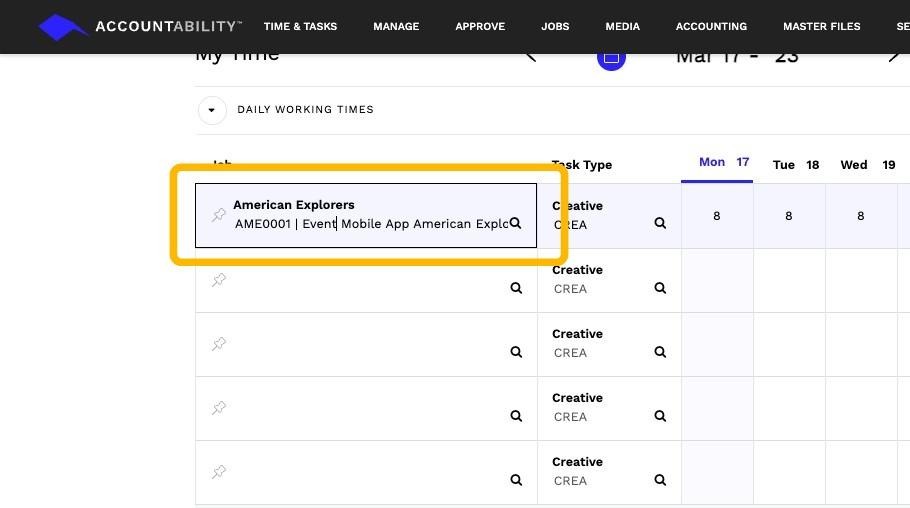
- Locate the first available line under Job.
- Enter the job name
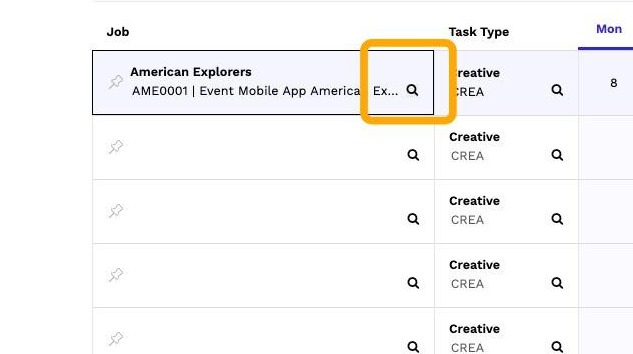
3. - or use the magnifying glass icon to search for a job.
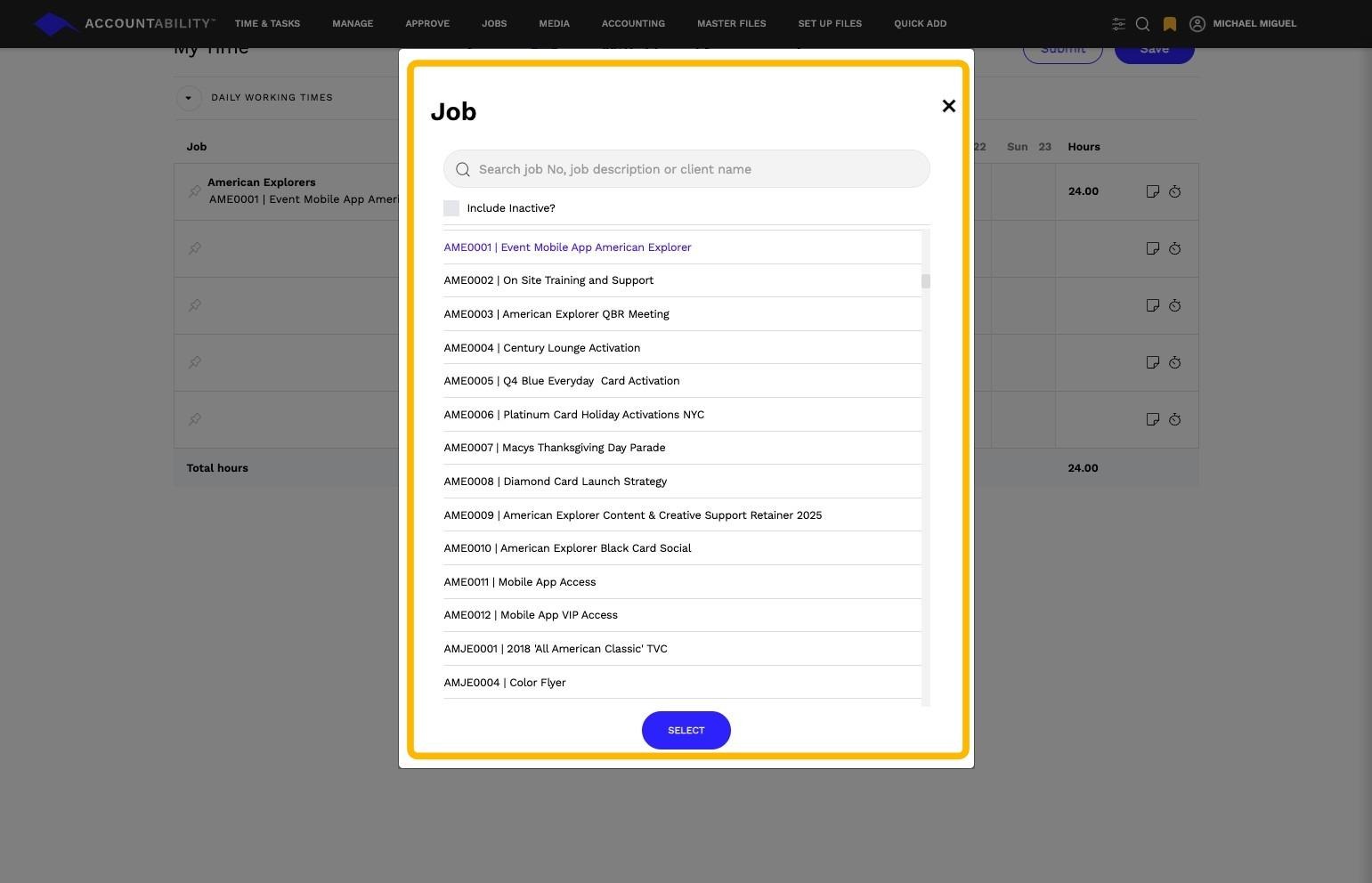
4. - A pop-up window will appear with a list of active jobs—select the appropriate job.
5. ### Choosing a Task Type (Optional)
- Most agencies will have a default Task Type assigned to employees.
- If needed, enter a Task Type manually or click the magnifying glass to search.
- Task Types help categorize work across clients, offices, and suppliers.
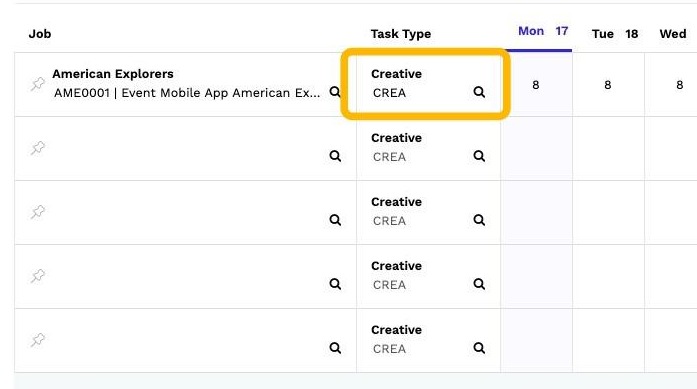
Tip: FieldDescription
Job: Represents a client or internal project where resources and costs are allocated. It is the foundation for all transactions within Accountability.
Task Type: Used to classify tasks within a job. Some agencies may apply a default task type to employees.
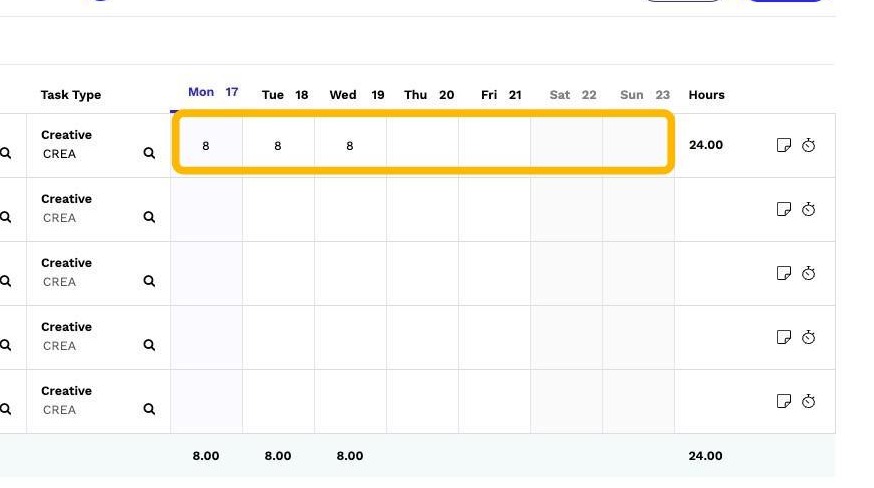
6. ### Entering Work Hours
- Enter time in decimal format (e.g., 2 hours 45 minutes = 2.75).
- Multiple time entries can be added for the same job.
- Time can be edited before submission, as long as it remains unapproved.
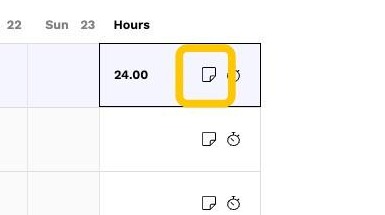
7. ## Adding Notes
- Click the Notes icon to add comments to your time entry.
- Click Save to retain the notes.
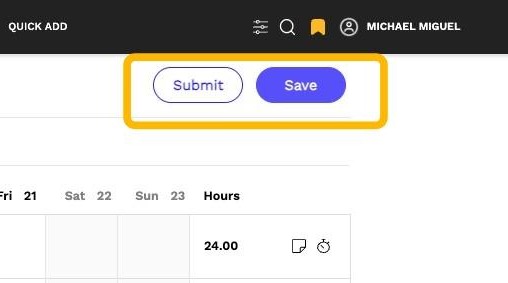
8. ### Auto-Save & Best Practices
- My Time automatically saves your entries as you input them.
- It is a best practice to click Save to ensure all changes are stored properly.
Submitting Your Timesheet (Agency-Level Feature)
- Submitting your timesheet is an agency-level setting.
- Some agencies require submission, while others automatically capture time without needing this step.
- If your agency requires submission, review your time entries and click Submit to finalize.
Video Tutorial