
Step by Step:
What is it?
1. By default, an Expense Claim will only be in Manager-Approved status if all expense lines are approved. Once the Expense Claim is approved, it is converted into a supplier invoice which then needs to go through the relevant approval sequence if required by the agency. Once posted, that supplier invoice is eligible for payment.
In cases where an agency would like to partially approve an expense claim, the "Separate" function allows a user to move one or more unapproved expense lines into its own expense claim.
Why does it matter?
2. This feature allows the agency to move a portion of the expense claims through the approval workflow so that the employee who incurred expenses on behalf of the agency can get reimbursed sooner.
How does it work?
3. Let's use a simple example. Let's say that Expense Claim 10073 for Expense Employee JMIG has an expense line that is rejected and needs to go through additional review.
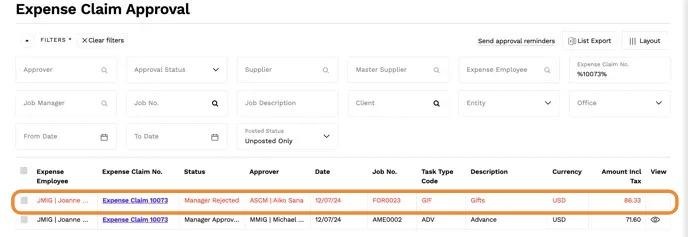
4. Because one of the lines are in Rejected status, the entire Expense Claim has a status of Rejected, as shown below.
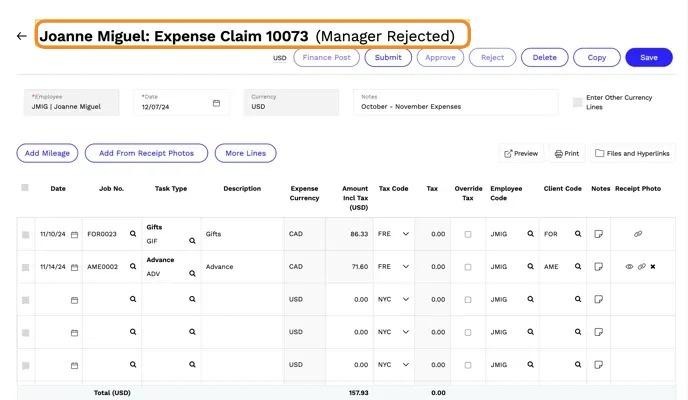
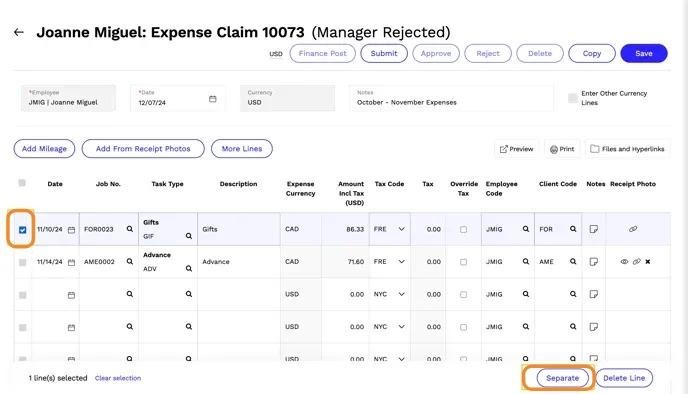
5. Instead of holding back the rest of the Expense Claim from being approved and converted into a payable supplier invoice, the employee or an authorized approver can now create a separate expense claim off of the rejected (or any unapproved) expense lines.
Tick the box next to the line(s) you want to move to a separate expense claim
Click on the "Separate" button at the bottom of the page.
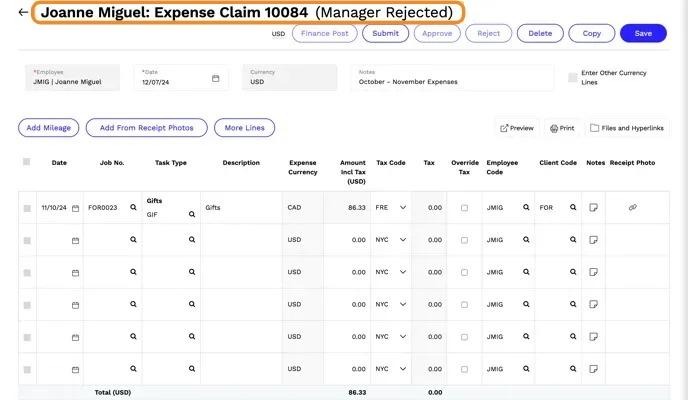
6. This automatically creates a new Expense Claim with the the selected line(s) in it. In our example, you'll see that the Expense Claim also has the relevant status based on the lines that were moved.
7. The original expense claim with only approved lines is now marked as Manager Approved and automatically converted into a supplier invoice.
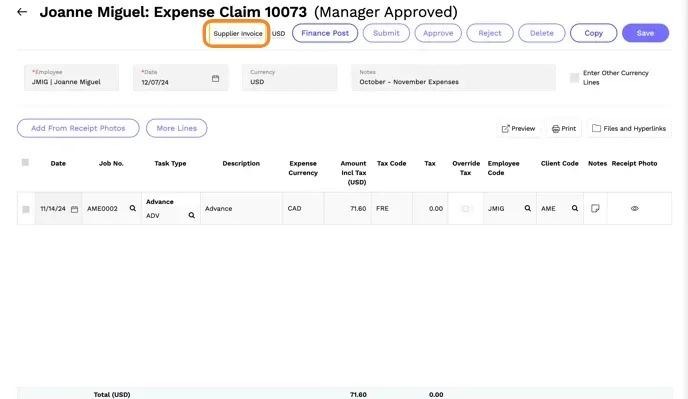
8. Please note that the system uses the next Expense Claim number in the series for the employee, but the new expense claim inherits the same Expense Report Name, i.e. Header Notes.
