![AccountAbility_logo_primary_fullcolor-1.png]](https://knowledgebase.counta.com/hs-fs/hubfs/AccountAbility_logo_primary_fullcolor-1.png?height=40&name=AccountAbility_logo_primary_fullcolor-1.png)
Step by Step Guide:
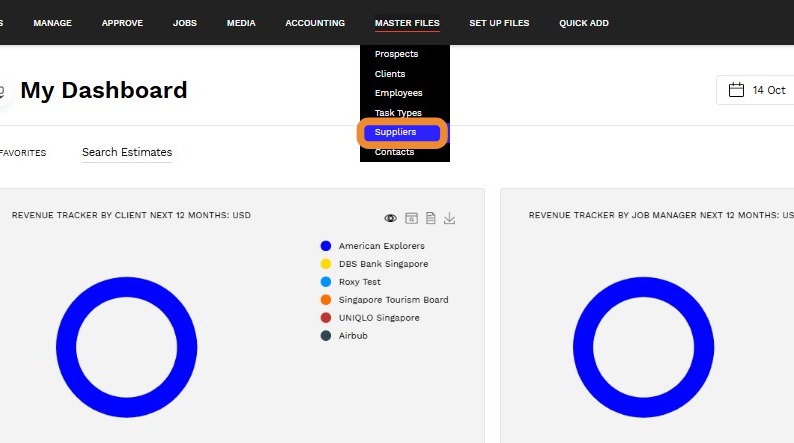
1. Navigate to Master files > Suppliers.
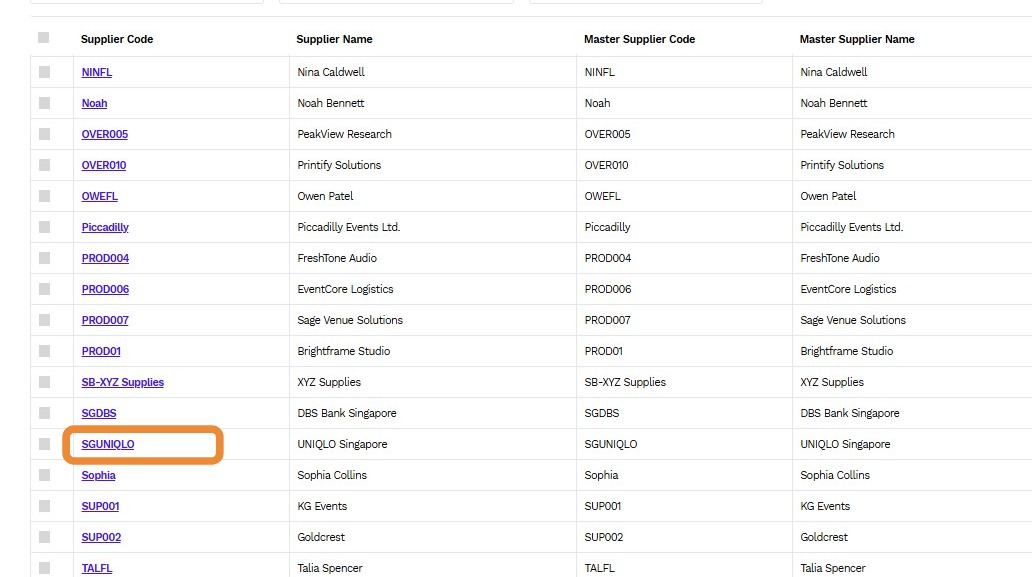
2. Click on a Supplier Code that needs to be placed on hold.
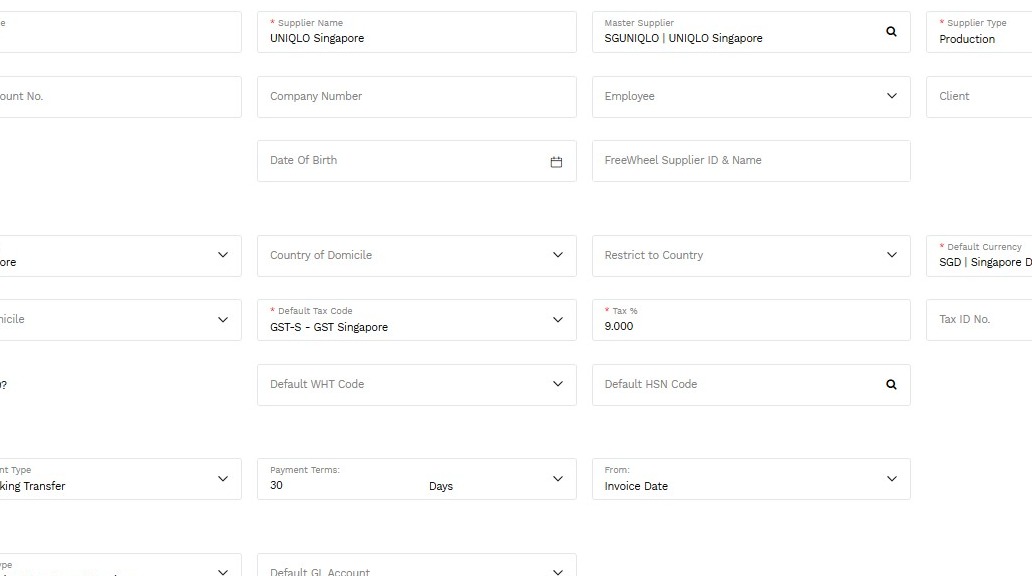
3. Click Hold, located at the top right of the screen.
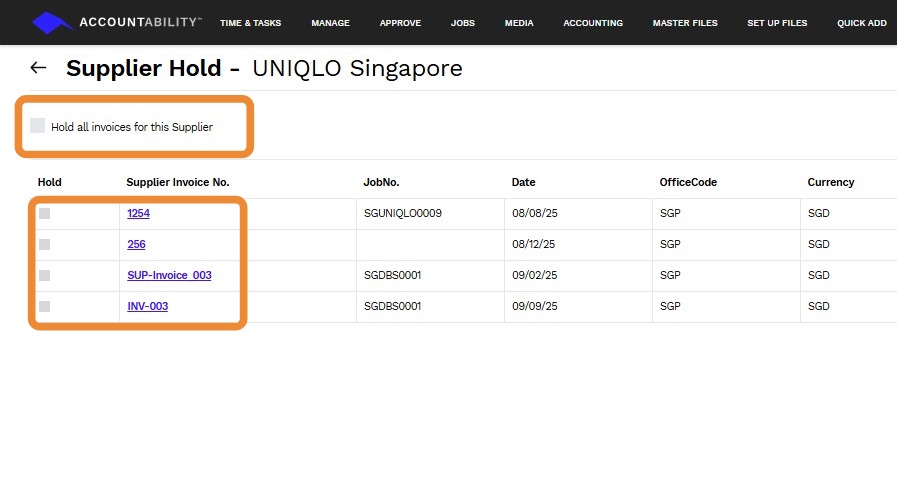
4. There are two options to choose from:
Hold All Invoices For This Supplier - Select this option for existing unpaid or new invoices for this Supplier that can’t be paid until the Hold status is removed.
Hold - Select this option for an individual invoice to be held.
Tip: It is advisable to enter NOTES against the Supplier to indicate the reasons that the Hold has been applied.
The existence of a HOLD is indicated in a number of places:
- On the Supplier Invoices Search screen: Invoice numbers on Hold are highlighted in green.
- Where ‘all invoices’ for a Supplier are on hold –the Supplier Code is highlighted in green.
- The Hold hyperlink will have an asterisk next to it.