![AccountAbility_logo_primary_fullcolor-1.png]](https://knowledgebase.counta.com/hs-fs/hubfs/AccountAbility_logo_primary_fullcolor-1.png?height=40&name=AccountAbility_logo_primary_fullcolor-1.png)
Step by Step Guide:
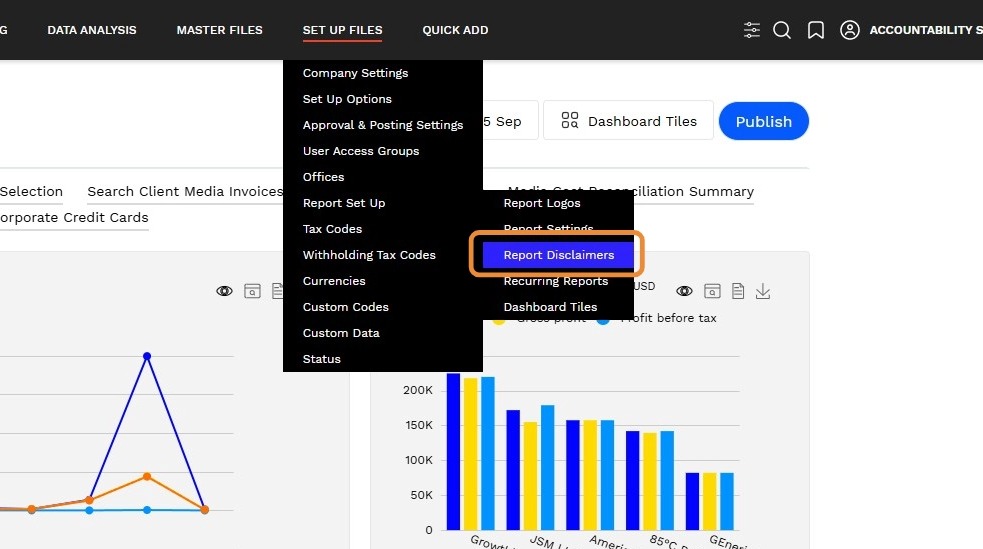
1. Navigate to Set Up Files > Report Set Up > Report Disclaimers
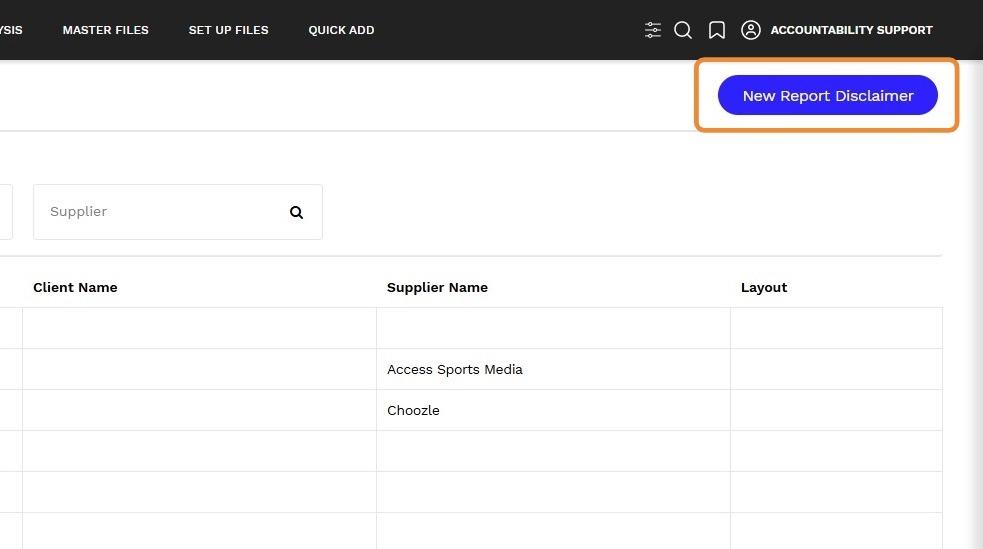
2. Click on the New Report Disclaimer button
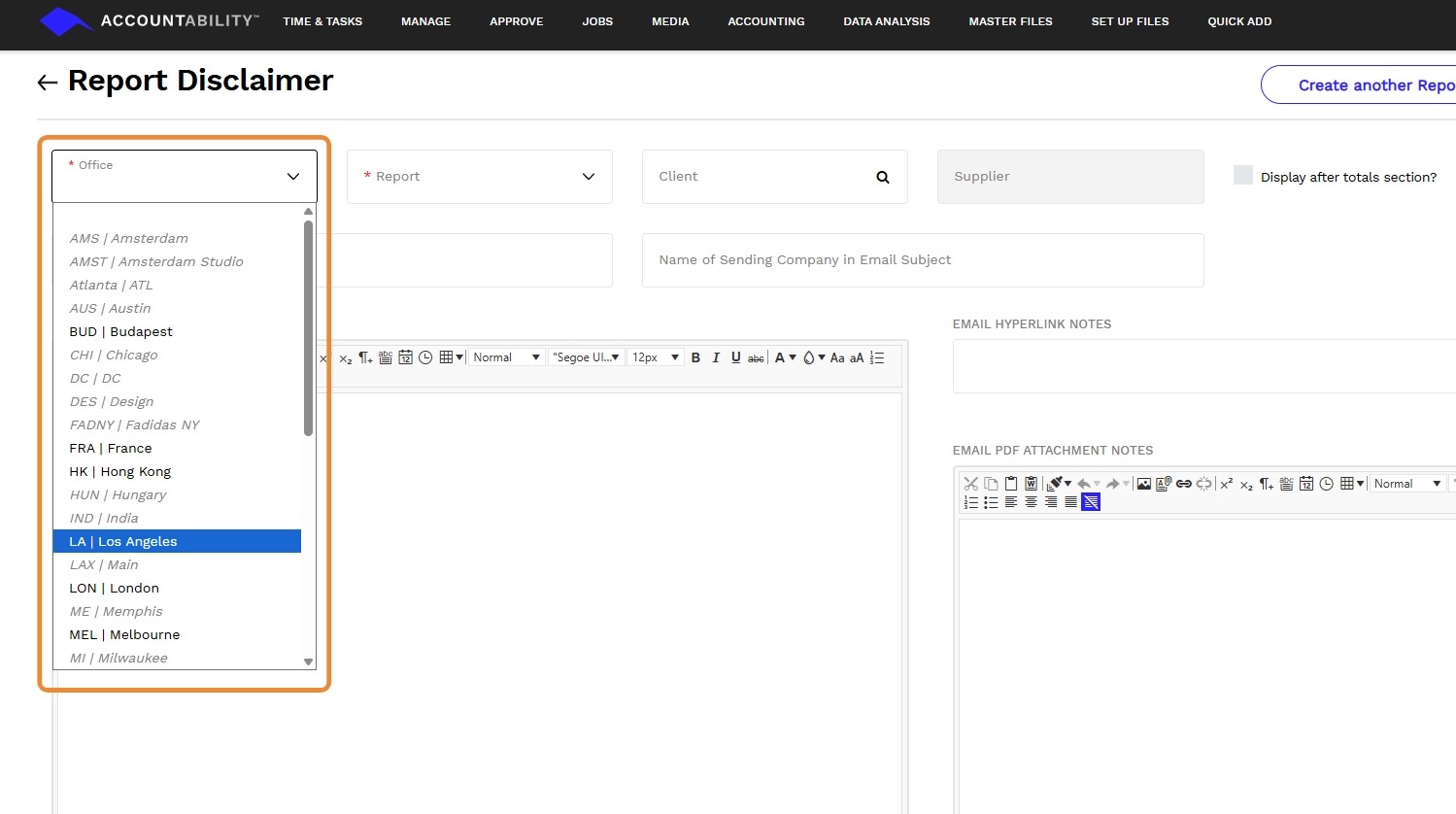
3. Select the Office that this disclaimer applies to
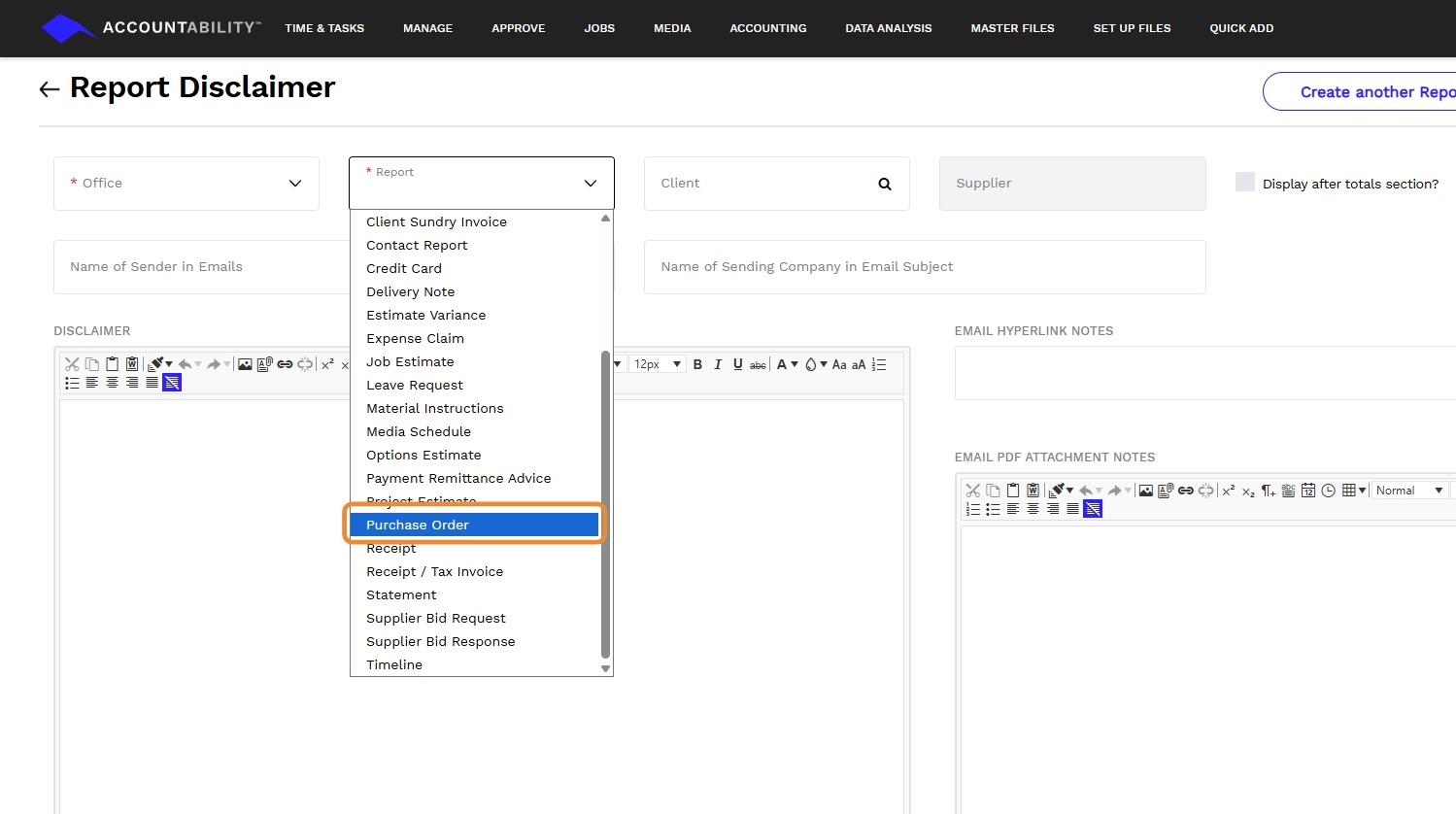
4. Choose Purchase Order from the Report drop down field
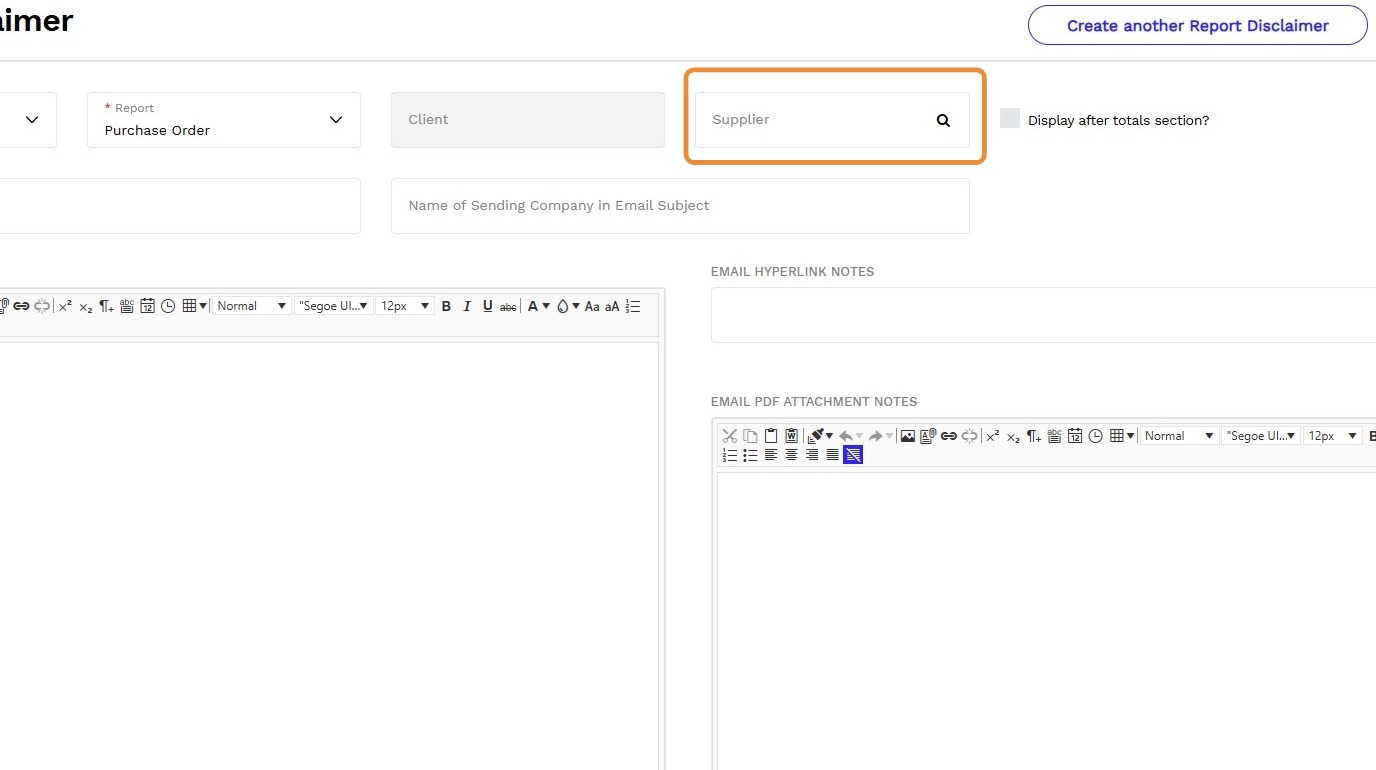
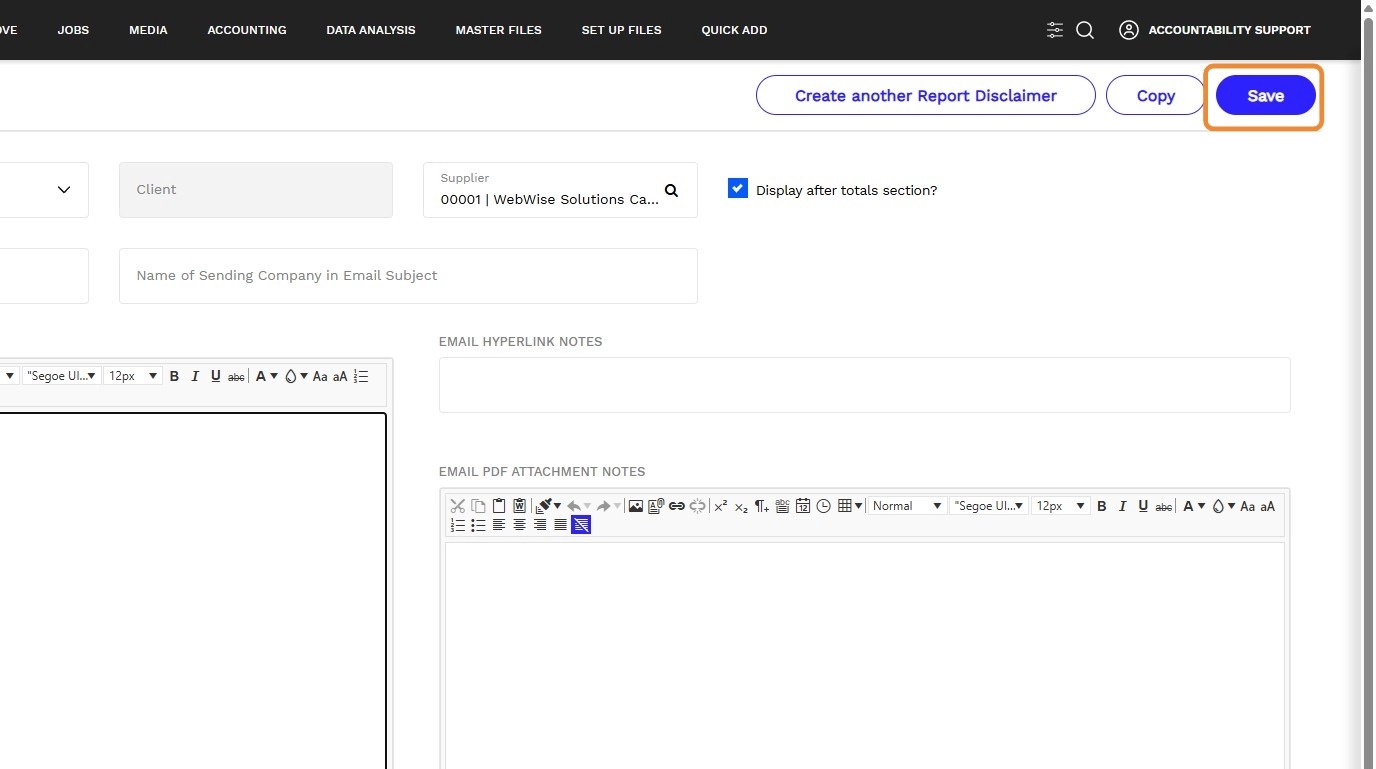
5. Enter or search for the specific supplier in the Supplier field. Click the magnifying glass to display a list of Suppliers
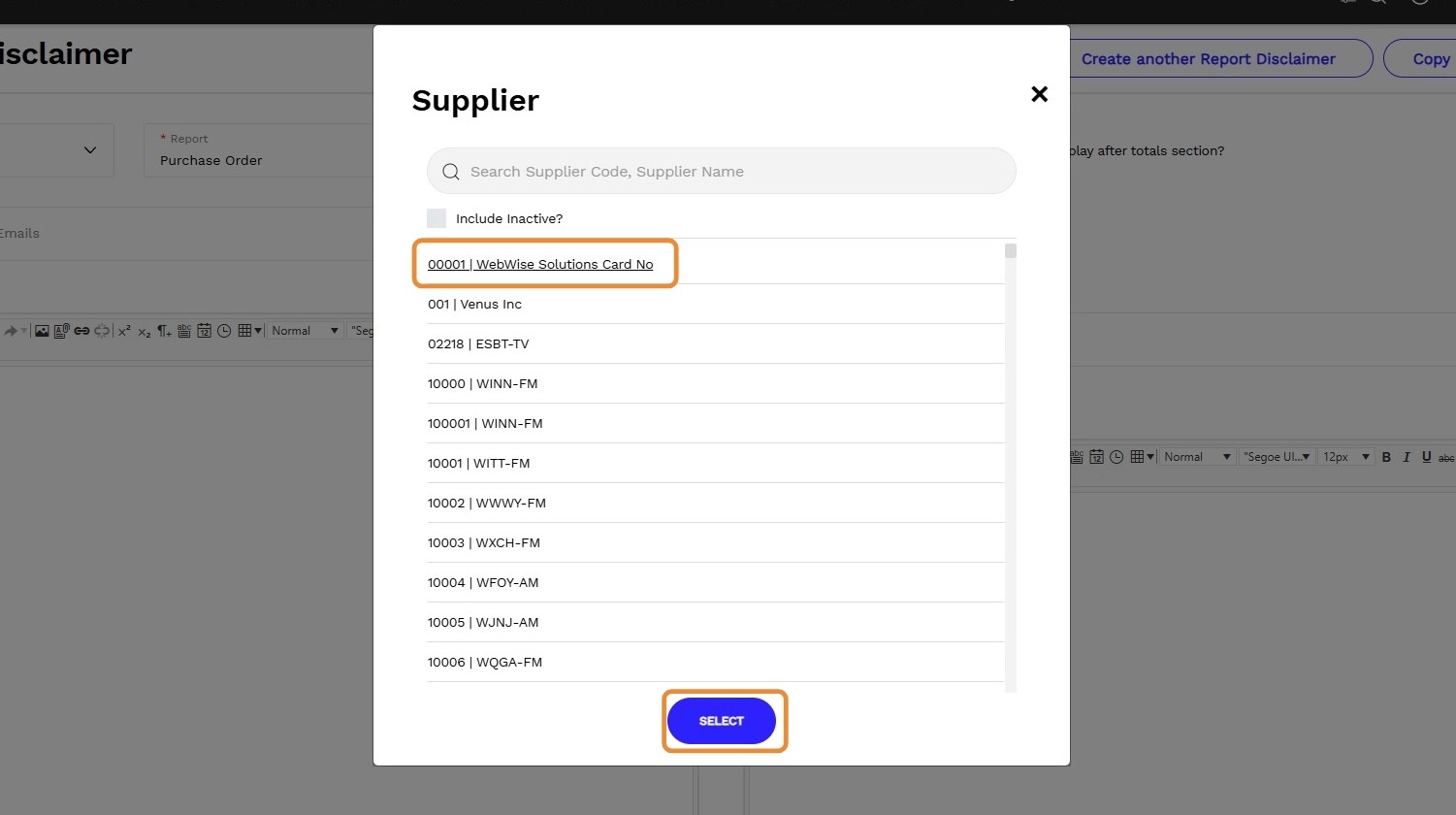
6. Click for the specific supplier in the Supplier list and click Select to confirm
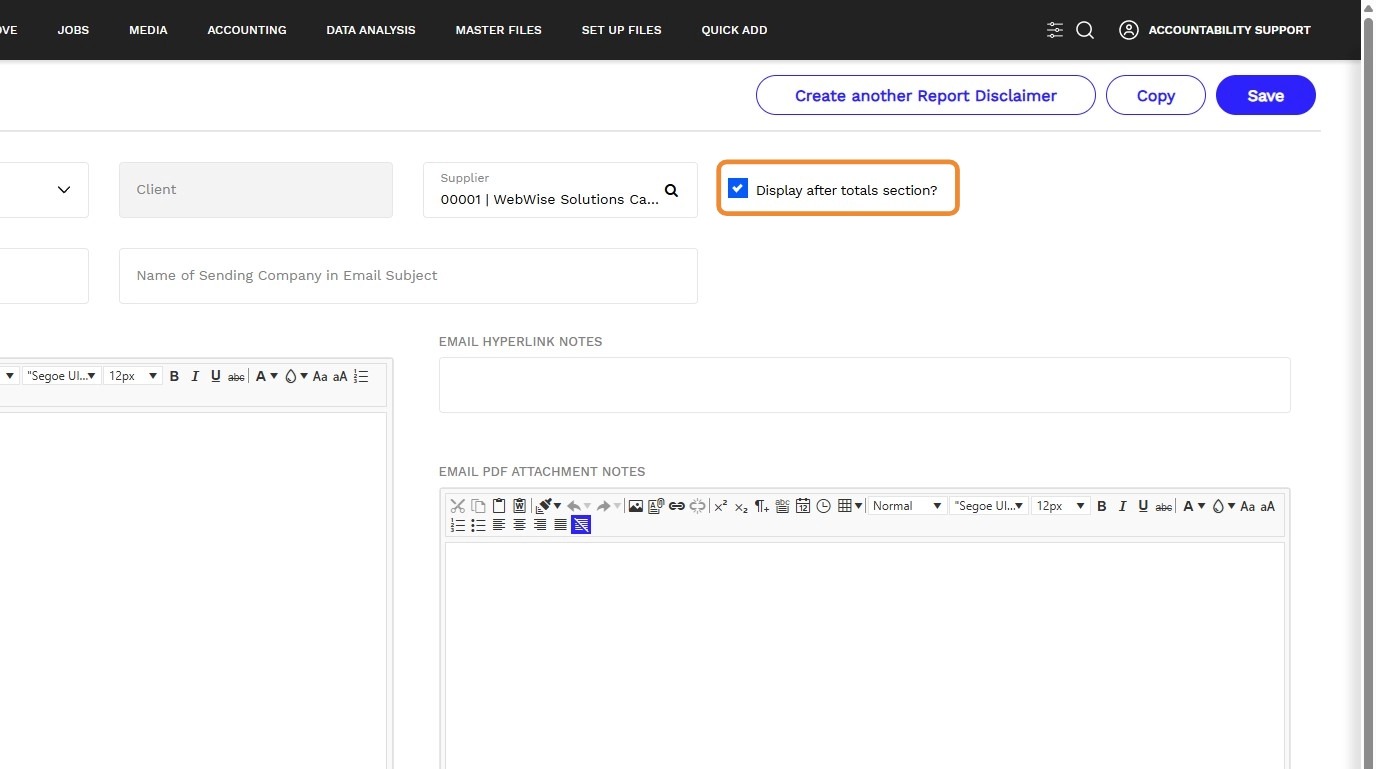
7. Check Display After Totals Section? box to have the disclaimer across the width of the page below the total line. Otherwise, the disclaimer is positioned on the left of the page.
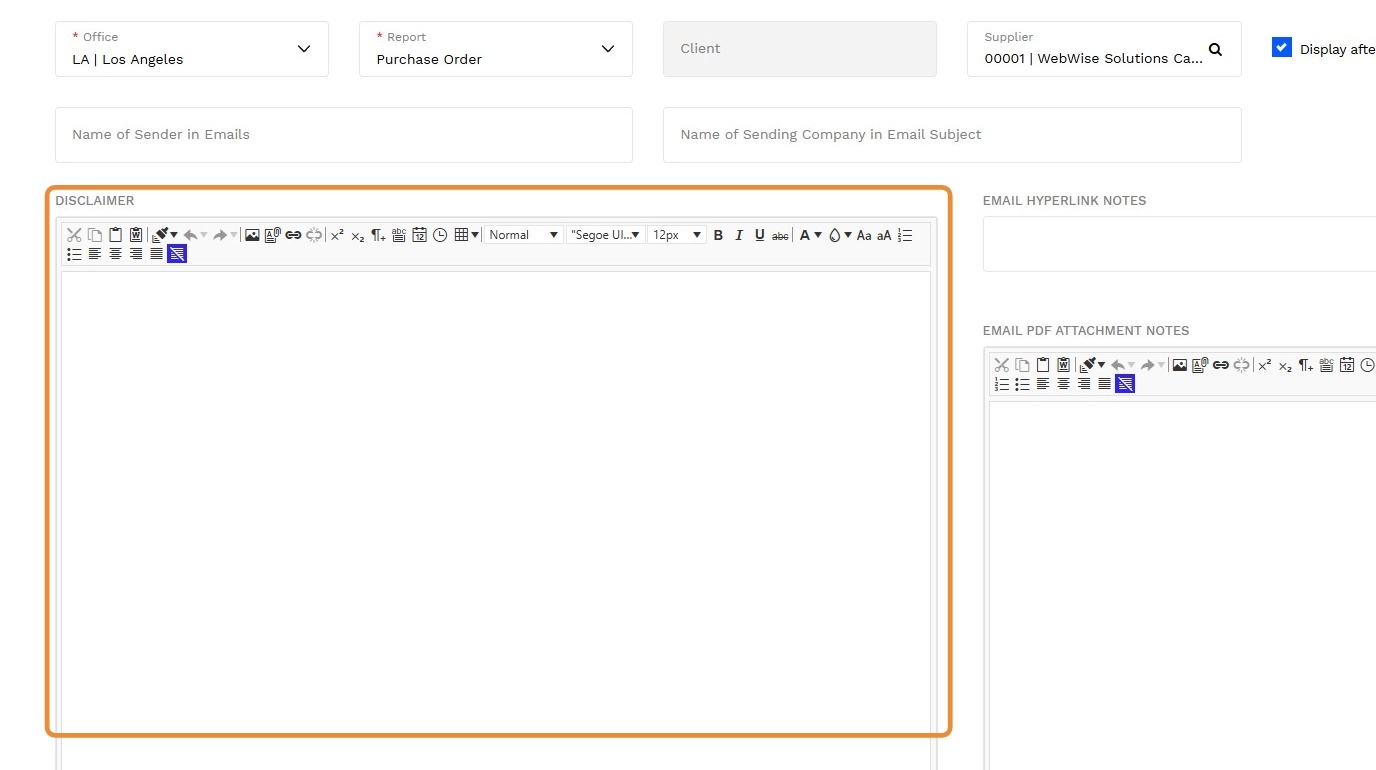
8. Enter the supplier specific text in the Disclaimer box
9. Click Save
Tip: Note - supplier specific disclaimers only appear on Purchase Orders