![AccountAbility_logo_primary_fullcolor-1.png]](https://knowledgebase.counta.com/hs-fs/hubfs/AccountAbility_logo_primary_fullcolor-1.png?height=40&name=AccountAbility_logo_primary_fullcolor-1.png)
Step by Step Guide:
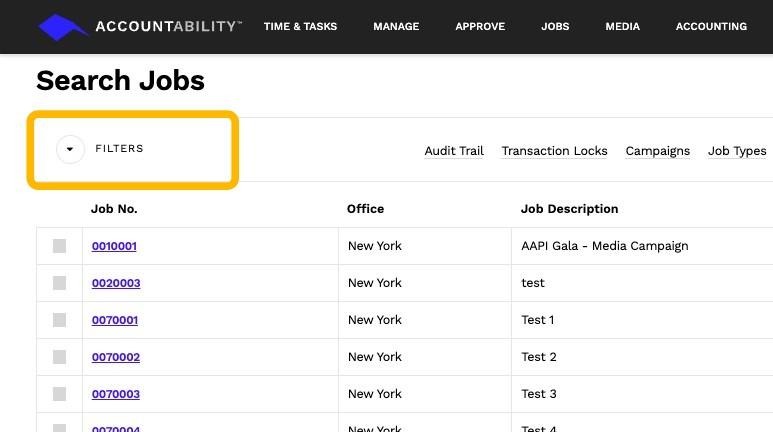
1. Locate the Filter Drop-Down:
- On the top-left corner of the screen, find the Filter drop-down menu.
2. Access Filtering Options:
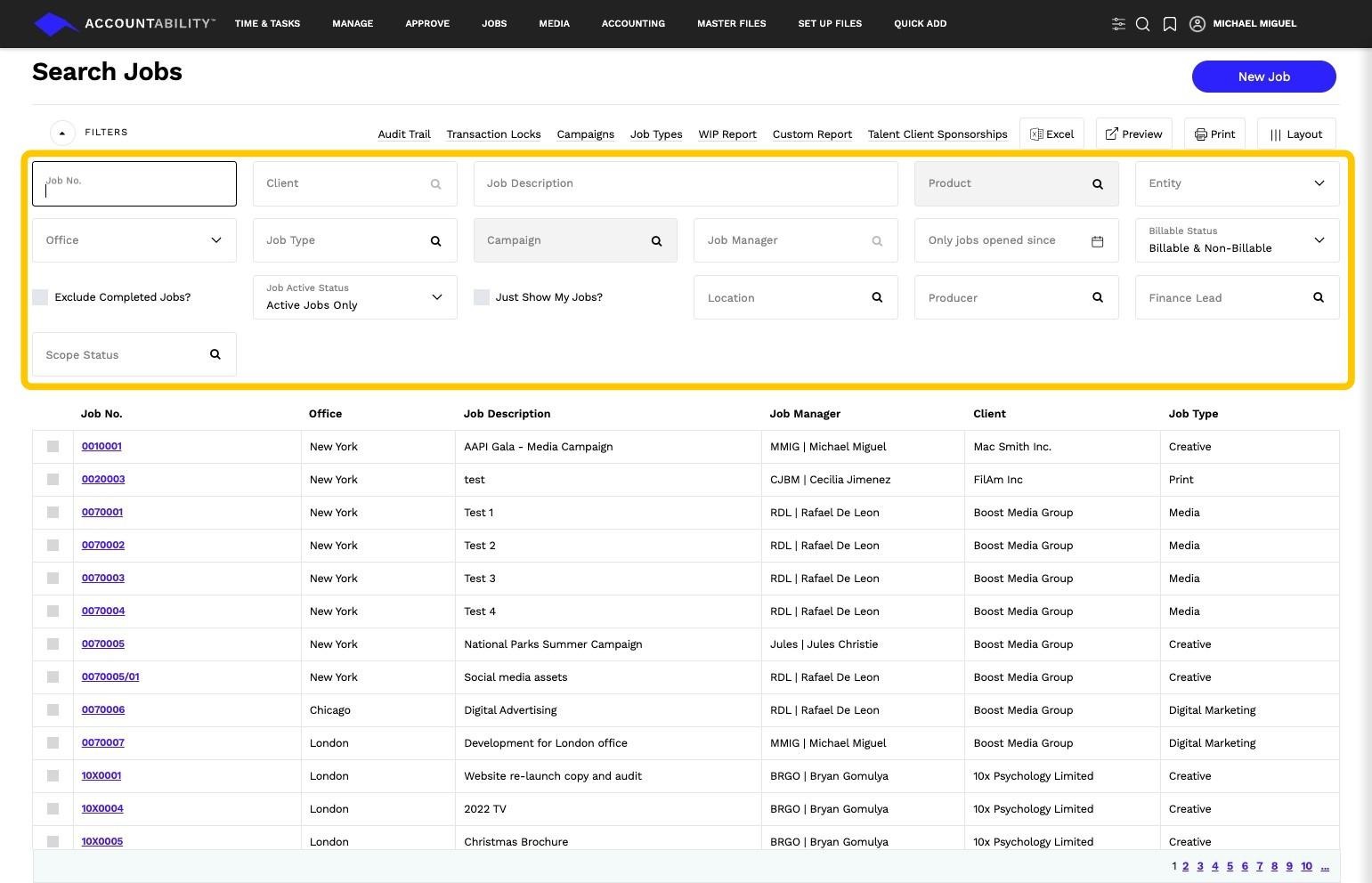
- Click on the filter drop-down to open a menu of key components specific to the page.
- Use the available options to refine your search.
- Example: On the Search Jobs page, you can filter by fields such as:
- Job No
- Client
- Description
- Example: On the Search Jobs page, you can filter by fields such as:
- These filter options are dynamic, changing depending on the page you are currently on.
3. Apply and Retain Filters:
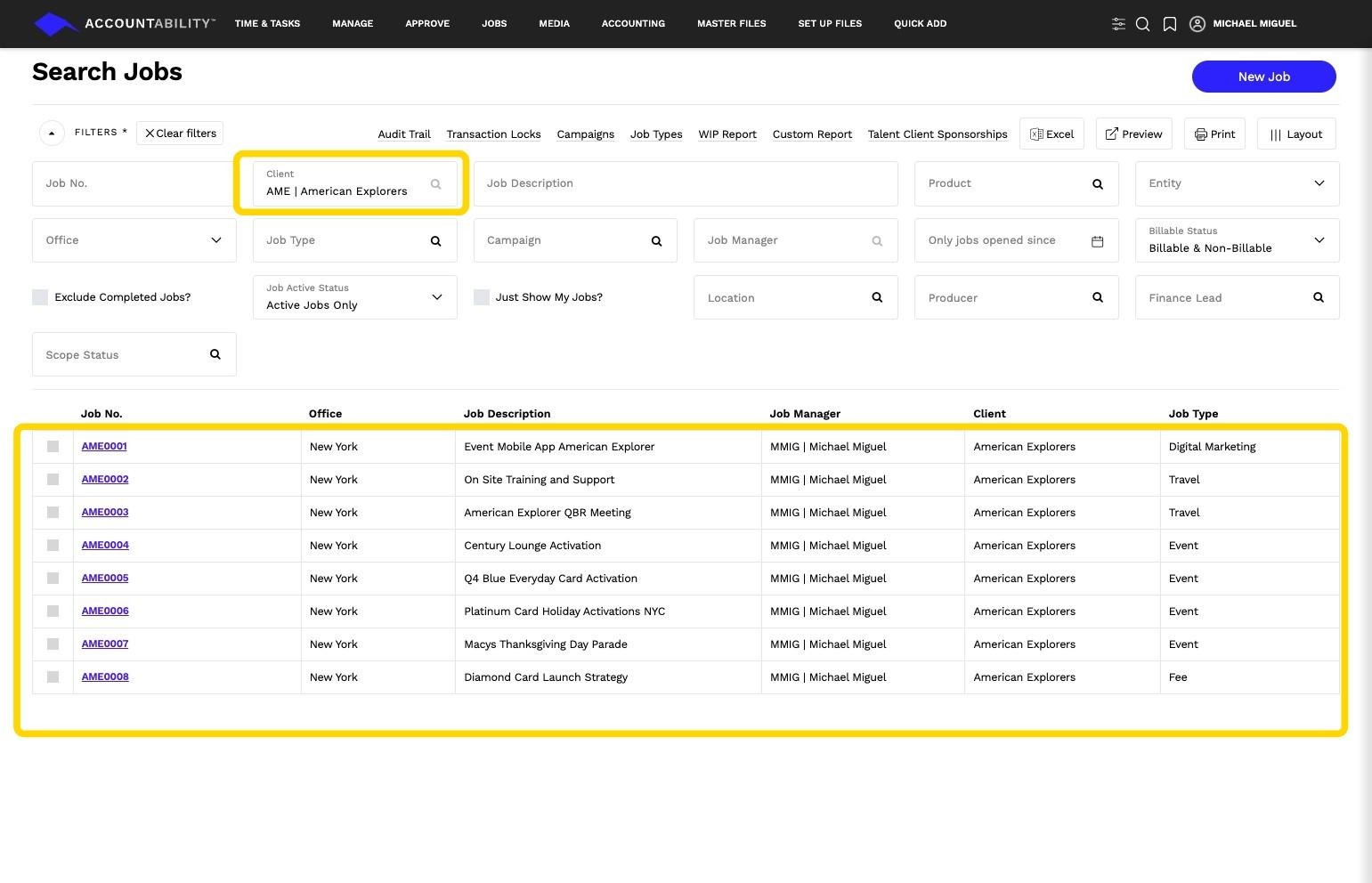
- Select your desired filtering criteria and apply the filter.
- Your selection will remain active (sticky), ensuring consistency the next time you return to the page or system.
Tip: ### Key Benefits of Filters
- Efficiency: Quickly find the data you need without scrolling through large datasets.
- Dynamic Options: Filter criteria are tailored to the specific page, ensuring relevance.
- Ease of Use: Sticky filters eliminate the need to reapply your preferences, saving time.
With the Filters feature, you can navigate Accountability’s system with precision and ease. For further questions or assistance, refer to the in-product help or contact your support team.