![AccountAbility_logo_primary_fullcolor-1.png]](https://knowledgebase.counta.com/hs-fs/hubfs/AccountAbility_logo_primary_fullcolor-1.png?height=40&name=AccountAbility_logo_primary_fullcolor-1.png)
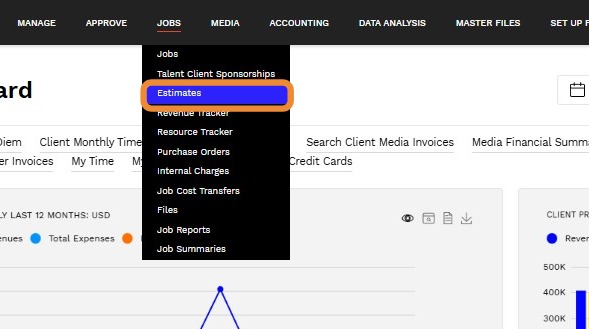
1. Navigate to JOBS > Estimates
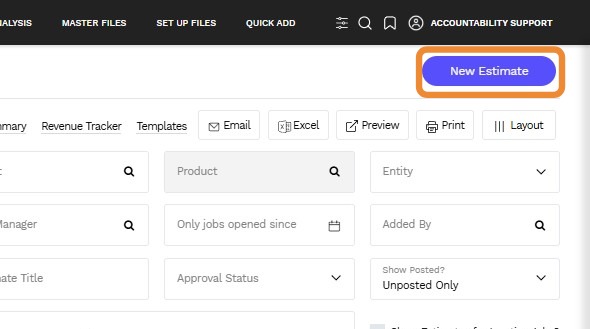
2. Click New Estimate to open the form.
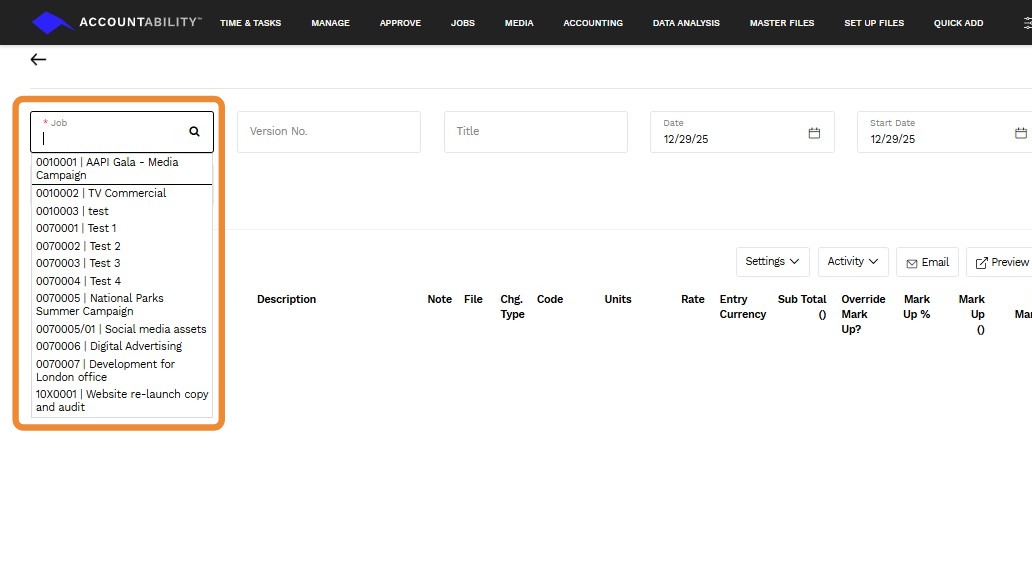
3. Enter a Job to populate the form.
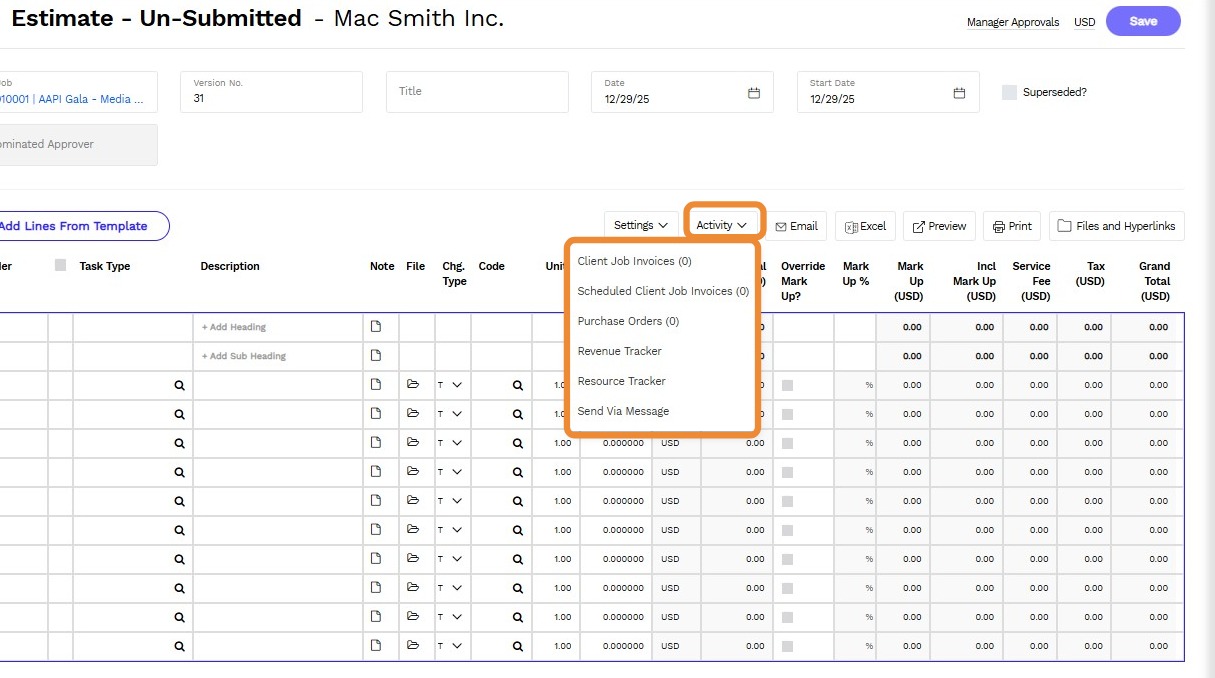
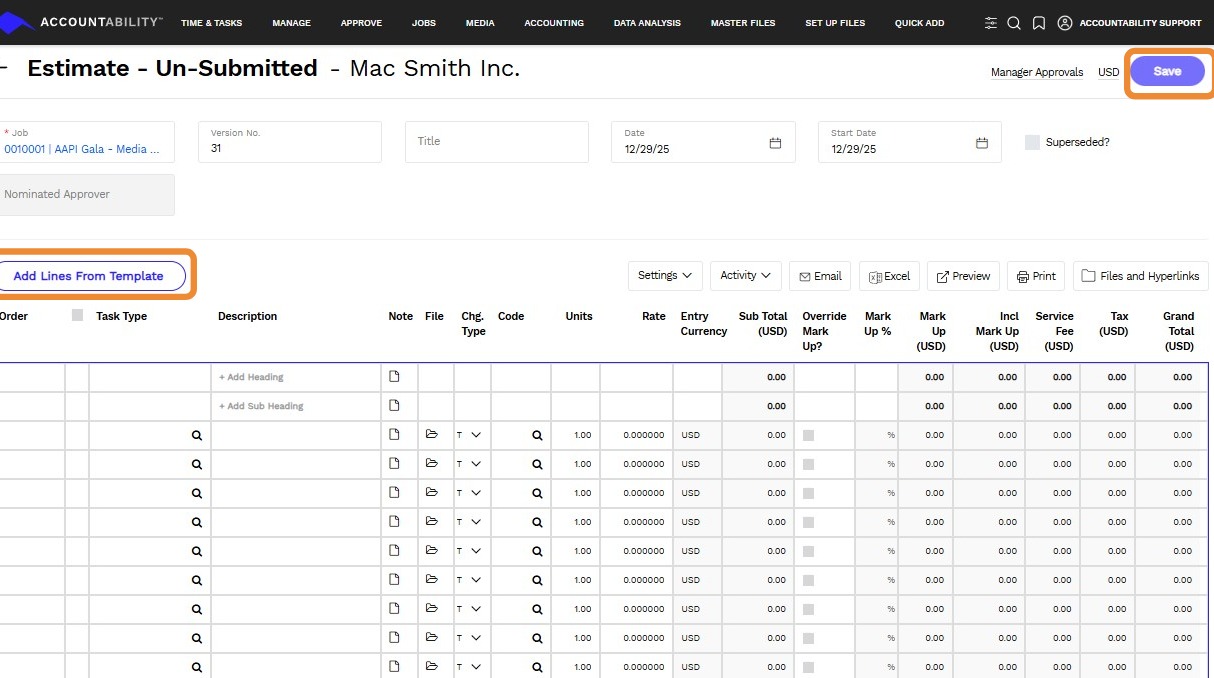
4. - Action Buttons:
- Save – Save the estimate.
- Add Lines From Template – Insert predefined template lines.
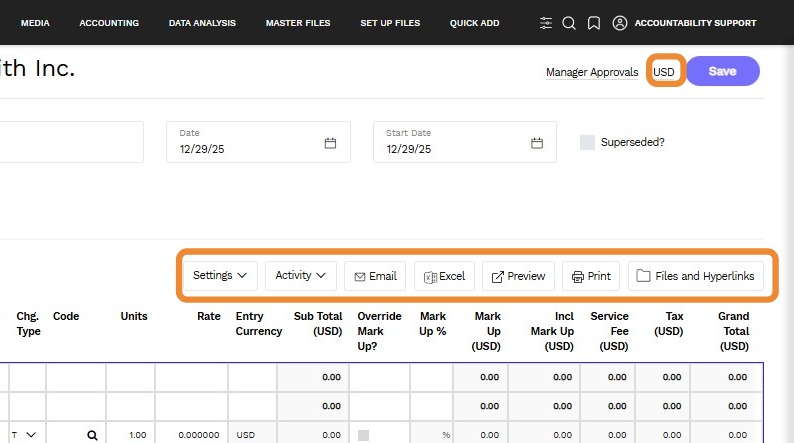
5. - Icons & Links:
- Currency – View/change currency.
- Settings – Access estimate settings.
- Activity – View related estimate activities.
- Email – email the estimate to a contact.
- Excel – Import/export data.
- Preview – Generate a PDF preview.
- Files & Hyperlinks – Attach supporting documents.
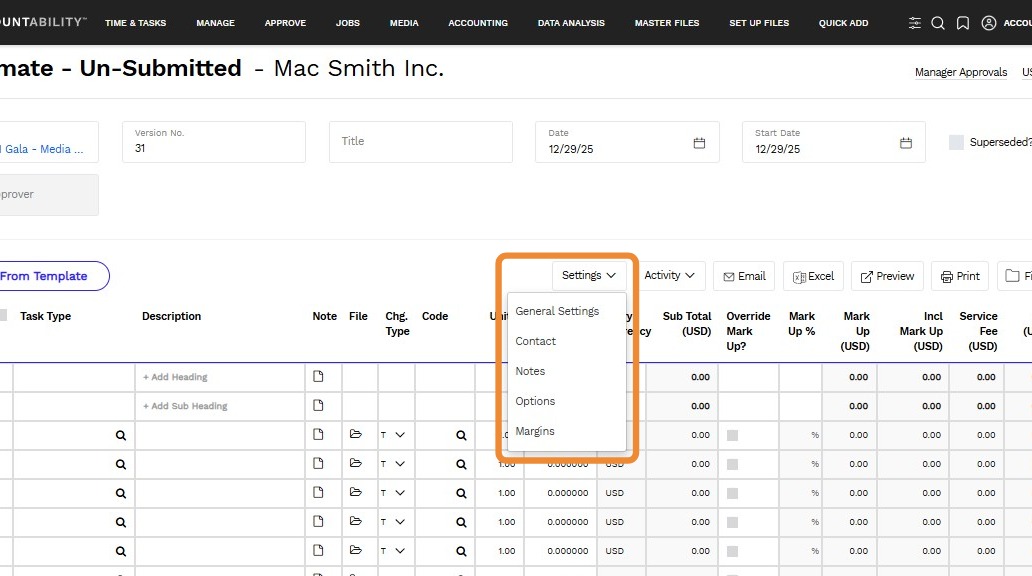
6. Settings Dropdown Menu:
- General Settings
- Contact
- Notes
- Options
- Margins
7. Activity Dropdown Menu:
- Client Job Invoices - View or create invoices associated with the estimate.
- Scheduled Client Job Invoices - Schedule billing for approved estimates over multiple months.
- Purchase Orders - Generate purchase orders directly from the estimate for supplier-related tasks.
- Revenue Tracker - Monitor revenue projections and allocations tied to the estimate.
- Resource Tracker - Track resource planning and staff allocation based on estimate details.
- Send via Message - Share the estimate with clients or internal teams via message.