![AccountAbility_logo_primary_fullcolor-1.png]](https://knowledgebase.counta.com/hs-fs/hubfs/AccountAbility_logo_primary_fullcolor-1.png?height=40&name=AccountAbility_logo_primary_fullcolor-1.png)
Access to the Yapily banking integration is included with eligible Platform subscriptions. To confirm whether your agency can activate it, contact your Account Lead or submit a support request within the platform.
Overview
Counta's integration with Yapily automates the delivery of bank statements and credit card transactions from financial institutions in the UK and Europe.
The integration streamlines the following functions in the system:
- Bank Reconciliation matching function, automating the matching of cash transactions in the GL with the bank statement transactions from the feed.
- Corporate Credit Card function, allowing Corporate Credit Card holders to view card expenses shortly after they're posted for timely review and submission.
Supported countries
You can create a Yapily token for banks in the following countries:
Austria, Belgium, Denmark, Estonia, Finland, France, Germany, Iceland, Ireland, Italy, Latvia, Lithuania, Netherlands, Norway, Portugal, Spain, Sweden and the United Kingdom.
About Yapily
Yapily is an open banking infrastructure provider. It supplies the secure connection between Counta and your bank, so that transactions arrive in the system automatically rather than being imported or entered manually.
You will not use Yapily directly. Once a connection is authorised, all of your work happens inside Counta. Yapily maintains the link to your bank in the background.
Before you begin
The person creating the token must have access to the bank account being connected, and to the device that will be used for authentication. Partway through, your bank will ask you to authorise the connection, either by scanning a QR code with your phone to approve in your banking app, or by logging in through the browser. The person setting this up in Counta needs to be able to complete that step.
Note that the connection needs to be renewed on a schedule. See section 3.
Set up the automated bank feeds
There are two steps involved in setting up the automated bank feed:
- Creating a token to authenticate with your bank. This also activates the Yapily integration.
- Linking the accounts associated with the token to the relevant GL bank accounts or credit card holders.
Create a token to authenticate with your bank
- From the main navigation bar, go to SET UP FILES > Company Settings.
- Click the API Integrations hyperlink on the top right-hand side of the page.
- Select Yapily Banking System Tokens from the list of integrations.
- Click New Token. The Select a country to create token window opens.
- Select the country your bank operates in, for example GB - United Kingdom, and click OK. This filters the list of banks you can choose from in the next step. Note that banks in the United Kingdom and banks elsewhere are on different renewal schedules, described in section 3.
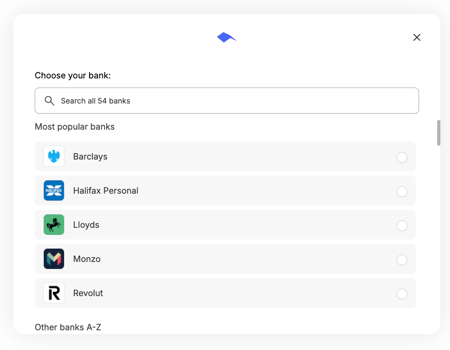
- On the Choose your bank screen, select your bank from the list of most popular banks, or use the search box to find it.
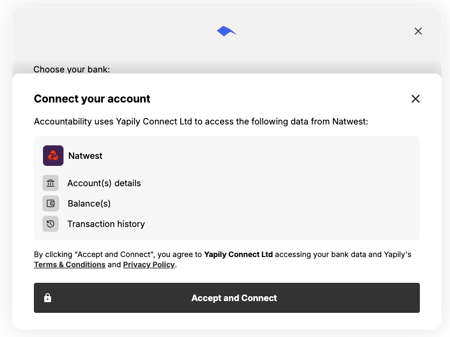
- The Connect your account screen confirms what Counta will be able to access through Yapily Connect Ltd:
- Account details
- Balances
- Transaction history
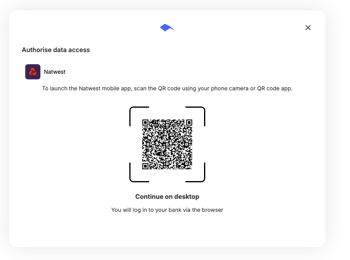
- On the Authorise data access screen, complete your bank's own authorisation. Depending on your bank you can either:
- scan the QR code with your phone to authorise in your banking app; or
- select Continue on desktop to log in to your bank through the browser.
- Complete your bank's login and approve the data sharing request. Some banks will ask you to confirm which accounts to share at this point. If yours does, select all accounts you want fed into Counta.
- Once authorisation is complete, click the eye icon against the token to verify that the linked accounts appear under the integration connection.
- Repeat these steps for any additional banks.
Note that the token returns all accounts associated with the credentials you use. Before you start, check what those credentials give access to. If they also reach personal accounts or accounts belonging to other entities, those will be included in the connection even though you do not link them to a GL account.
Link the authorised accounts from the token to your GL bank accounts
Once you have successfully created the banking tokens, you need to connect your bank accounts and credit cards to those automated feeds.
- Navigate to Accounting > General Ledger > General Ledger Accounts and open the relevant GL account for the bank account.
- The Integration Bank Account field will have a drop-down list of the accounts connected. Select the account that should be linked to this GL account. The bank account number, except for the last 4 digits, is masked.
- Set the Integration Start Date. The Integration Start Date is the date from which you want to begin receiving data. Most clients choose the first day of a month, which keeps the feed aligned with your accounting periods and makes reconciliation cleaner. Choose a date from which you have not already entered transactions manually; otherwise, you may find the same transactions arriving twice.
- Save the GL account record.
- Repeat for any additional bank accounts
Link the authorised accounts to credit card holders
You need to create a Credit Card Holder for each credit card account.
- Navigate to Manage > Manage Credit Cards.
- Click the Credit Card Holder hyperlink.
- Click New Credit Card Holder.
- Enter the relevant details, including CARD HOLDER NAME, CARD HOLDER NUMBER, CARD TYPE, MASTER SUPPLIER, EMPLOYEE, and CURRENCY. We recommend masking the cardholder number.
- Link the relevant credit card account in the Integration Bank Account choose the corresponding Account Owner from the list of cardholders.
- Set the Integration Start Date. The Integration Start Date is the date from which you want to begin receiving data. Choose a date from which you have not already entered transactions manually; otherwise, you may find the same transactions arriving twice.
- Repeat for any additional cardholder.
Checking that transactions are arriving
What to expect:
Transactions are typically synced from your bank 24-48 hours after token creation and account linking.
For bank accounts, transactions appear on the bank reconciliation screen for the relevant GL account.
For credit cards, there are two ways to check:
- Go to the Manage > Credit Cards screen, where credit card transactions fed into the system appear.
- An employee set up as a credit card holder can log in and navigate to their My Corporate Credit Card screen, where their own transactions will appear.
Keeping your connection active
Open banking connections are time-limited. Each connection has an expiry date, and if it passes without being renewed, the automated feed stops until you re-authenticate. No transactions are lost while a connection is expired: once you renew, syncing resumes.
| Where your bank is | What is required | How often |
|---|---|---|
| United Kingdom | Refresh the existing connection. You will not need to log in to your bank again, and your accounts stay linked. | Every 90 days |
| All supported EU countries | Create a new token, log in to your bank again, and reconnect your accounts. | Every 180 days |
Knowing when a connection is due
The Expires At column on the Yapily Banking System Tokens screen shows when each connection expires.
Seven days before a connection expires, a warning appears on that screen and an email is sent to you with the subject "Action required", naming the institution and the expiry date. The email contains a direct link to renew.
If a connection does expire, syncing is suspended until you renew it. Transactions from the period while it was expired are not lost.
Refresh a United Kingdom connection
Connections to banks in the United Kingdom are refreshed every 90 days. This reconfirms your existing consent and sets a new 90-day expiry. You will not need to log in to your bank again, and your accounts stay linked.
Re-authenticate a connection in all EU supported countries
Connections to banks outside the United Kingdom cannot be refreshed. Every 180 days, you need to create a new token, which means going back through your bank's authorization, including logging in and verifying your identity.
Creating a new token does not carry over the links to your accounts, so you also need to reconnect them
If you have several bank accounts and credit cards, allow time for this when you renew rather than leaving it until month end.
Revoke consent
Select Disconnect against a connection you no longer need. This withdraws your consent with the bank and stops all future syncing. Transactions already imported are kept, but the connection is removed from the account records it was linked to, so you will need to set those up again if you reconnect later.
You can also withdraw your consent directly with your bank. If you do, the connection in Counta will show as revoked.
Security and compliance
Counta's open banking integration is powered by Yapily. Counta Access UK Limited is registered as a PSD Agent of Yapily Connect Ltd, enabling secure access to banking data through regulated open banking APIs with customer consent. European connections are made through Yapily Connect UAB, which is authorised by the Bank of Lithuania.
When connecting a bank account, you authenticate directly with your financial institution through the bank's own secure login and authorisation process. Counta does not ask for, collect or store your online banking usernames, passwords or security credentials.
Access to banking data is granted by you through the open banking consent process and can be revoked at any time. Once authorised, Counta retrieves account and transaction data through regulated open banking APIs without requiring direct access to your online banking credentials.